Skip to content

Charts

This guide covers the charting features available on the Tradejini CubePlus web and mobile platforms. With CubePlus charts, you can perform technical analysis, place trades, and monitor your positions without switching away from the chart.

1. Overview — TradingView Integration on CubePlus

Tradejini CubePlus has TradingView’s charting library embedded directly into the platform, giving every user access to professional-grade charts. Because TradingView is natively integrated into CubePlus, users are not limited by the restrictions of a free TradingView.com account. Several charting capabilities that TradingView reserves for paid plans are available to CubePlus users at no additional cost.

Capability Comparison
Indicators per chart CubePlus — 100+ indicators, unlimited combinations on every chart compared to 2 indicators on TradingView's free Basic plan.
Custom timeframes CubePlus — Any custom interval, free for all users. You can choose 1 min, 1 hr, 4 hrs, 1 day, etc.
Drawing tools CubePlus — 30 drawing tools included.
Trading integration CubePlus — Buy/Sell, Market Depth and margin, live on the chart.

2. Accessing Charts

From the Web App

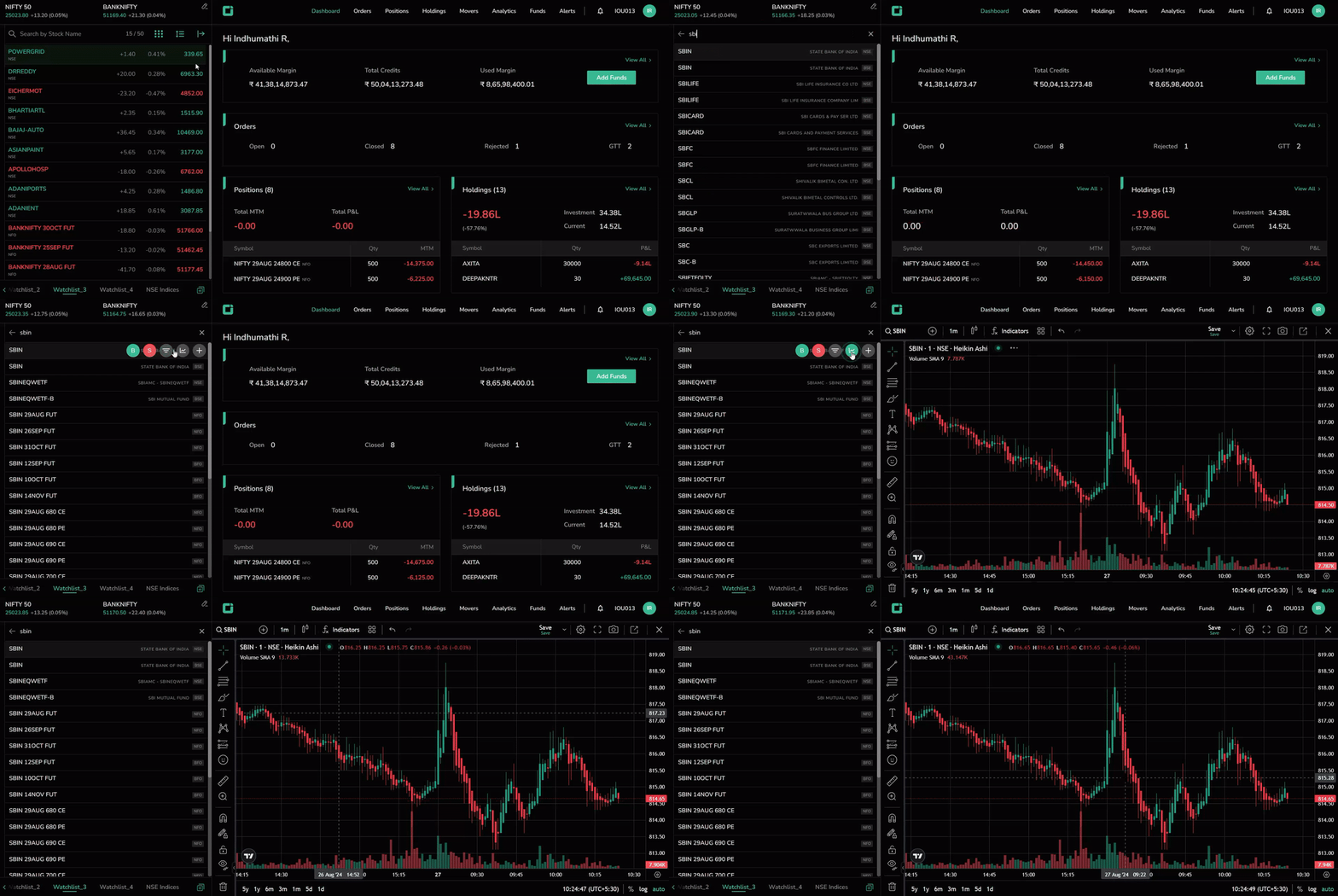
There are two ways to open a chart on the web:

  1. Hover over any instrument row in Market Watch and click the chart icon that appears.
  2. Type the instrument name directly into the chart's search bar to jump straight to its chart.

Accessing Charts

From the Mobile App

Tap on an instrument to open its Quote Overview screen, where a chart preview is shown automatically. Tap the chart icon on that screen to open the full chart view.

Working with Multiple Symbols

You can open several instruments at once — each one opens in its own tab, with the symbol name shown on the tab, so you can switch between charts you're tracking without losing your setup on any of them.

Working with Multiple Symbols


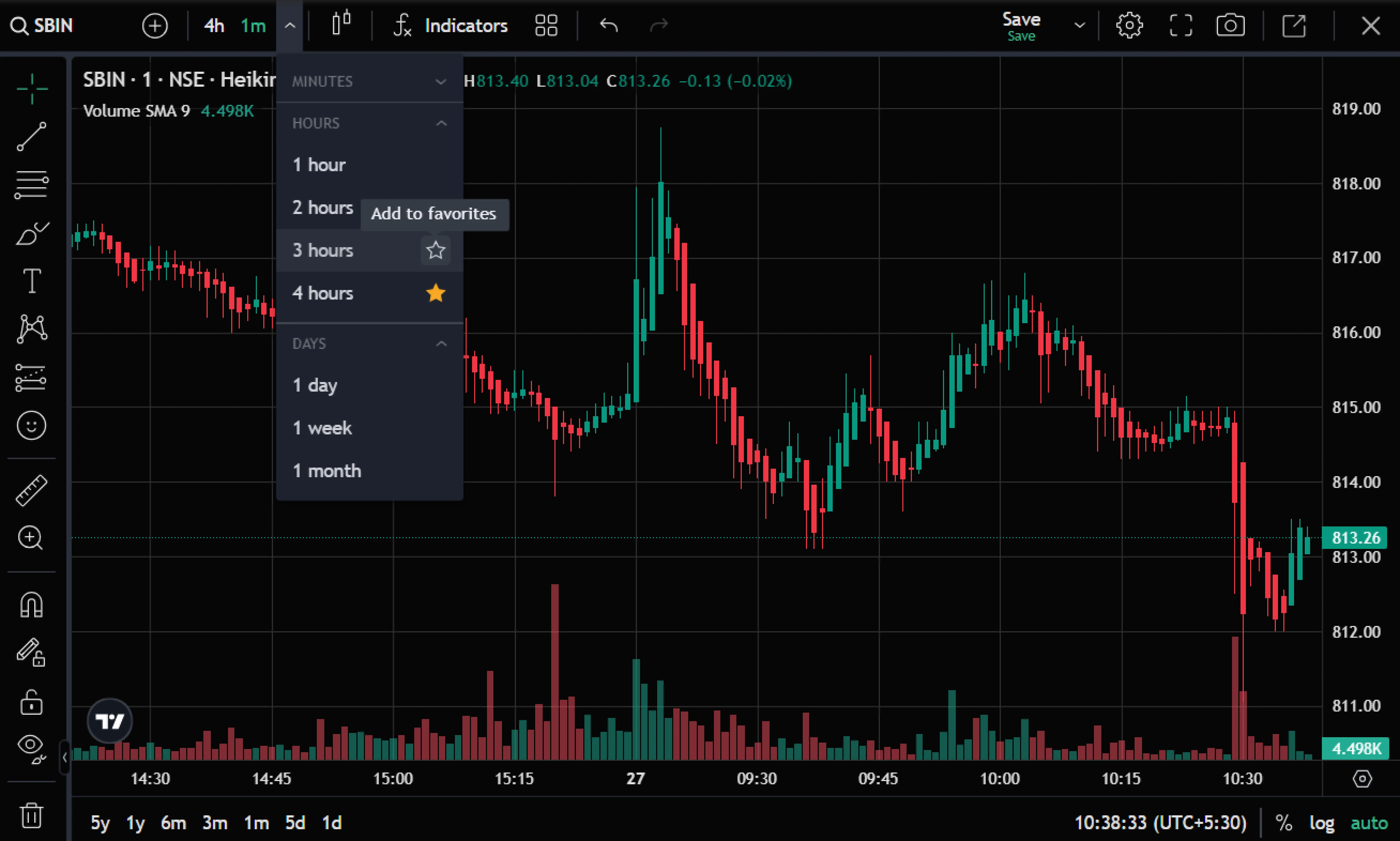
3. Chart Timeframes

Every chart opens on the Daily timeframe by default, and can be switched instantly to whichever interval suits the analysis.

Available Ranges

  • Intraday: 1 minute up to 4 hours
  • Historical: Days, weeks, and months
  • Overall chart range: 1 day to 5 years, with bars/candles from 1 minute to 1 month

Custom Intervals

Standard intervals (1-minute, 5-minute, 15-minute, 1-hour, etc.) are available on any plan, but CubePlus also lets you define your own custom interval — for example a 7-minute or 3-hour candle — at no extra cost. On TradingView.com's free plan, this is a paid-plan-only feature.

  1. Click the timeframe selector at the top of the chart.
  2. Choose “Add custom interval”.
  3. Select the interval type (minutes, hours, days, weeks or months) and enter the interval value.
  4. Click Add — the new interval is saved to your timeframe list for future use.

Chart Timeframe


4. Chart Styles

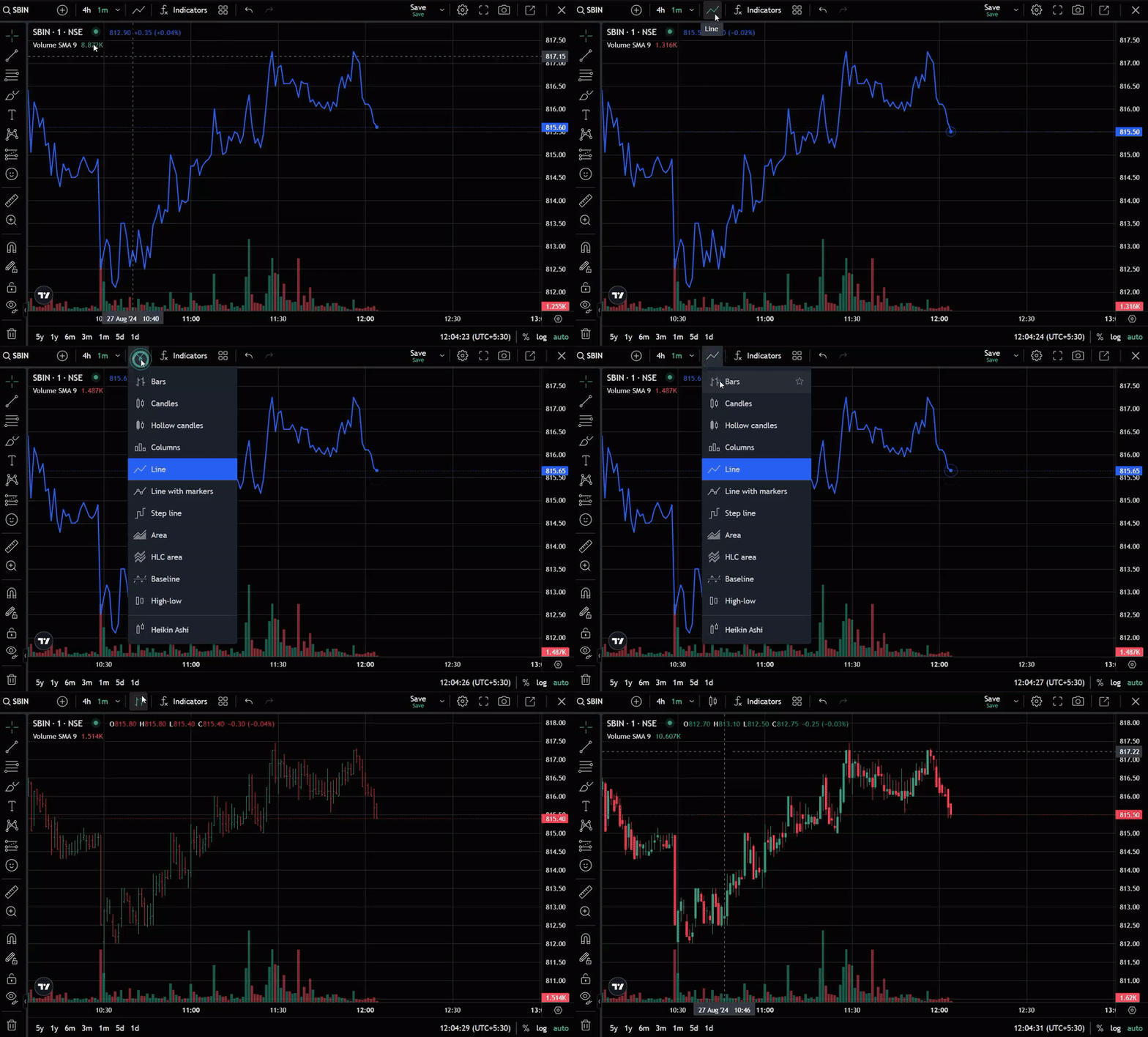
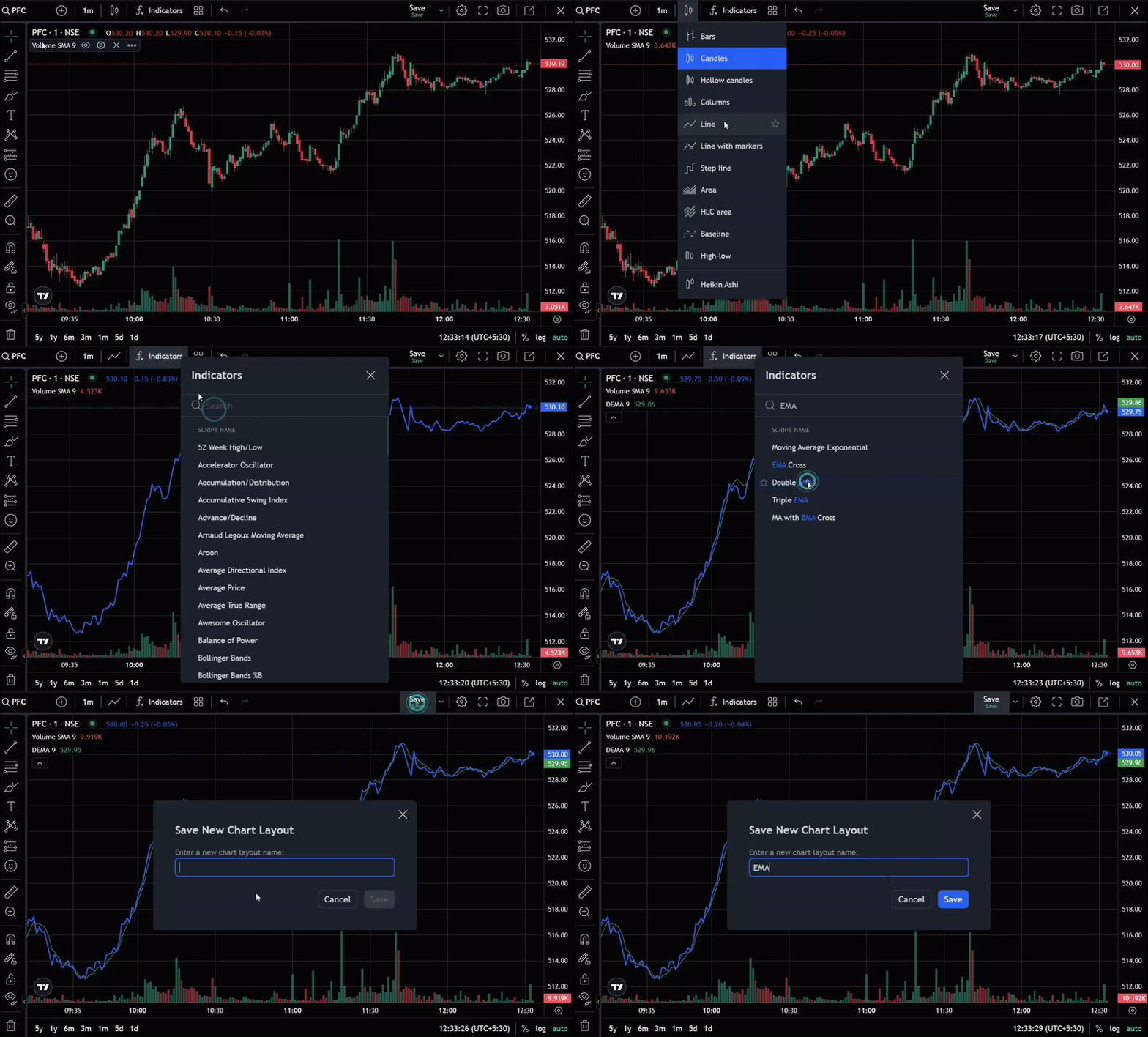
CubePlus offers 15+ chart styles, so you can view the same price data from whichever visual angle fits your analysis. Click the chart-style icon at the top of the chart to switch between them at any time.

Style Best used for
Candles The standard candlestick view — open, high, low, close per period.
Hollow Candles Candlesticks that show hollow/filled bodies based on close vs. previous close.
Volume Candles Candlestick width scaled to traded volume.
Bars / HLC Bars Classic OHLC bar chart.
Line / Line with Markers A simple line joining closing prices, with optional markers.
Step Line A line chart that moves in discrete steps rather than smooth diagonals.
Area / HLC Area A shaded area chart beneath the price line.
Baseline Colours price action above/below a chosen baseline value.
Columns Price shown as vertical columns.
High-Low Plots just the high/low range per period.
Heikin Ashi A smoothed candle style that filters noise to highlight trend direction.
Renko Brick-based chart driven purely by price movement, ignoring time.
Line Break Shows a new line only when price breaks the prior line's high/low.
Kagi Reversal-based chart using thick/thin lines to track trend changes.
Point & Figure X/O columns that filter out time and minor price noise, focused on significant reversals.

Each style emphasises a different aspect of price behaviour — trend-following styles like Renko, Kagi, and Point & Figure strip out time and noise, while Candles, Bars, and HLC retain full OHLC detail for each period.

Chart Styles


5. Technical Indicators & Strategies

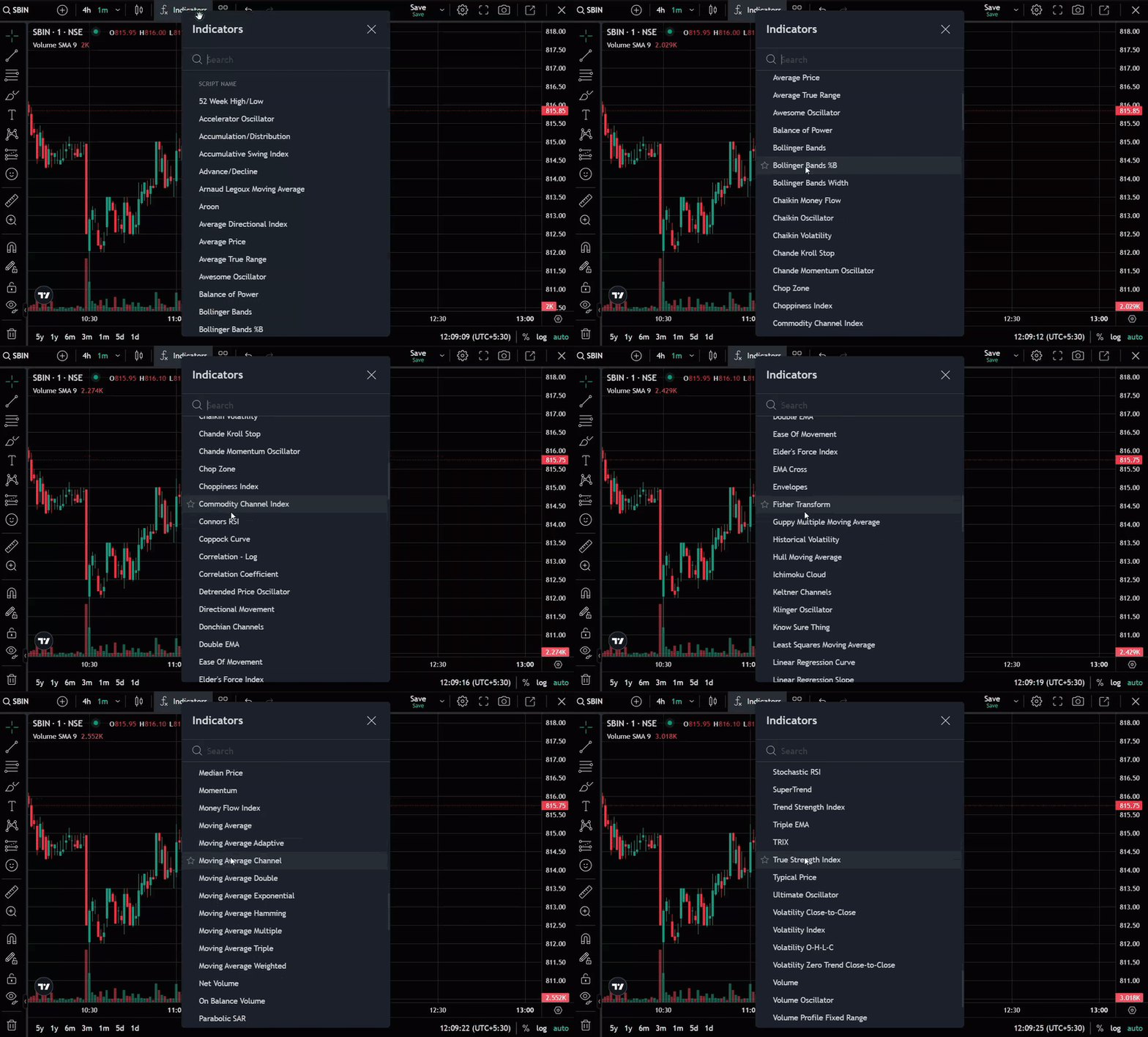
Technical indicators help you read trend, momentum, volatility, and volume behaviour directly on the price chart. CubePlus includes 100+ built-in indicators — RSI, MACD, Moving Averages (SMA/EMA), Bollinger Bands, and many more — and, unlike TradingView's free Basic plan (capped at 2 indicators per chart), you can combine as many as your analysis needs on a single chart.

Adding an Indicator

  1. Click the Indicators icon on the chart toolbar.
  2. Use the search bar to find the indicator you want by name.
  3. Select it to add it to your chart — it will apply to the current symbol and timeframe immediately.
  4. Repeat to layer multiple indicators (e.g., an overlay like Bollinger Bands plus separate panes for RSI and MACD).

Technical Indicators and Strategies

A commonly used setup combines a trend overlay with a momentum oscillator and a trend-confirmation indicator, for example:

  • 20 EMA and 50 SMA — Trend direction and crossovers, plotted on price.
  • RSI — Overbought/oversold momentum, in its own pane.
  • MACD — Trend strength and momentum shifts, in its own pane.

Once you've built a combination you like, save it as a template (Section 7) so you don't have to re-add each indicator every time you open a new chart.


6. Drawing Tools

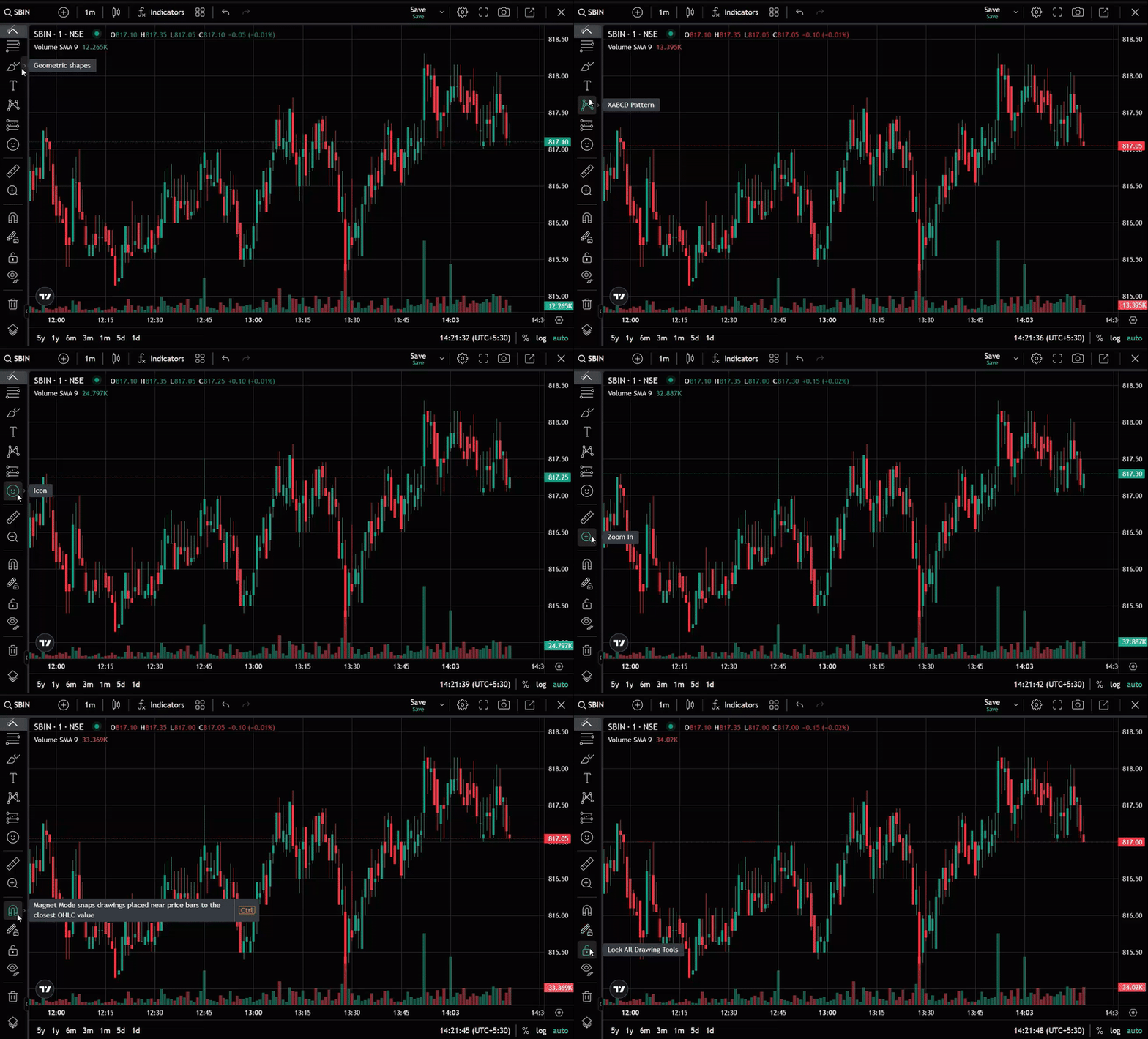
Drawing tools let you mark up a chart directly — support/resistance, trendlines, Fibonacci retracements, channels and more — so technical analysis can be done without a separate charting subscription. CubePlus provides 30 drawing tools in total, accessible from the toolbar on the left edge of the chart.

Tool Groups

  • Lines: Trend Line, Ray, Info Line, Extended Line, Trend Angle, Horizontal Line, Horizontal Ray, Vertical Line, Cross Line
  • Channels: Parallel Channel, Regression Trend, Flat Top/Bottom, Disjoint Channel
  • Pitchforks: Pitchfork, Schiff Pitchfork, Modified Schiff Pitchfork, Inside Pitchfork
  • Fibonacci: Fib Retracement and related Fibonacci-based tools
  • Patterns: Chart pattern annotation tools
  • Volume Based: Anchored VWAP, Fixed Range Volume Profile
  • Positions: Long Position and other position/profit annotation tools
  • Other tools: Cross, Icon, Measure, Zoom In, Magnet Mode

Drawing Tools

Drawing Mode Controls

Three additional controls make repeated drawing and chart cleanliness easier:

  • Stay in drawing mode: Keep the selected tool active so you can draw multiple objects in a row without reselecting it.
  • Lock all drawings: Prevent existing drawings from being accidentally moved or edited.
  • Hide all drawings: Temporarily hide every drawing on the chart to view raw price action, without deleting them.
  • Magnet Mode: Automatically snaps your drawing points to the nearest OHLC value, which makes trendlines and levels land precisely on candle highs, lows, opens or closes.

7. Saving Indicator Templates

If you use the same set of indicators for every chart you analyse, you don't need to rebuild it each time. CubePlus lets you save your current indicator combination as a reusable template.

  1. Set up your chart with the indicators you want (e.g., 20 EMA, 50 SMA, RSI, MACD).
  2. Click the Save icon on the chart toolbar.
  3. Name your template.
  4. Choose whether the template should also remember the symbol and interval it was created on.
  5. Apply the saved template to any chart going forward, in one click, instead of re-adding each indicator.

Save Indicator Templates


8. Auto Save Layout

Beyond individual indicator templates, CubePlus can remember your entire chart workspace — layout, indicators, drawing tools and settings — so it's restored automatically every time you open a chart.

  • Turn on Auto Save Layout from the chart toolbar to have your current setup saved as the default.
  • Every chart you open afterward loads with that same layout, so you don't have to recreate your workspace from scratch.
  • Deleting your default layout clears the saved indicators and templates, resetting charts to a blank default view.

Auto Save Layout


9. Chart Settings

The Settings panel (gear icon) gives fine-grained control over how the chart looks and what information it displays.

Setting What it controls
Symbol Customize the price source used for plotting, the line/candle colour, decimal precision, and the timezone the chart is displayed in.
Status Line Choose which details (OHLC values, symbol name, indicator values, etc.) are shown in the status line at the top-left of the chart.
Scales Control which labels appear on the price scale — last price, high/low, pre-market levels, and more — via checkboxes.
Canvas Adjust the chart's basic visual styling — background, grid lines and general canvas appearance.

Chart Settings


10. Adding Price Alerts

You can set a price alert directly from the chart, without navigating to a separate alerts screen.

  1. Right-click anywhere on the chart, at the price level you want to be notified about.
  2. Select “Add Alert” from the context menu.
  3. Confirm the alert — it is created for the exact price level you clicked.
  4. The Alert price can be modified by simply moving the alert price window on the chart.

Once set, CubePlus notifies you when the market reaches that level, so there's no need to keep the chart open and watch it manually — set the alert and let the platform do the watching.

The right-click menu also gives quick access to Reset chart view, Copy price, Paste, Trade, Lock vertical cursor line by time, Remove indicators, and Hide marks on bars — all without leaving the chart.

Adding Price Alerts


11. Other Chart Features

  • Full-screen mode: Expand the chart by clicking the expand icon, or with the keyboard shortcut Shift+F.
  • Screenshot: Capture the current chart view instantly by clicking the camera icon.
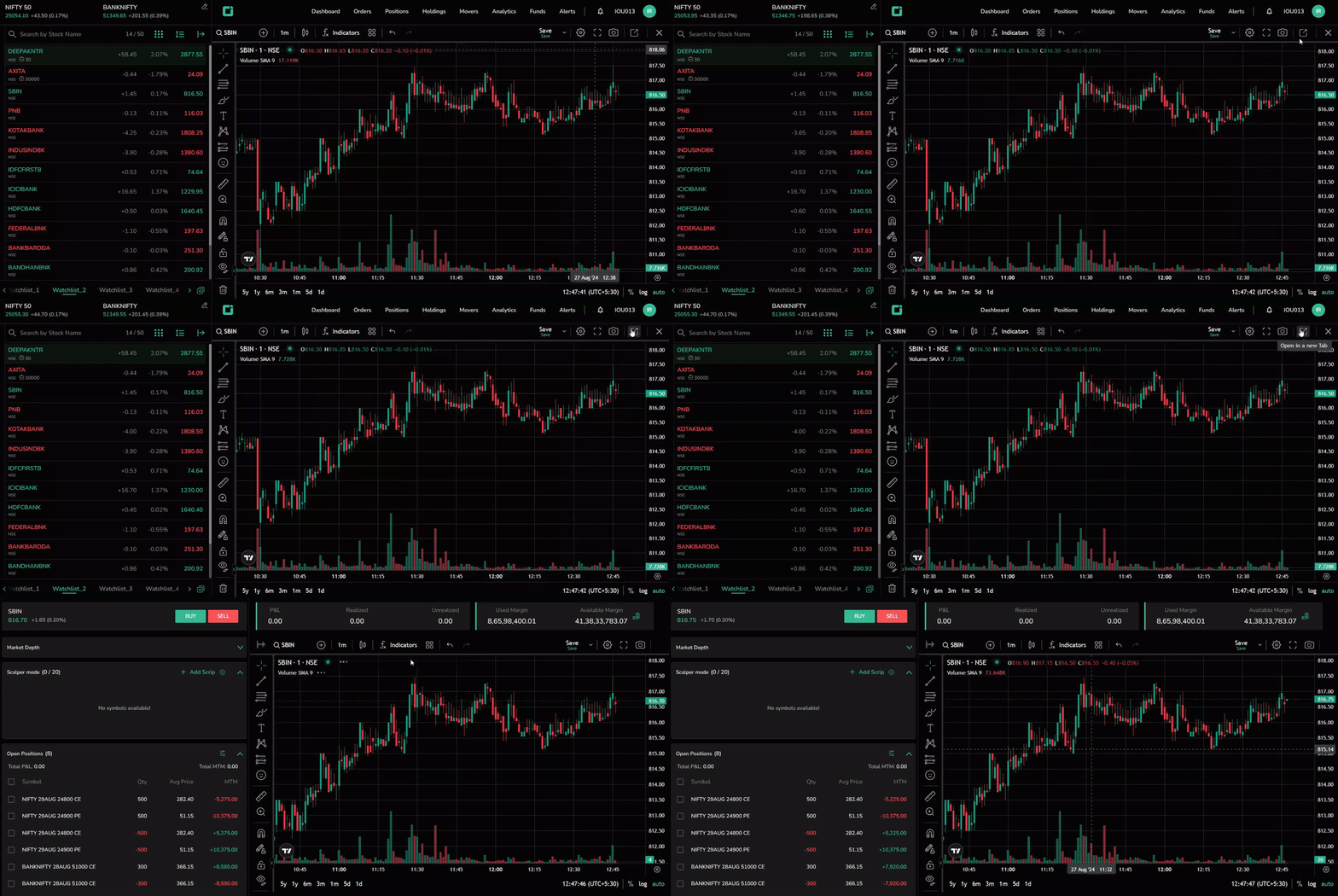
  • Open in a new tab: Pop the chart out into its own browser tab, from where you can also place Buy/Sell orders directly.

Other Chart Features


12. The Chart Terminal

The Chart Terminal is CubePlus's expanded charting workspace — it brings full charting and full trading together on one screen, so you can analyse and execute without switching between screens.

Opening the Chart Terminal

  • Click the chart icon in Market Watch to open the chart, then click the expand icon to switch to the Chart Terminal view.
  • Alternatively, tap “More” in the watchlist and select “Chart Terminal” for the same expanded view.
  • Multiple symbols can be open at once, each shown on its own tab within the Terminal.

Chart Terminal

The sidebar shows the symbol name and expiry (for Futures/Options), along with live price, price change and percentage change. From here you can:

  • Click Buy or Sell to open the order pad, with full order functionality available inline.
  • Click the arrow next to Market Depth to view live bid/ask depth data.
  • Review Open Positions, Closed Positions and Open Orders for the symbol.

P&L, Margin and Funds

The Terminal also surfaces account information alongside the chart, so you always know where you stand while analysing:

  • P&L, Realized and Unrealized: Shown for any open positions in the symbol.
  • Used Margin and Available Margin: Displayed above the chart, with a Fund icon to add funds directly from the Terminal, without navigating away.

Order Types Available on the Chart

Trades can be placed directly from the Chart Terminal using:

  • Product types: Delivery, Intraday, CO (Cover Order) or BO (Bracket Order)
  • Order types: Limit, Market, SL (Stop-Loss) and SL-M (Stop-Loss Market)

Market Depth, Bid/Ask prices, Open, High, Low, Volume, LTP (Last Traded Price), Average Trade Price, required margin and charges are all visible alongside the order pad, so the full trade decision can be made without leaving the chart.

Expanding the Chart

Collapse the sidebar using the collapse icon to expand the chart itself to full screen for a cleaner, distraction-free analysis view.


13. OI Profile

OI Profile displays strike-wise Open Interest directly on the price chart, helping you identify potential support and resistance zones.

  • Track how OI changes at different strikes to understand where positions are being added or unwound.
  • This provides a real-time view of intraday positioning and directional bias, complementing price action for better trade decisions.

OI Profile


14. Scalper Terminal

The Scalper Terminal brings the underlying, Call, and Put charts together in a single view, making it easy to analyse and act on the market. You can also choose whichever script you want to watch.

  • Monitor positions, P&L, market depth, used margin and available margin without switching screens.
  • Execute trades instantly with one-tap Buy/Sell buttons or directly from the charts.
  • Manage open positions and track your P&L in real time from the same interface.
  • It is a one-stop solution for analysis, execution, position management, P&L tracking and margin monitoring.

Scalper Terminal


15. GTT Orders from Chart

  • Create a GTT (Good Till Triggered) order directly from the chart by right-clicking at the desired price and selecting the GTT order option.
  • Once created, the GTT order is displayed on the chart as an order box for easy identification.
  • You can modify the trigger price directly on the chart using drag-and-drop, making order management quick and intuitive.

GTT Orders from Chart


16. Trade on Charts

  • Execute trades at market price directly from the chart using the Buy/Sell buttons at the top-left corner.
  • You can also right-click at any price level on the chart to choose Buy or Sell, with the selected chart price automatically used as the order level.
  • This enables fast and precise trade execution directly from the chart, without leaving your analysis screen.

Trade on Charts


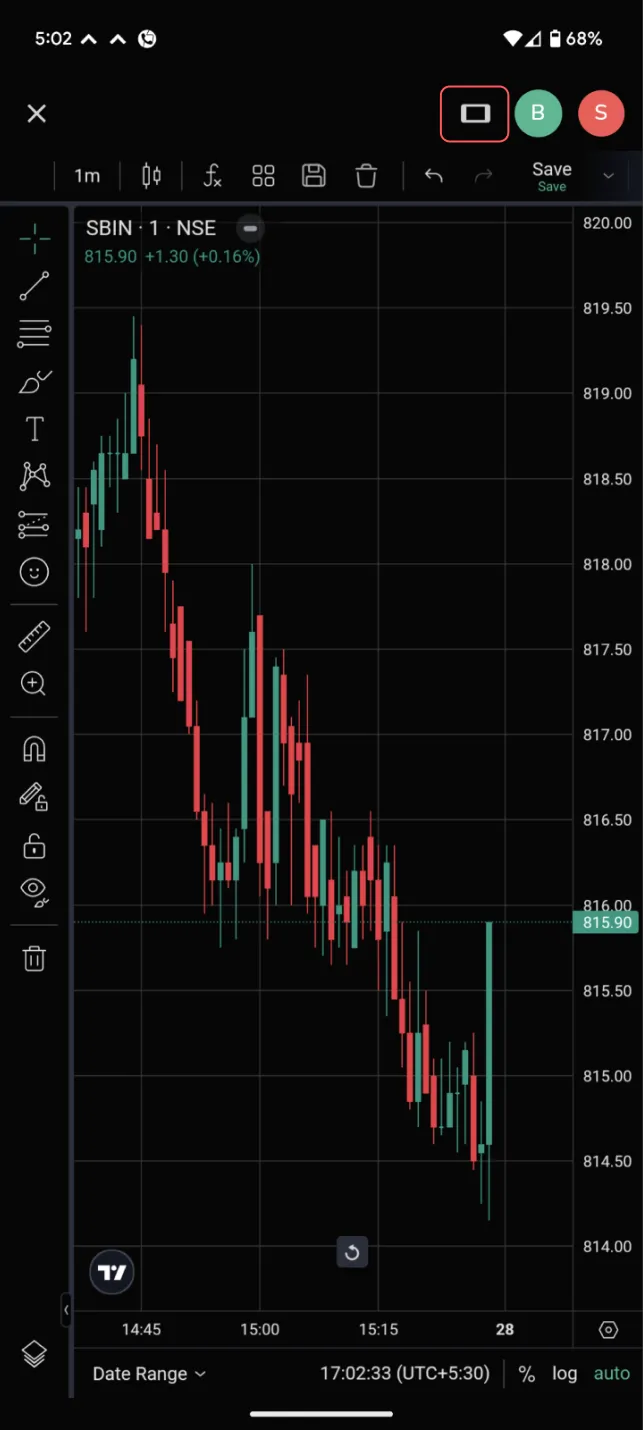
17. Charts on Mobile

  • A chart preview appears automatically on the Quote Overview screen for any instrument — tap the chart icon to open the full chart.
  • Buy and Sell actions are accessible directly from the charts screen, so trades can be placed without leaving the chart view.
  • Tap the mobile/rotate icon to switch the chart into landscape view for a larger, more detailed view of price action.

Horizontal Chart


18. Quick Reference

Action How
Open a chart Hover over instrument in Market Watch → chart icon (web); tap instrument → chart icon (mobile)
Change chart style Click the chart-style icon at the top of the chart
Add an indicator Click Indicators icon → search → select
Add a custom timeframe Timeframe selector → Add custom interval → set type & value → Add
Save indicator template Set up indicators → Save icon → name template
Save default layout Enable Auto Save Layout on the chart toolbar
Set a price alert Right-click chart at desired price → Add Alert
Full-screen chart Expand icon, orShift+F
Screenshot chart Camera icon on chart toolbar
Open Chart Terminal Expand icon on chart, or watchlist → More → Chart Terminal
Place a trade from the chart Chart Terminal sidebar → Buy/Sell → choose product & order type

For related workflows, see the separate CubePlus user guides on Market Watch, Option Chain, Option Terminal, Technicals, and Create Alerts.