Hive User Guide
Accessing Hive
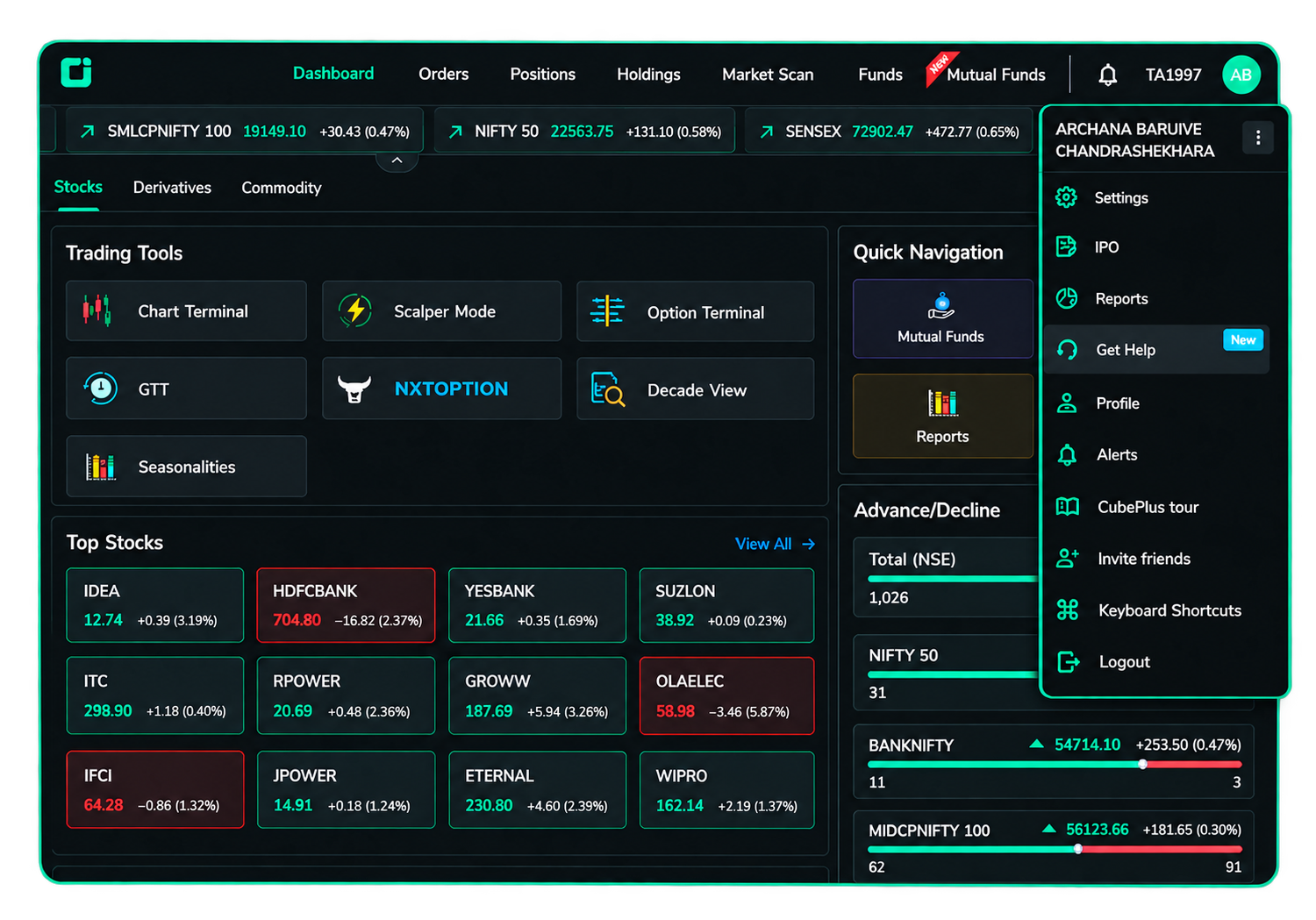
- Log in to CubePlus.
- Click the Profile icon at the top-right corner.
- Select Reports.
- Click Hive - Equity and F&O.
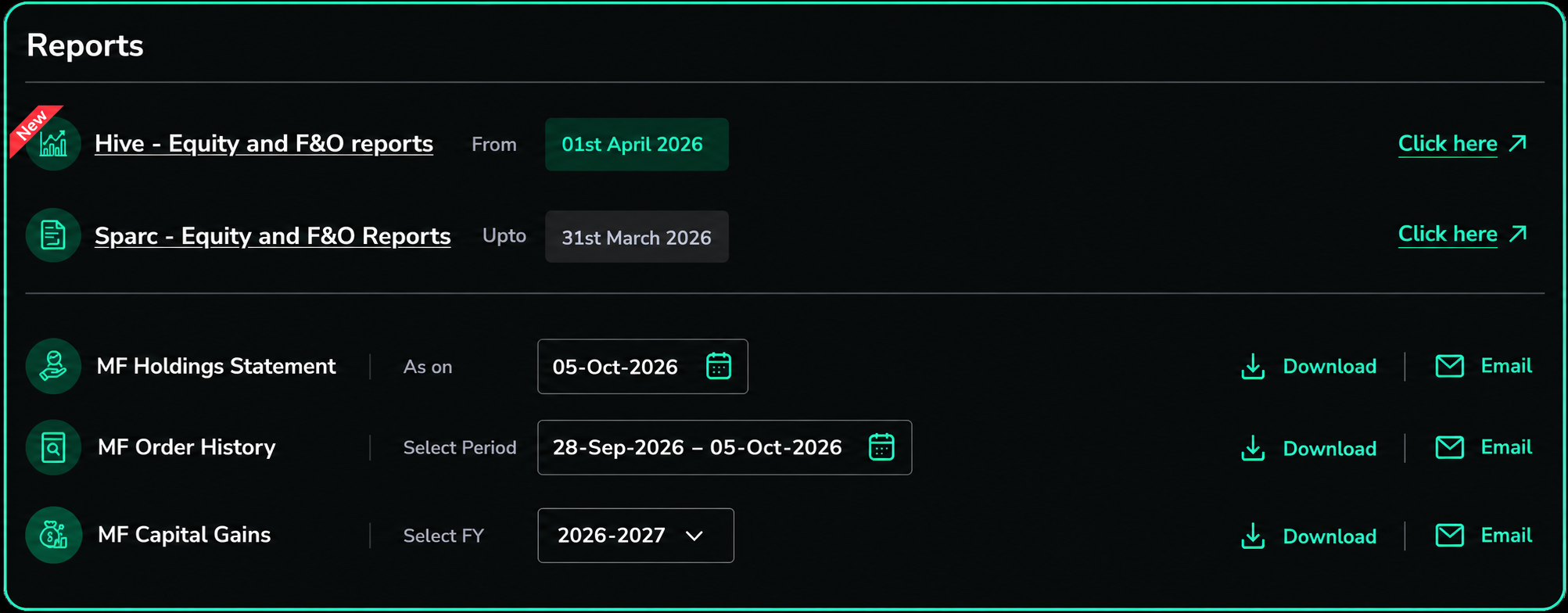
You will be redirected to the Hive landing page.
1. Dashboard
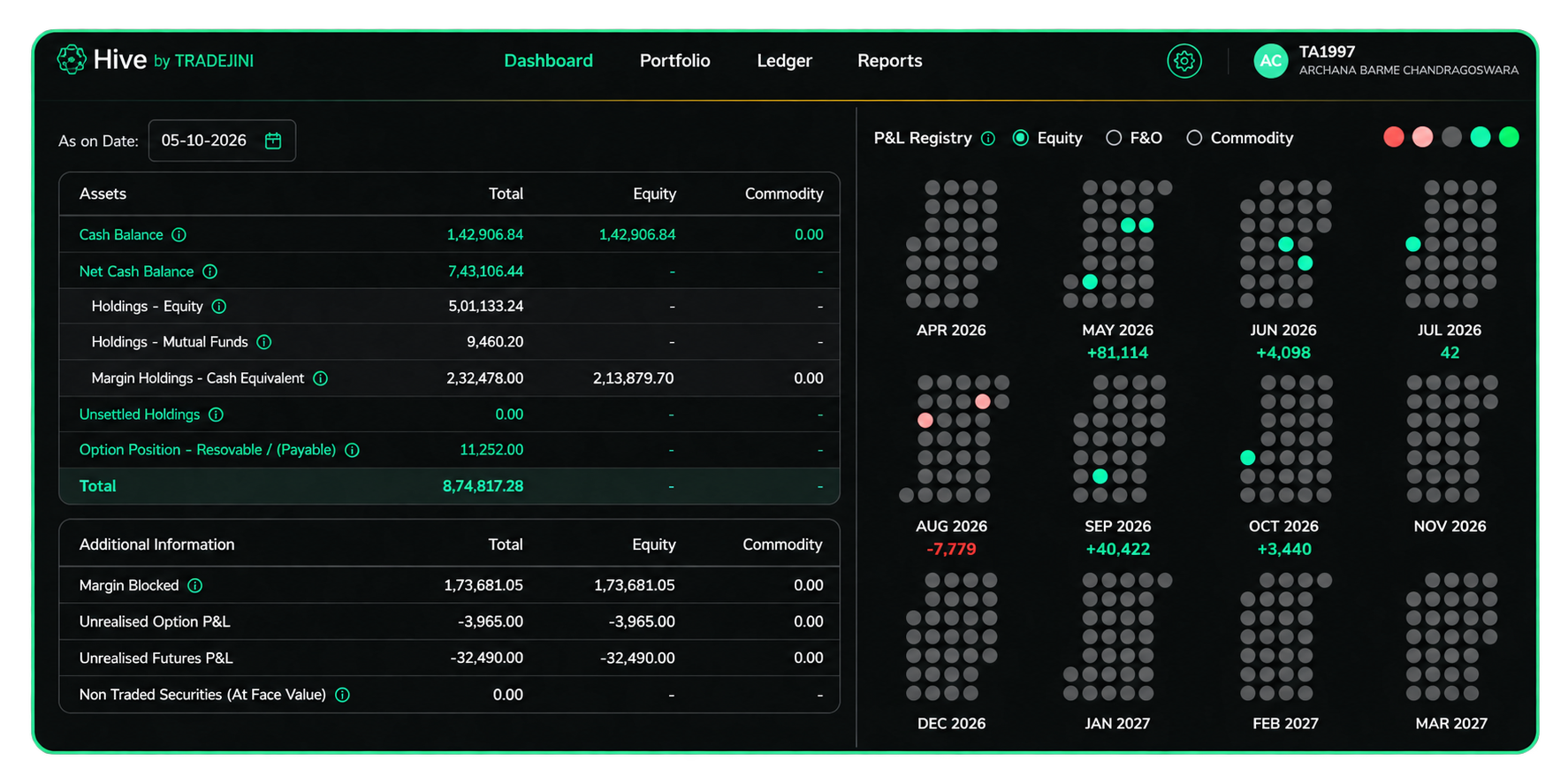
The dashboard is divided into two sections:
1. Asset Summary – Left Section
This section provides an overview of your current financial position, including your cash balance, holdings, mutual funds, margin, and unrealised P&L.
2. P&L Registry – Right Section
This section provides a month-wise visual summary of your trading performance, helping you quickly identify profitable and loss-making months.
Together, these two sections give you a quick view of your current portfolio position and historical trading performance.
As on Date
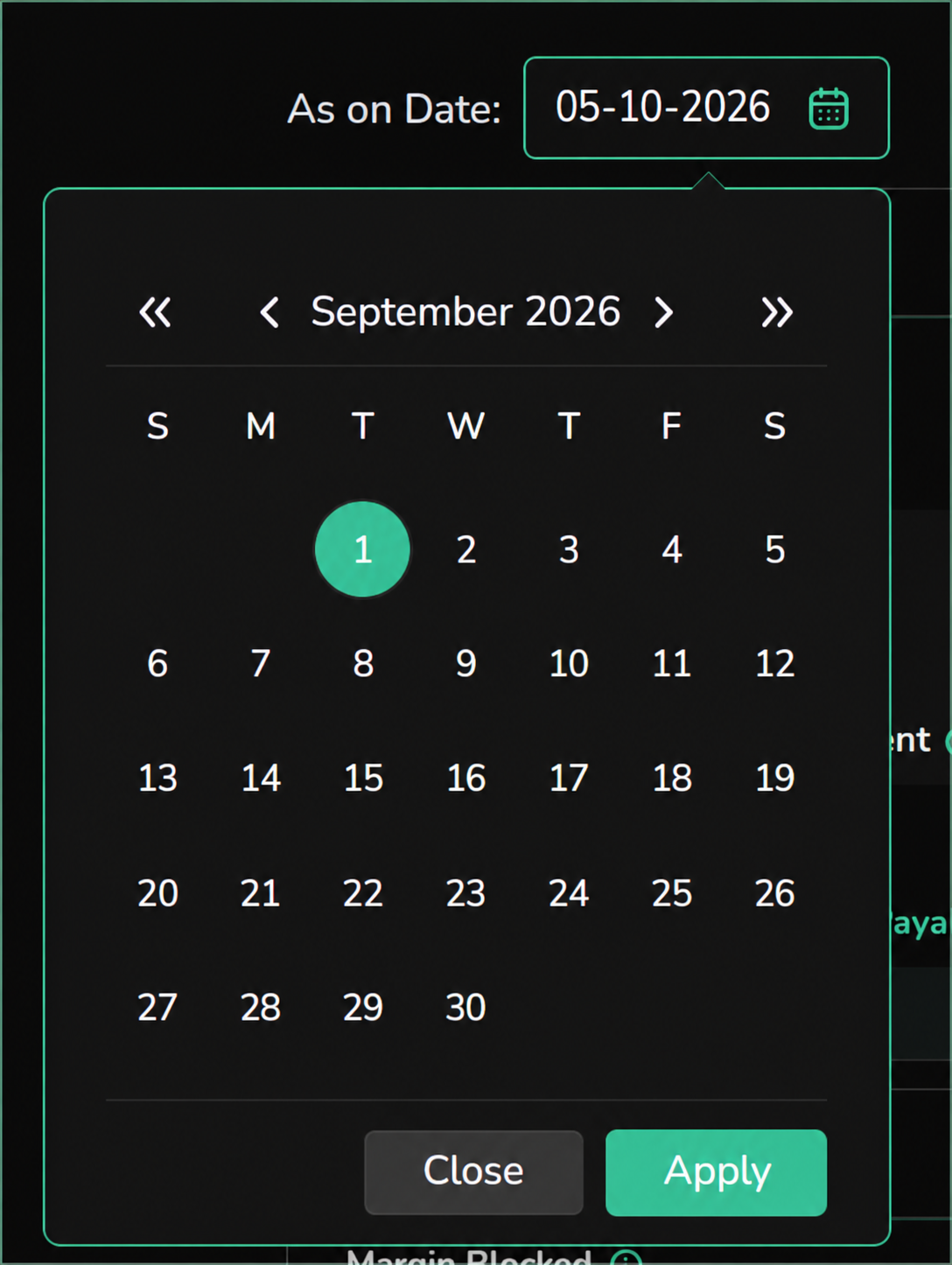
The As on Date option allows you to view your portfolio, ledger and asset breakdown as they stood on a specific past date.
- Select the required date from the calendar.
- The dashboard will display the information applicable to that date.
Cash Balance
The Cash Balance section displays the free cash available in your trading account.
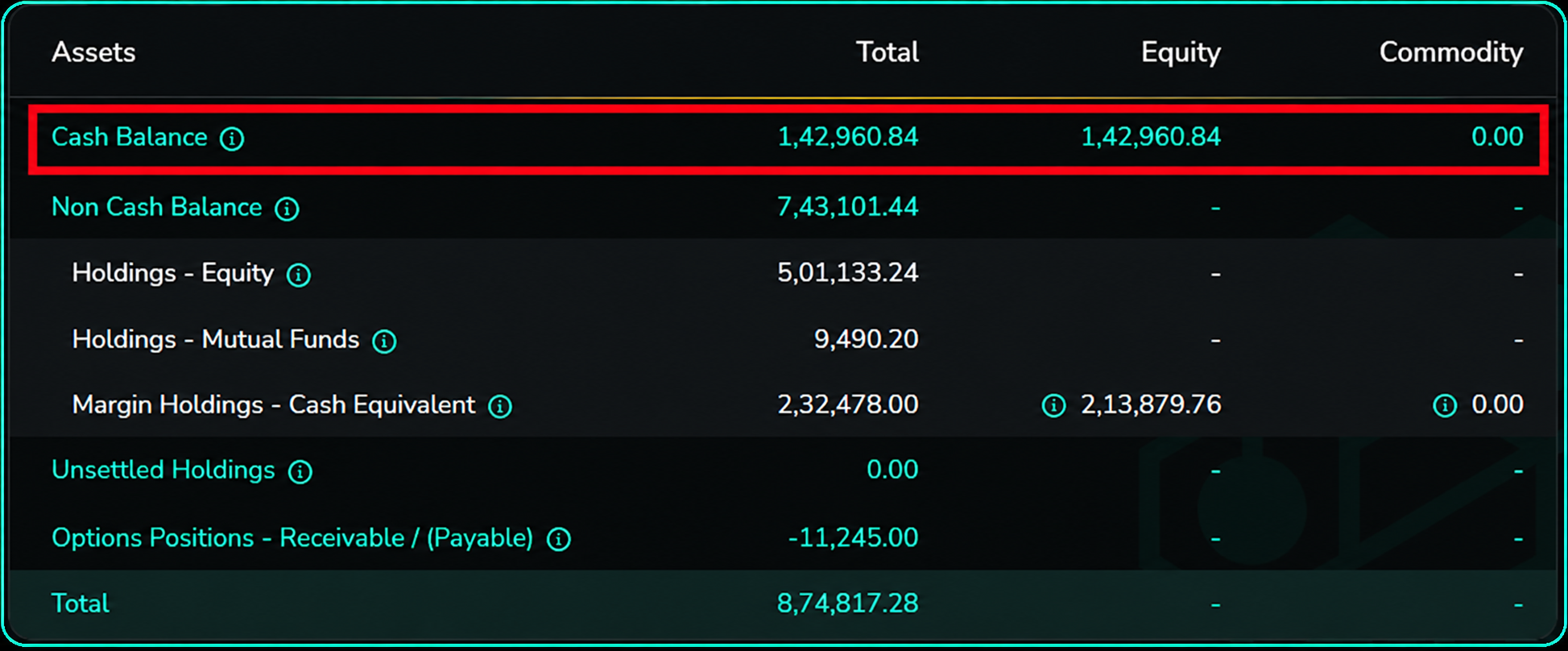
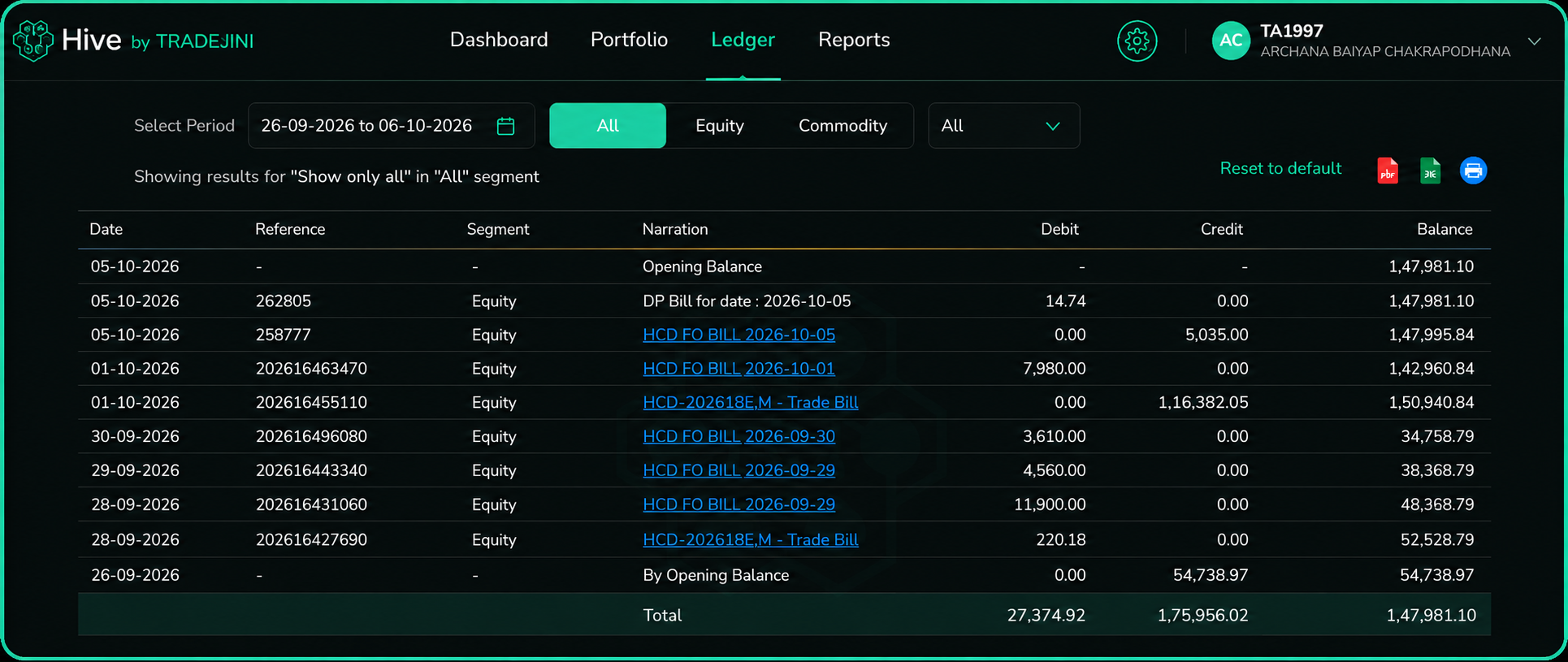
Click on Cash Balance, and it redirects to the Ledger.
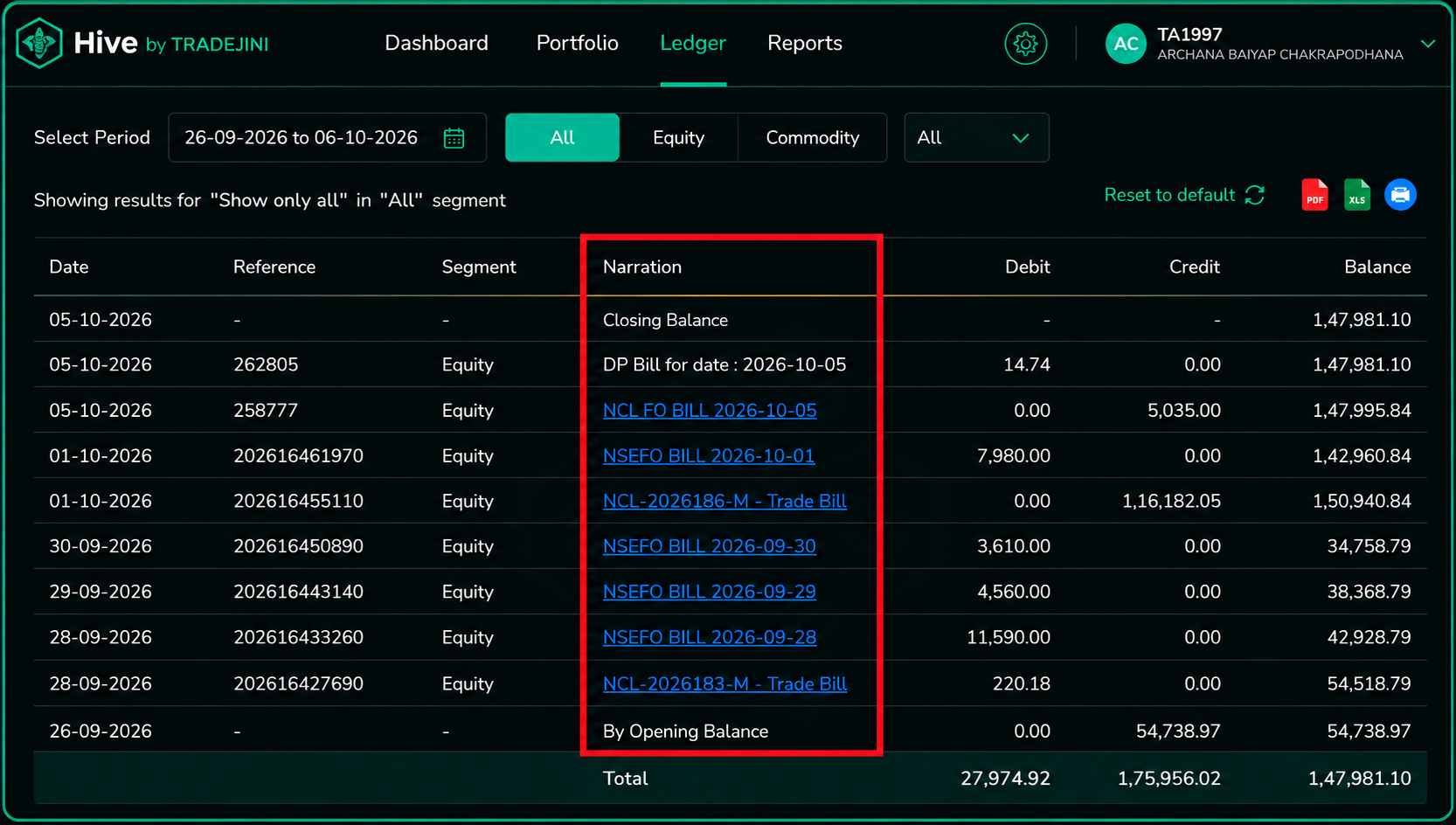
Narration
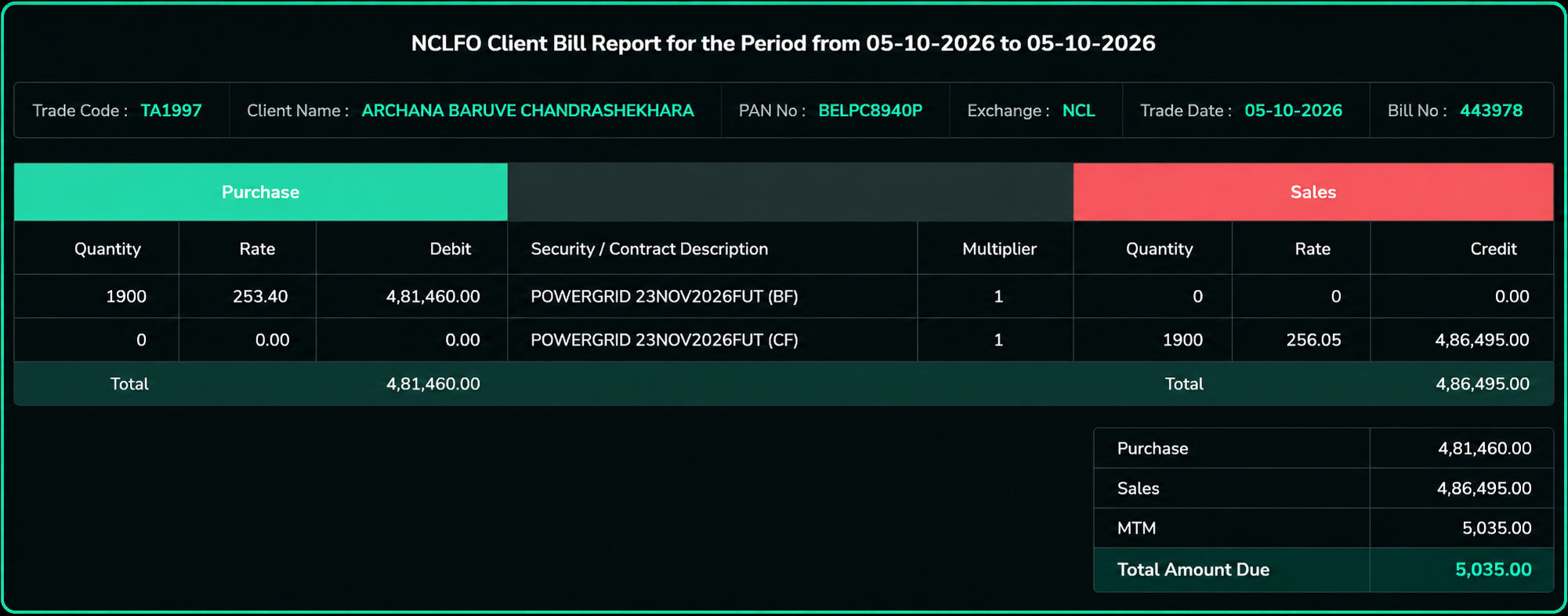
Clicking the Narration details opens the Client Bill Report, where you can view the detailed breakup of the selected transaction or bill.
Export Cash Balance
You can export the cash balance data using the options available at the top-right of the table.
The available options are:
- XLSX
Select the required option to download the report or receive it in your inbox.
Clicking any other field redirects to the relevant page where reports can be viewed and downloaded.
Non-Cash Balance
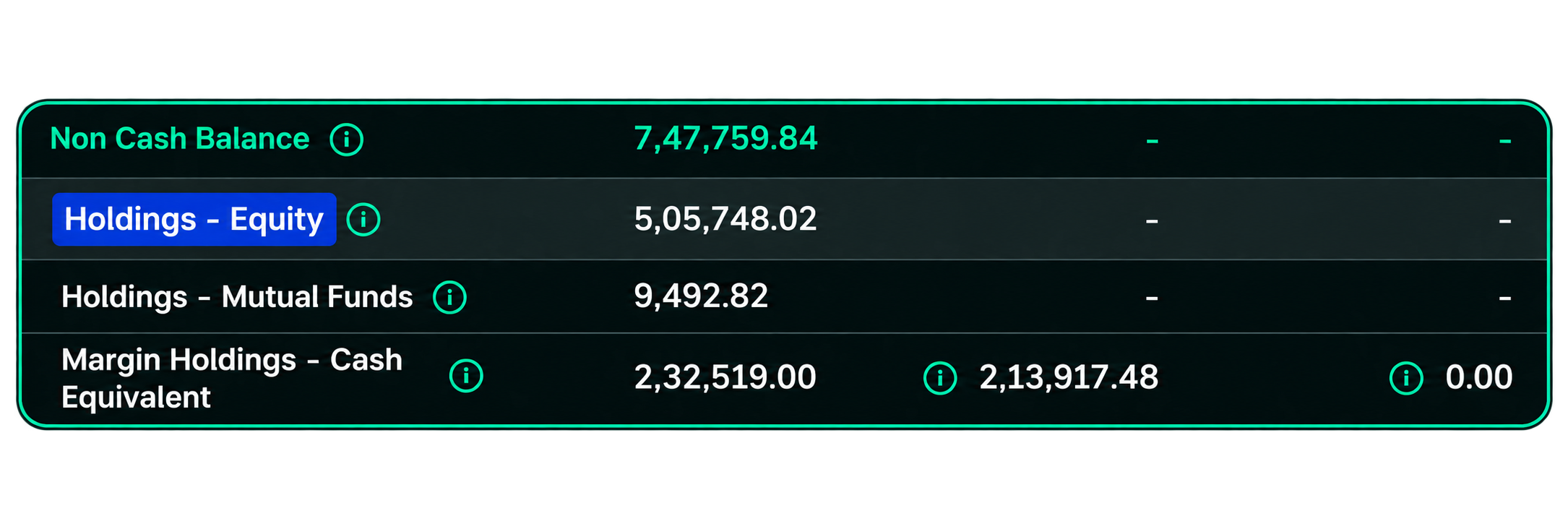
This section shows the value of assets other than cash, such as securities and other eligible holdings, along with your total portfolio value.
- Holdings – Equity – Displays the current value of your equity holdings.
- Holdings – Mutual Funds – Shows the value of your mutual fund investments.
- Margin Holdings – Cash Equivalent – Displays the cash-equivalent value considered for margin purposes, along with the amount available for margin.
- Unsettled Holdings – Shows the value of holdings that are yet to be settled.
- Options Positions – Receivable / (Payable) – Shows the amount receivable or payable from your open options positions.
- Total – Represents the combined value after considering the above components.
This gives you a quick view of how your total portfolio value is made up across cash-equivalent assets, investments, and trading obligations.
Holdings - Equity
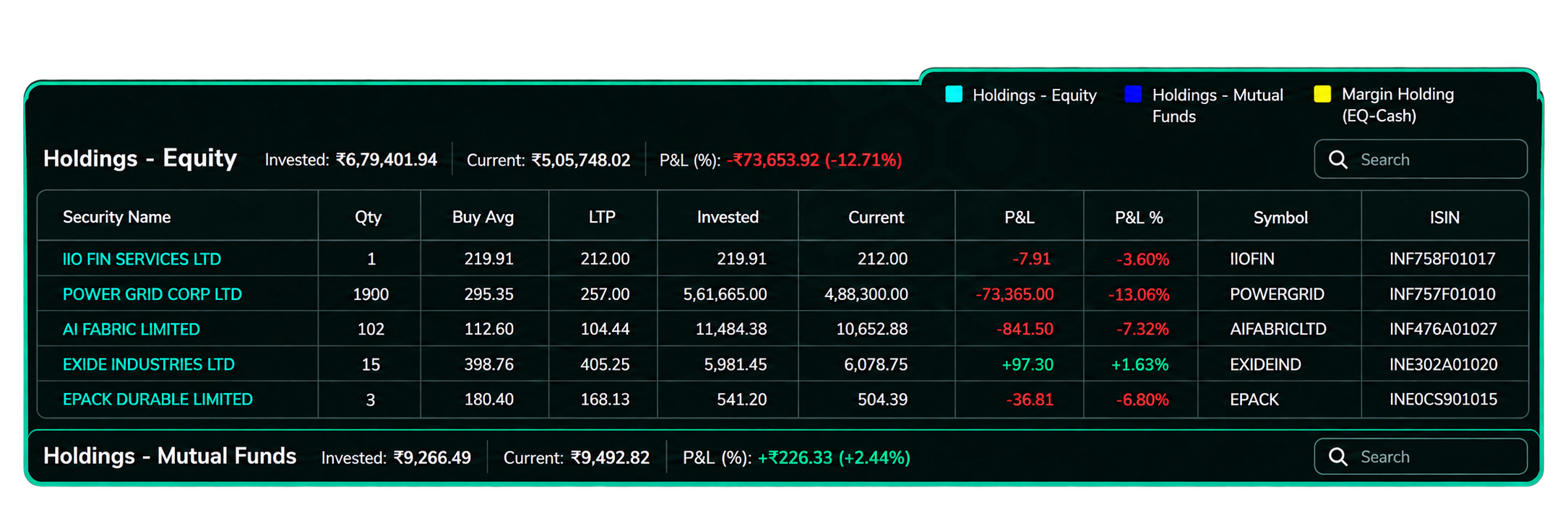
On clicking the Holdings – Equity tile, it displays the market value of shares held in your demat account.
Holdings - Mutual Funds
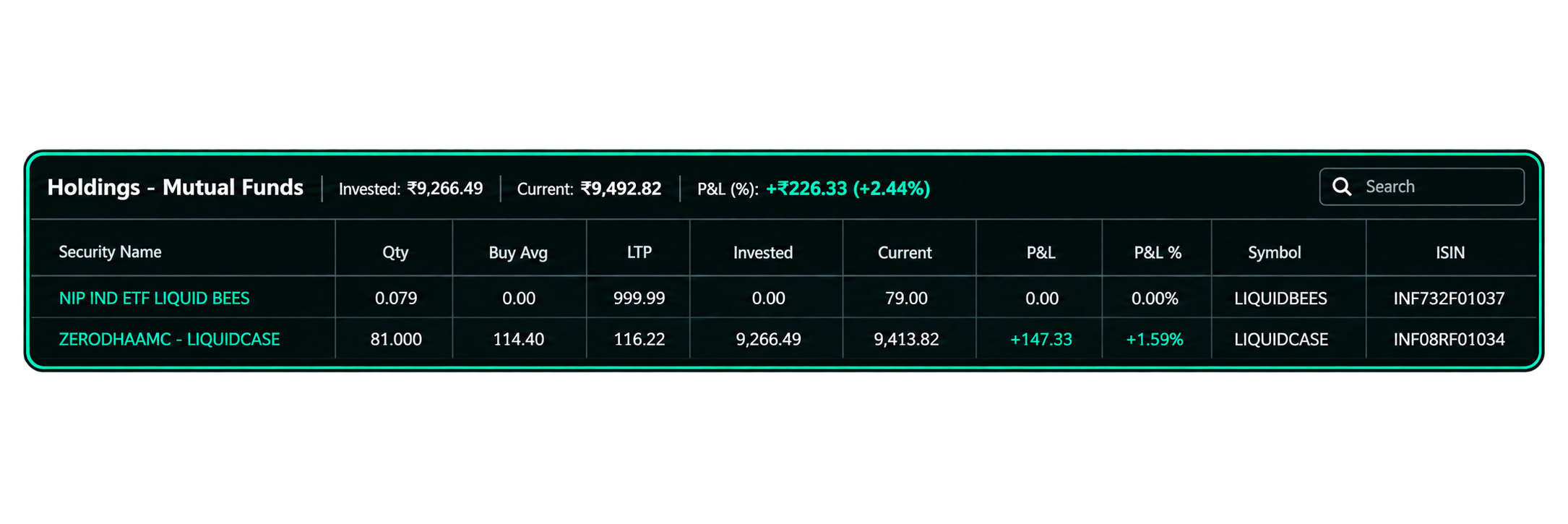
Displays the value of mutual fund units held.
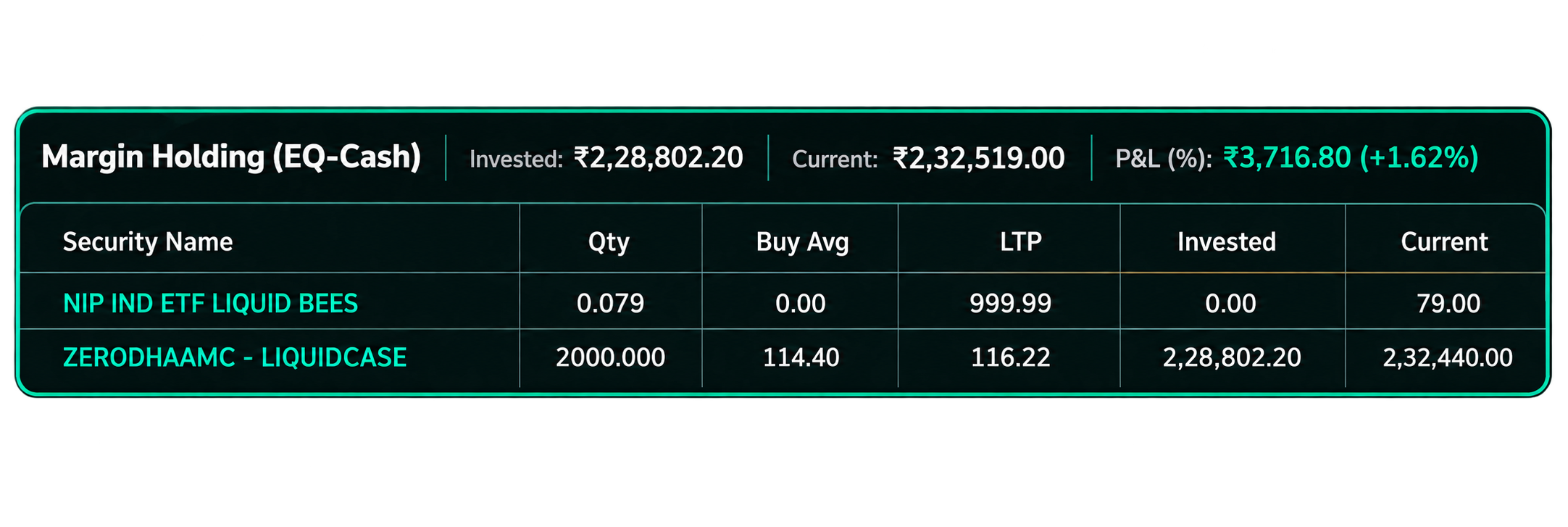
Margin Holdings - Cash & Non-Cash Equivalent
Displays the value credited against securities pledged for margin, shown separately for each segment.
Tool Tip
Click any dashboard tile to open the corresponding section. Hover over the ⓘ icon to view additional information.
P&L Registry
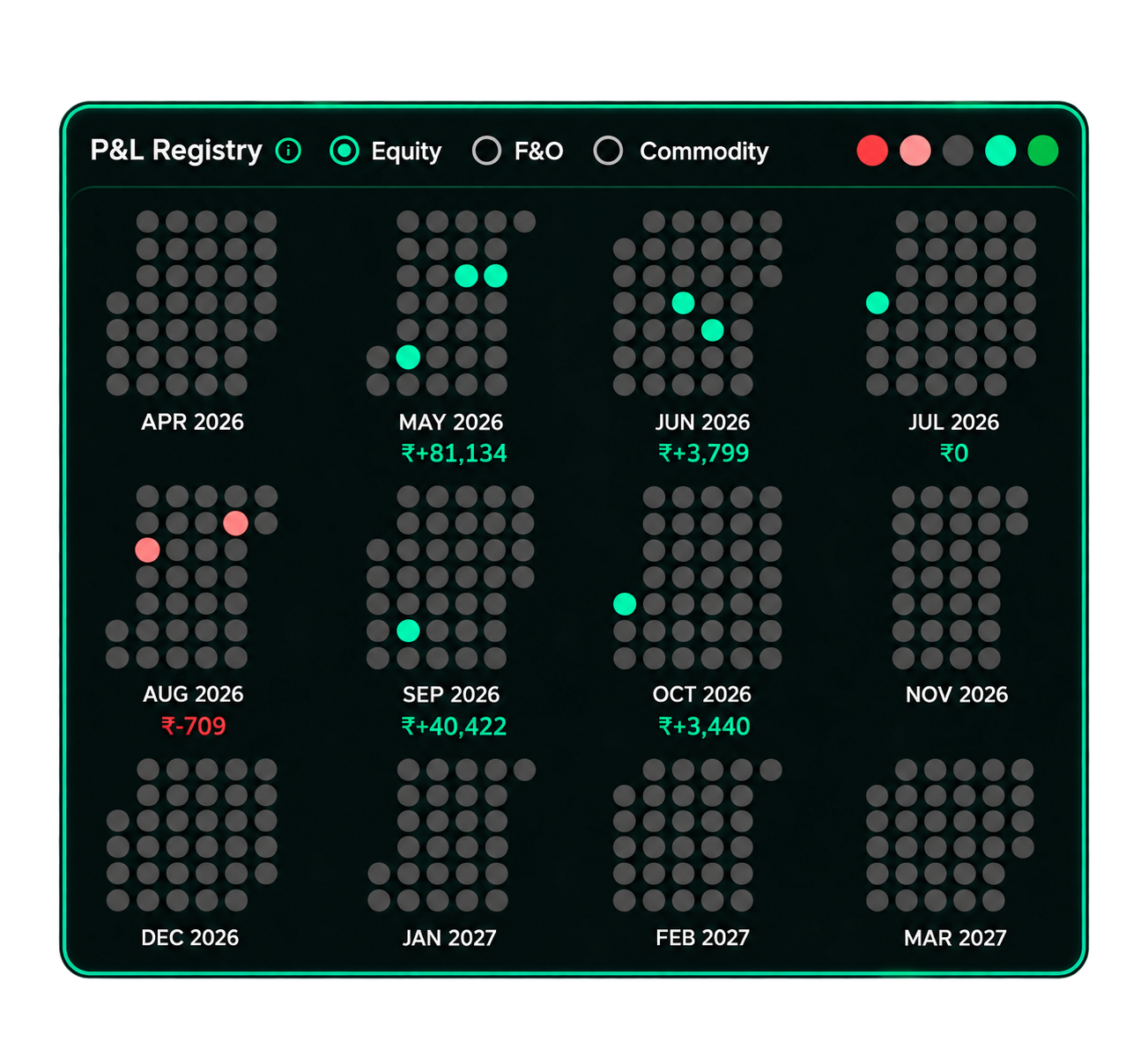
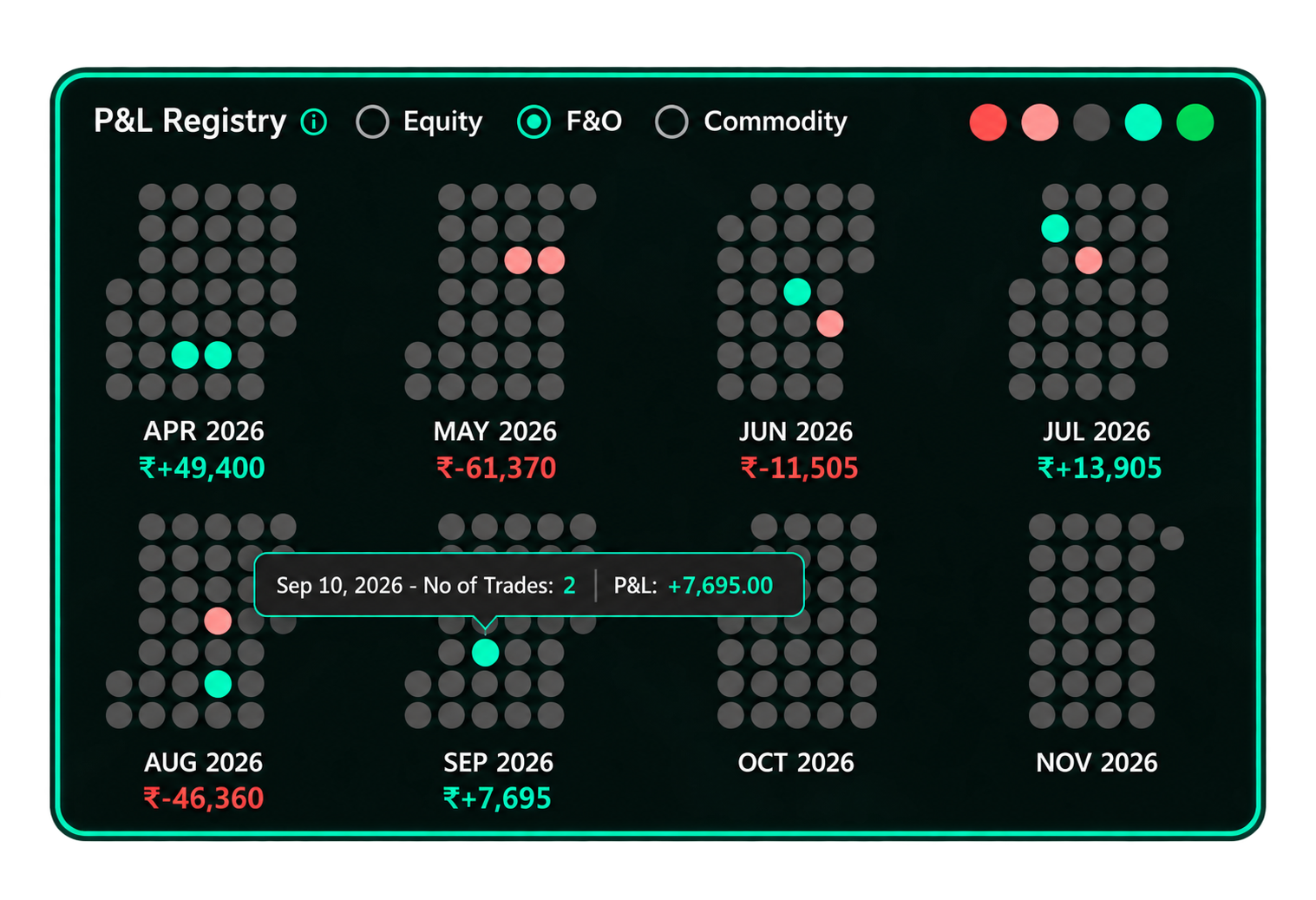
The P&L Registry displays your trading performance in a day-wise calendar view for the financial year, from April to March.
Daily P&L Summary
The summary is divided into three sections: Profit and Loss, Charges, and Others.
Profit and Loss
This section displays the following figures for the selected date:
- Realized P&L: Profit or loss from trades that have been closed.
- Total Charges: Total charges incurred for the selected date.
- Others: Other adjustments included in the P&L summary.
- Net Realized P&L: Realized P&L after accounting for the applicable charges and adjustments.
- Open Buy Value: Value of the open buy positions.
- Open Sell Value: Value of the open sell positions.
- Unrealized P&L: Profit or loss on open positions.
Charges
This section provides a breakup of the charges incurred:
- Brokerage
- Turnover Charges
- IPF Charges
- SEBI Charges
- STT
- Stamp Duty
- GST
- Total Charges
Others
This section displays other charges and account adjustments, including:
- Call N Trade Charges
- Payment Gateway Charges
- Other Credits/Debits
- DP Charges
- Total
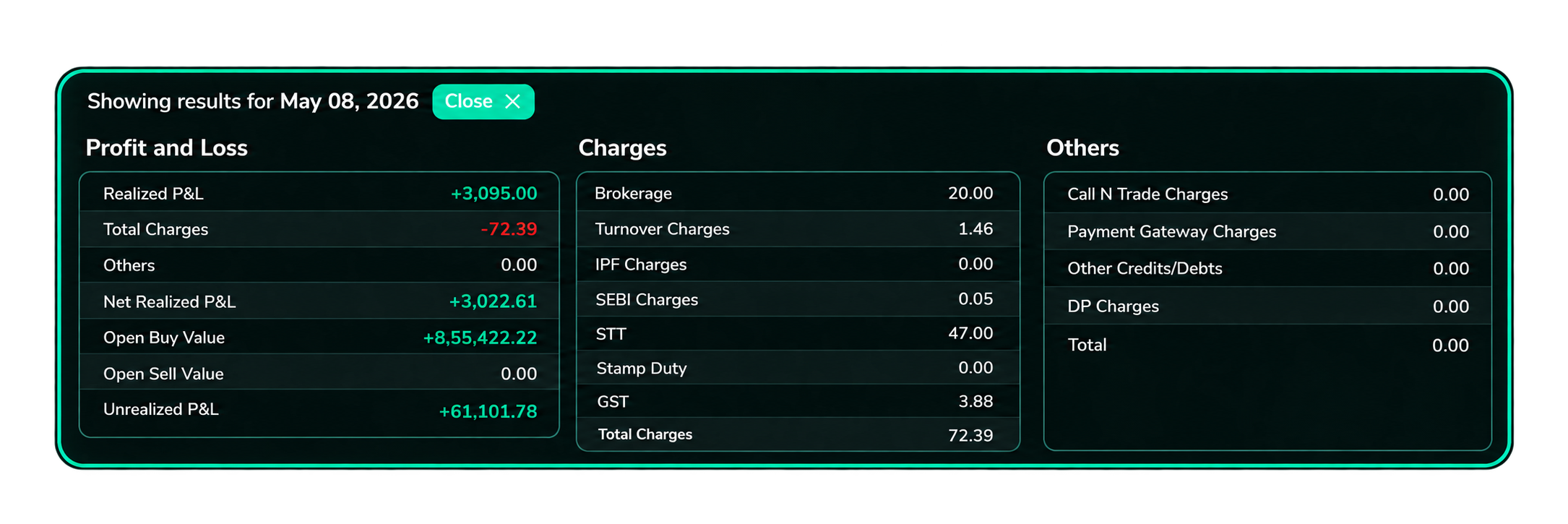
The figures displayed in these sections correspond to the selected date.
Trade Details
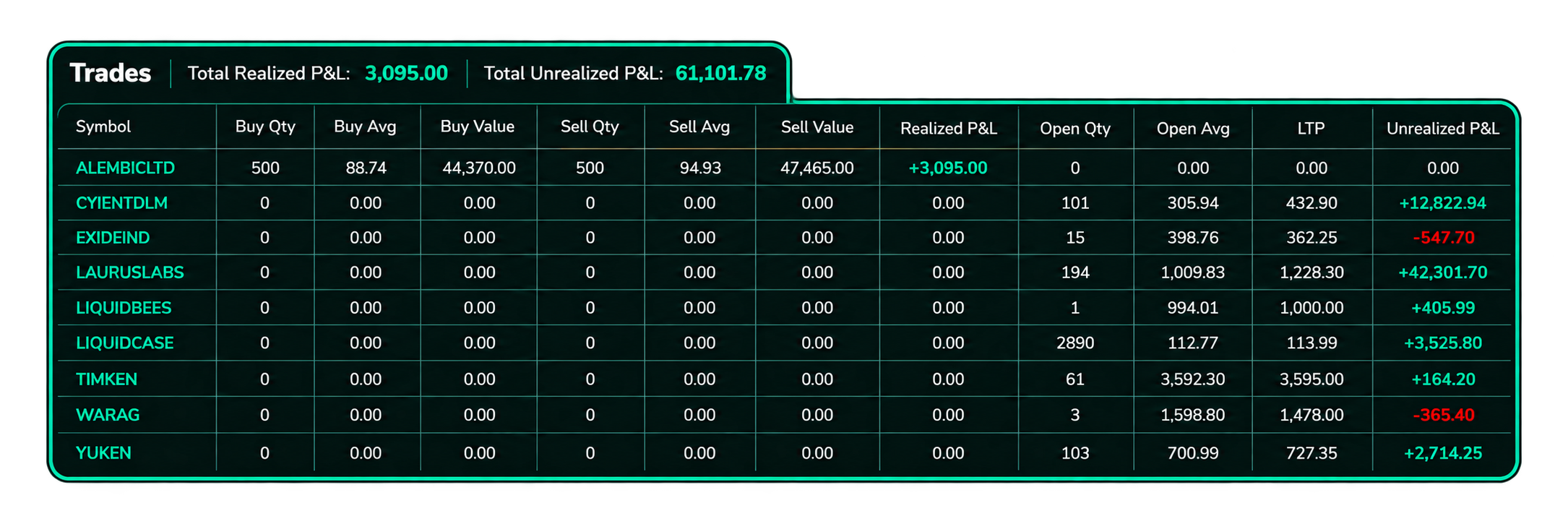
The trade table below the P&L summary provides a symbol-wise breakdown of trading activity for the selected date. It also displays the Total Realized P&L and Total Unrealized P&L above the table.
The table contains the following columns:
- Symbol: Name of the security.
- Buy Qty: Quantity bought during the selected period.
- Buy Avg: Average buy price.
- Buy Value: Total value of the buy transactions.
- Sell Qty: Quantity sold.
- Sell Avg: Average sell price.
- Sell Value: Total value of the sell transactions.
- Realized P&L: Profit or loss from completed trades.
- Open Qty: Quantity remaining in open positions.
- Open Avg: Average price of the open position.
- LTP: Last Traded Price of the security.
- Unrealized P&L: Profit or loss on the remaining open position.
Use this table to review the buy and sell activity, realized P&L, and current P&L of open positions for individual securities.
Select Segment
Use the segment options at the top to view P&L separately for:
- Equity
- F&O
- Commodity
Each segment displays its own P&L data.
View Daily P&L
Each dot on the calendar represents one trading day.
- Select the required segment.
- Hover over any coloured dot.
- A tooltip will display the trading summary for that day.
2. Portfolio
The Portfolio section has four tabs:
- Holdings
- Equity Derivative
- Commodity Derivative
- External Entry
Select the required tab to view the corresponding portfolio details.
I. Holdings
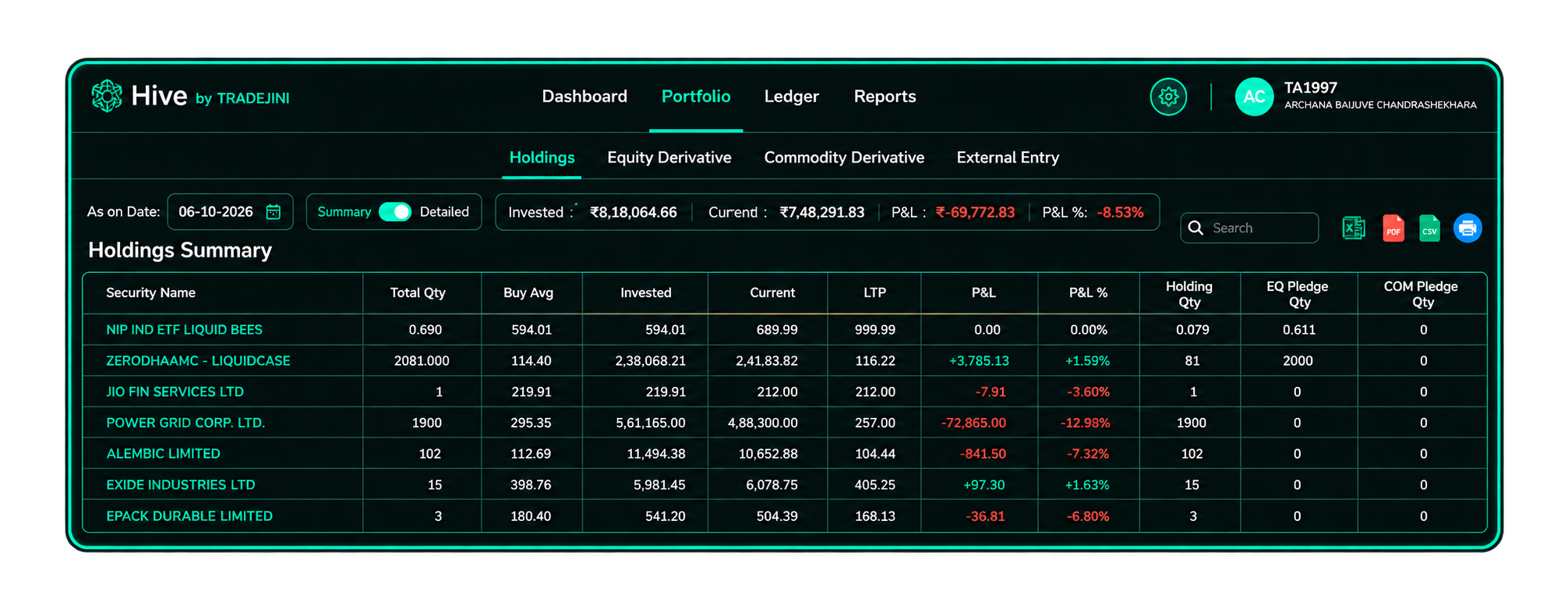
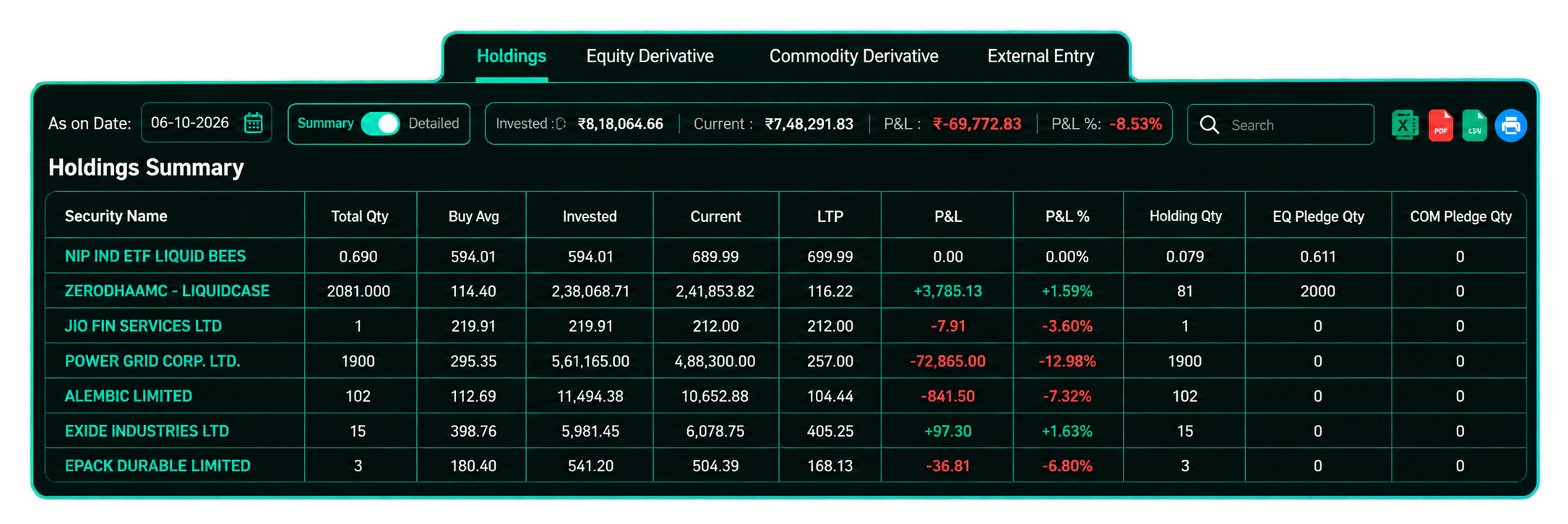
The Holdings tab provides an overview of your investments and their current value.
Use the following options at the top of the page:
- As on Date: Select a date to view your holdings as of that date.
- Summary / Detailed: Switch between a consolidated view and a detailed view of your holdings.
Detailed View
Select Detailed to open Holdings Detailed - Overview.
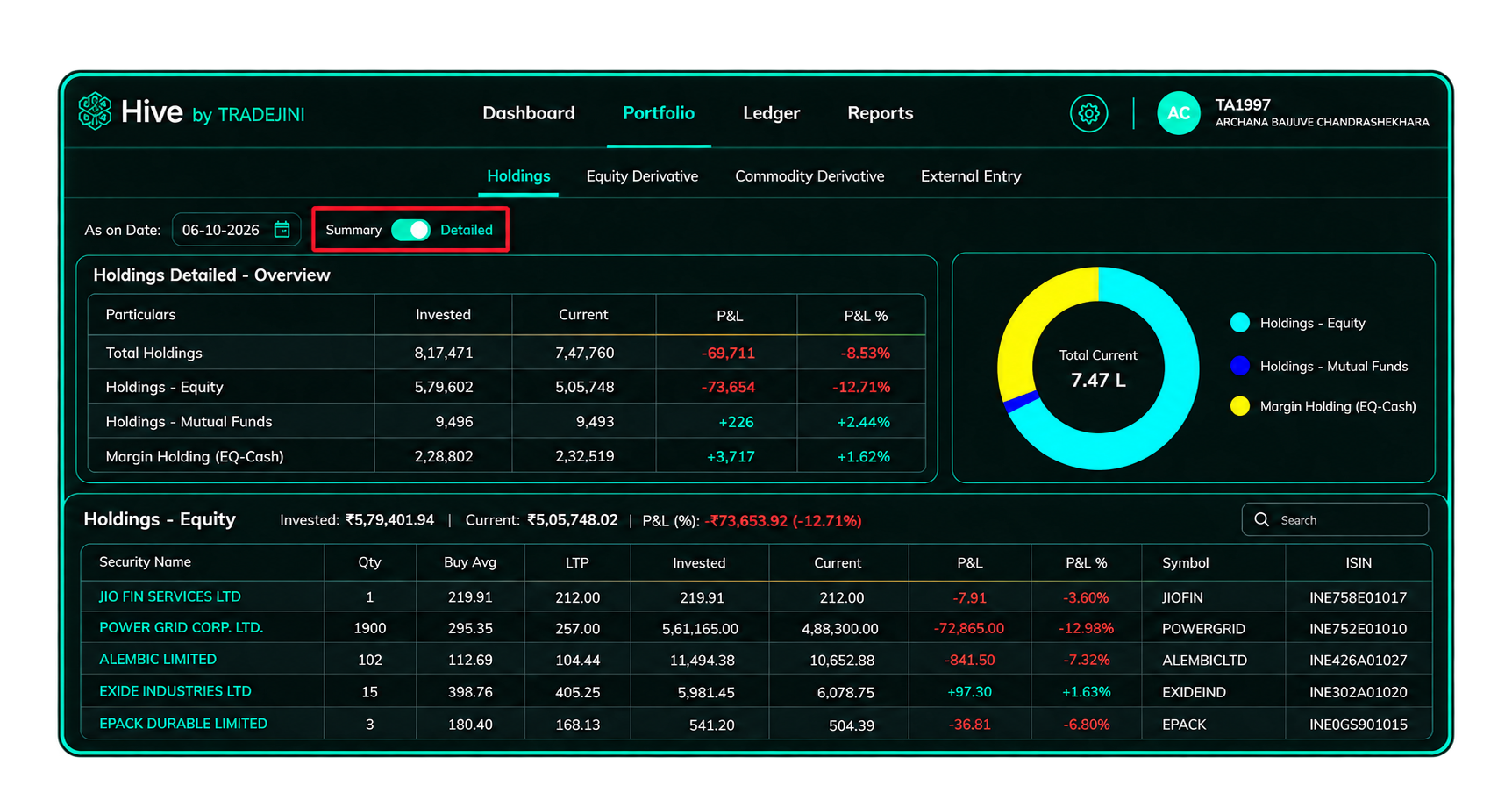
The detailed view divides your portfolio into separate holding categories and displays the following for each category:
- Invested: Amount invested
- Current: Current value of the holdings
- P&L: Profit or loss
- P&L %: Profit or loss as a percentage
The page also displays these values for Total Holdings.
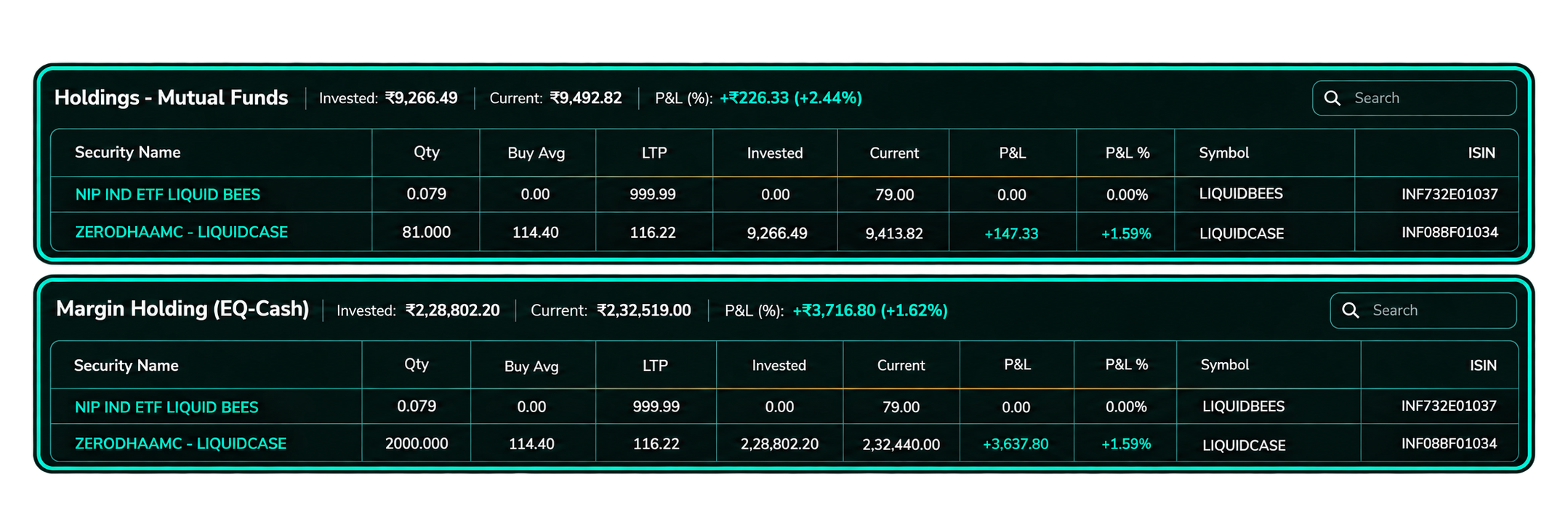
The detailed view further breaks down the portfolio into sections such as Holdings - Equity, Holdings - Mutual Funds, and Margin Holding (EQ-Cash). Each section provides the corresponding holdings along with quantity, average buy price, LTP, invested value, current value, P&L and P&L %.
Summary View
Select Summary to view all your holdings in a single table.
The table displays:
- Invested
- Current
- P&L
- P&L %
The summary includes all your holdings, including pledged units.
II. Equity Derivative
The Equity Derivative tab displays your open Equity Futures and Equity Options positions as of the date selected in As on Date.
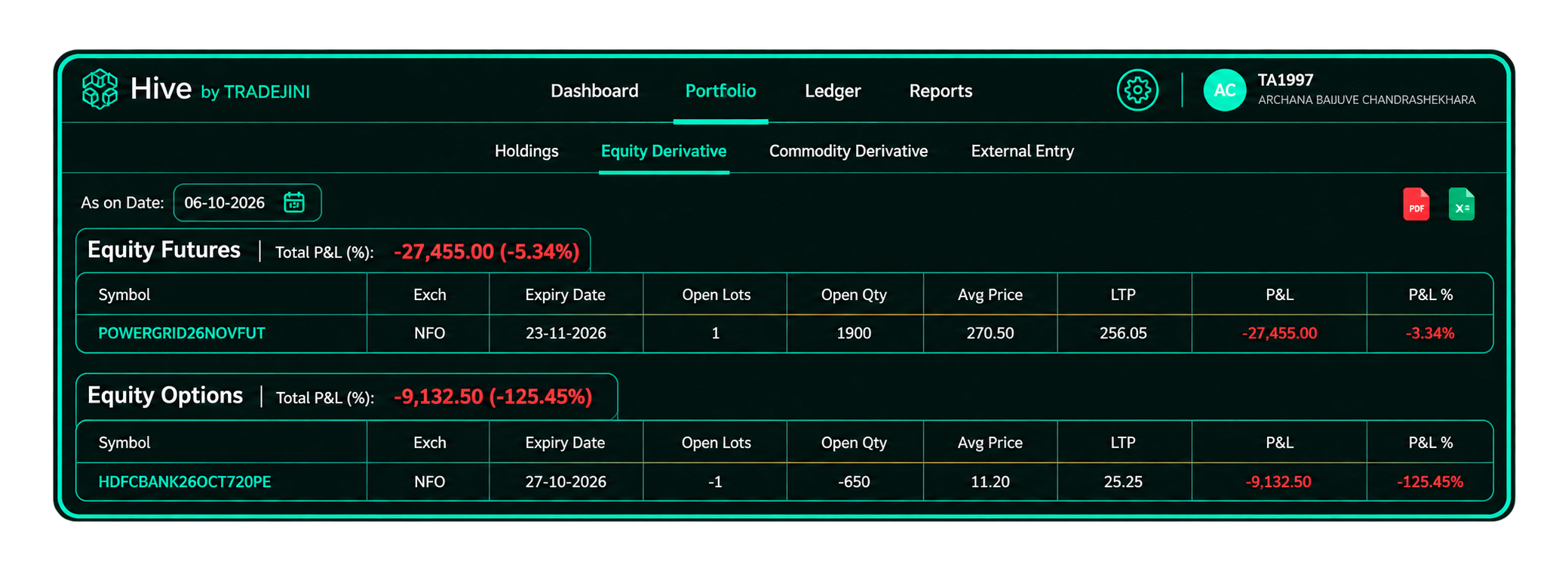
For each position, you can view:
- Symbol
- Exchange
- Expiry Date
- Open Lots
- Open Qty
- Avg Price
- LTP
- P&L
- P&L %
The Total P&L for Equity Futures and Equity Options is displayed separately above each section.
Use the PDF or XLS icon at the top-right to download the Equity Derivative details.
III. Commodity Derivative
The Commodity Derivative tab displays your open commodity futures and options positions as of the date selected in As on Date.
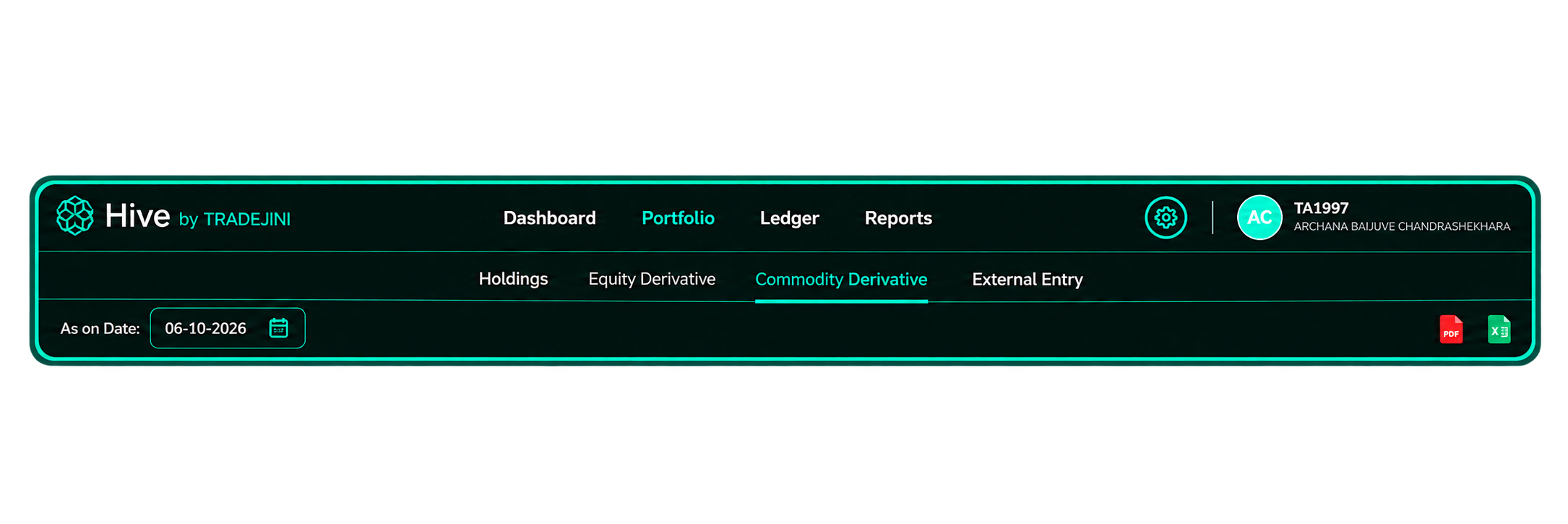
For each position, you can view the relevant contract and position details, including Symbol, Exchange, Expiry Date, Open Lots, Open Qty, Avg Price, LTP, P&L and P&L %.
Use the PDF or XLS icon at the top-right to download the displayed Commodity Derivative details.
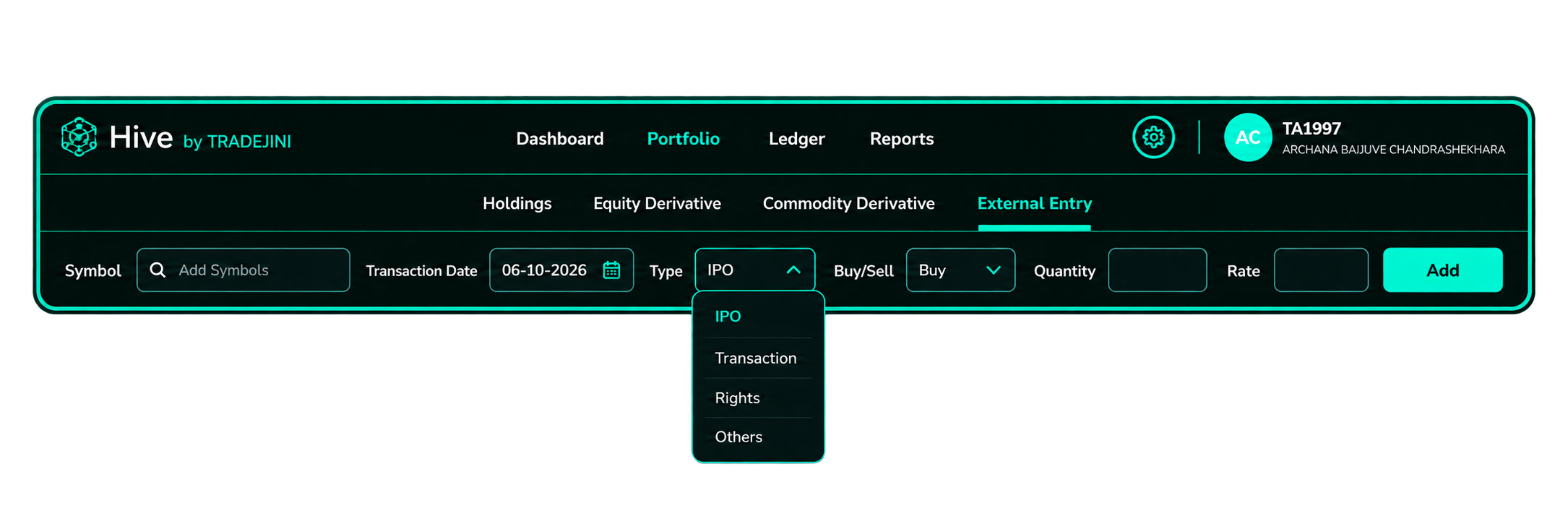
IV. External Entry
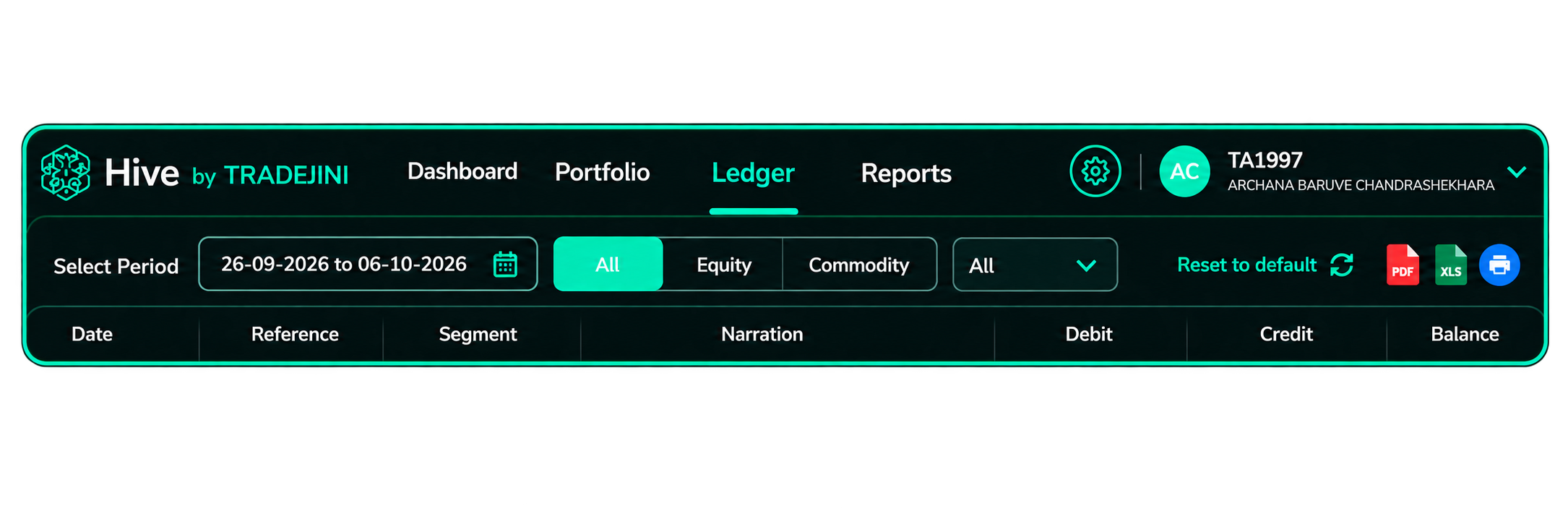
3. Ledger
The Ledger section provides a detailed record of the transactions in your trading account for the selected period.
View Ledger
- Select the required Period using the date selector.
- Select the required segment:
- All
- Equity
- Commodity
- Use the additional dropdown to filter the ledger entries based on the available options.
- The ledger displays the transactions for the selected period and filters.
Ledger Details
The ledger table displays the following information:
- Date: Date of the transaction.
- Reference: Reference number associated with the transaction.
- Segment: Segment to which the transaction belongs.
- Narration: Description of the transaction. Transaction-related entries are displayed as clickable links where applicable.
- Debit: Amount debited from the account.
- Credit: Amount credited to the account.
- Balance: Account balance after the transaction.
The ledger also displays the Opening Balance and Closing Balance for the selected period.
Export Ledger
Use the options available at the top-right of the ledger to:
- Download the ledger as PDF
- Download the ledger as XLS
- Receive the ledger by Email
You can also select Reset to default to restore the default filters.
4. Reports
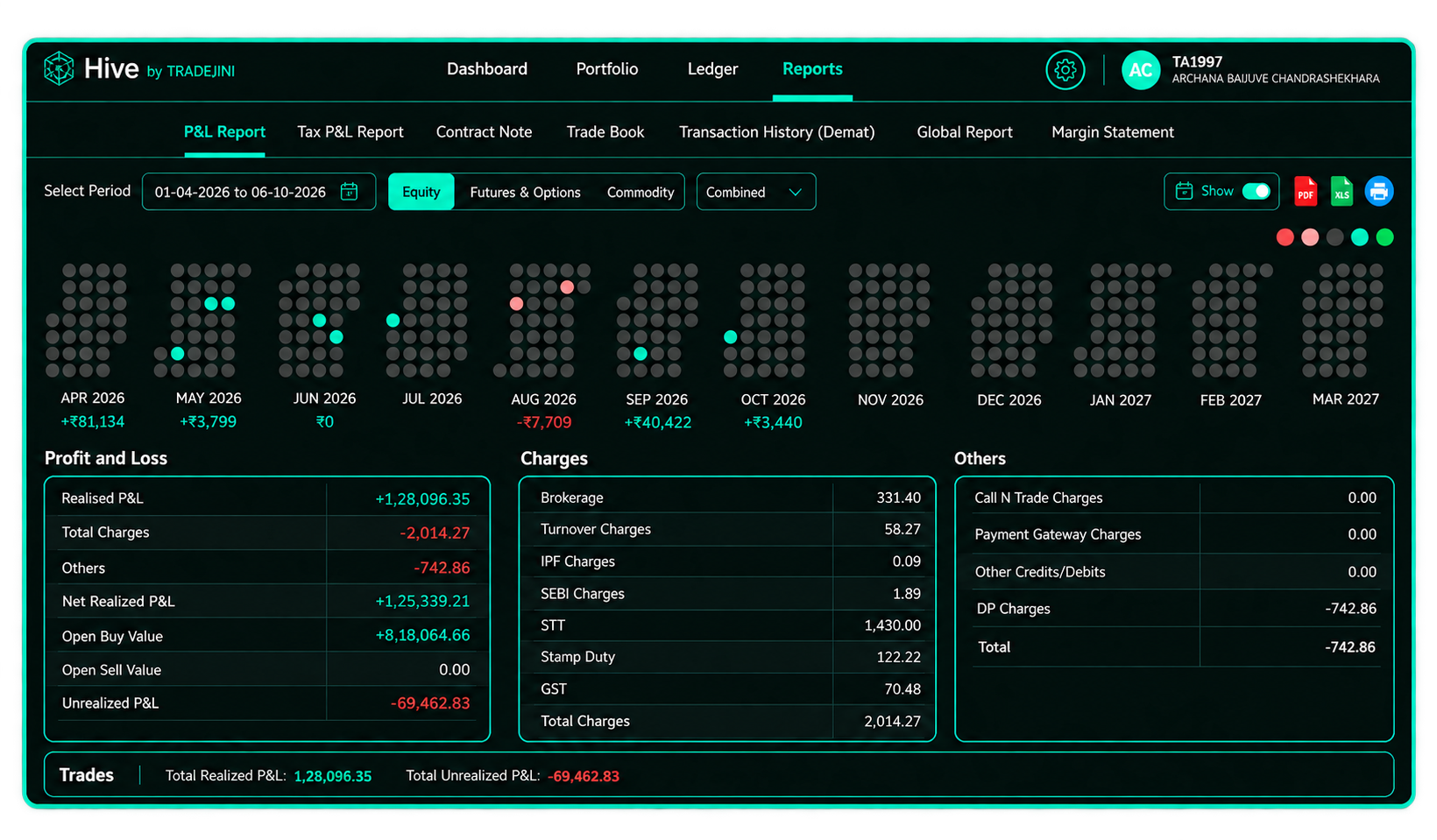
The P&L Report allows you to generate a report for a selected period and segment.
i. P&L Report
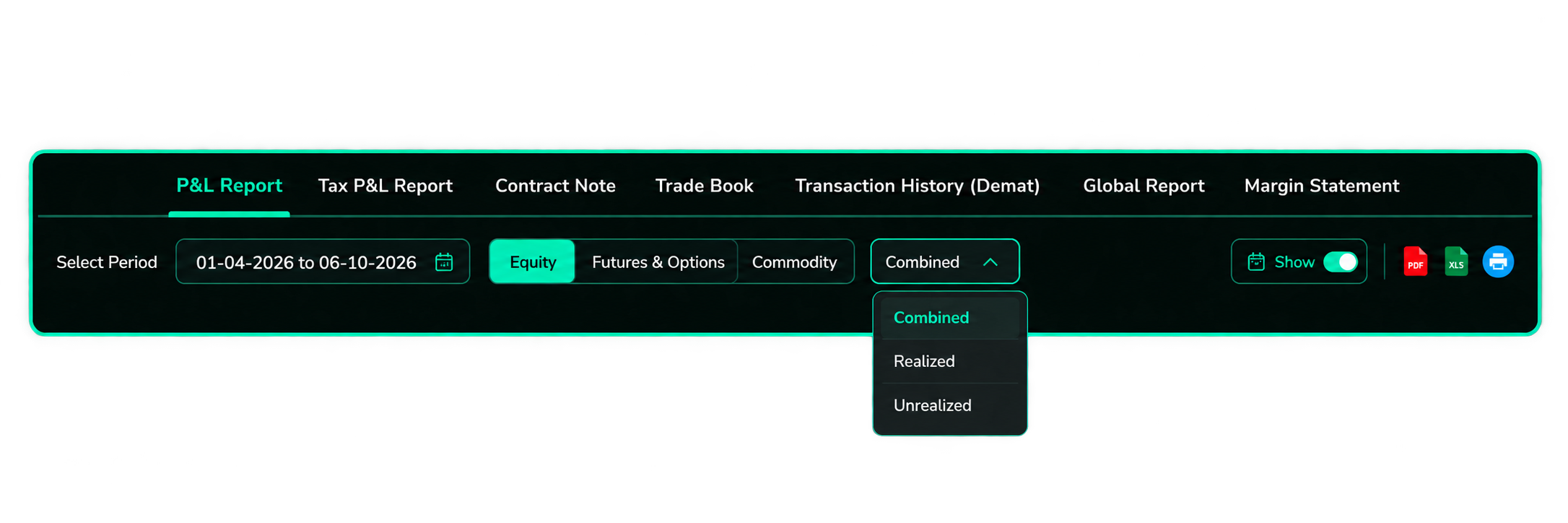
- Select Period to choose the required date range.
- Select the required Segment:
- Equity
- Futures & Options
- Commodities
- Select how the P&L should be grouped:
- Combined P&L
- Realised P&L
- Unrealized P&L
- Enable Show Calendar to view the day-wise P&L breakup.
ii. Tax P&L Report
Go to Reports → Tax P&L Report to view your tax-related P&L.
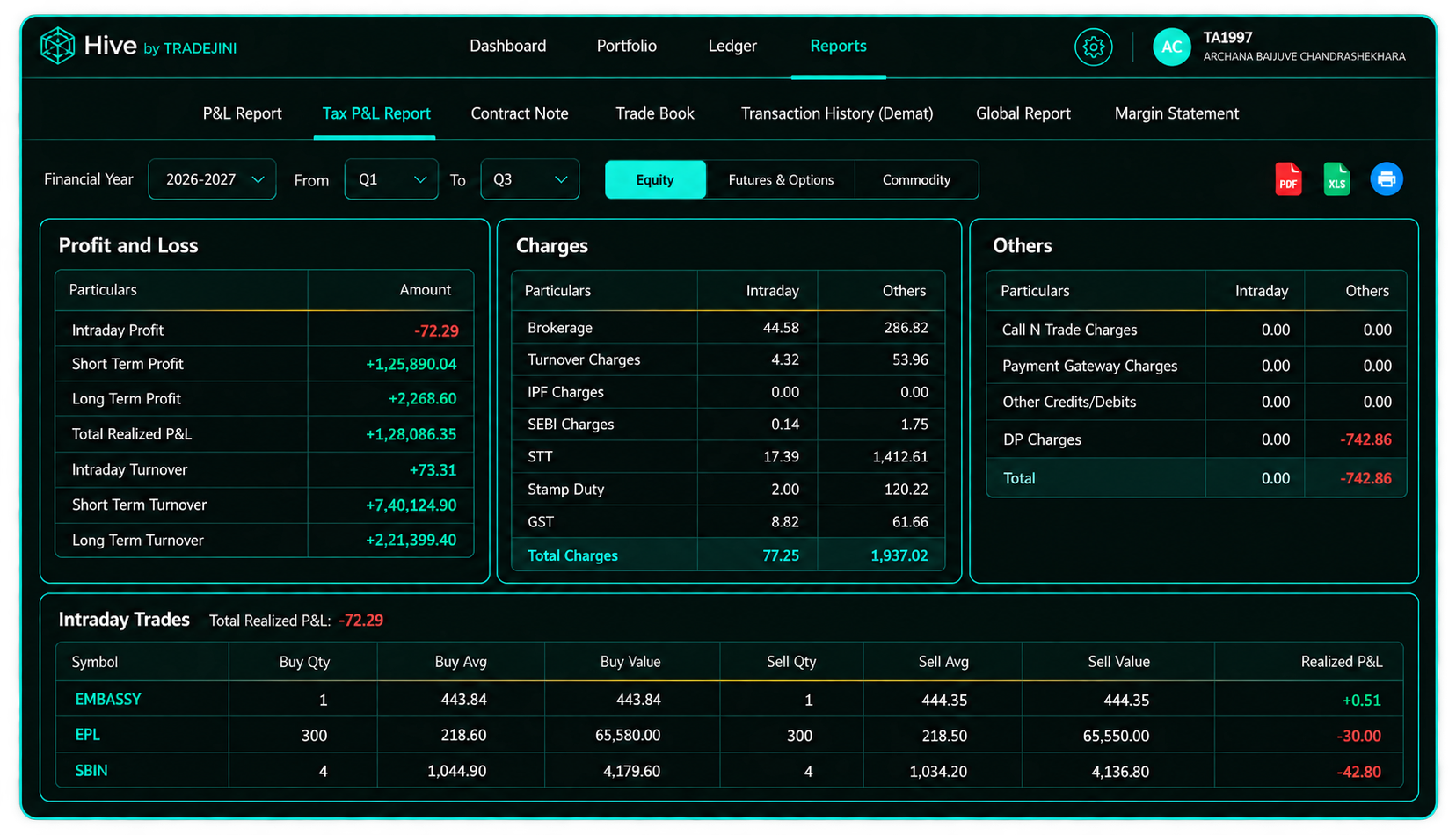
The report separates realised P&L into:
- Intraday
- Short-term
- Long-term
Charges are also separated accordingly.
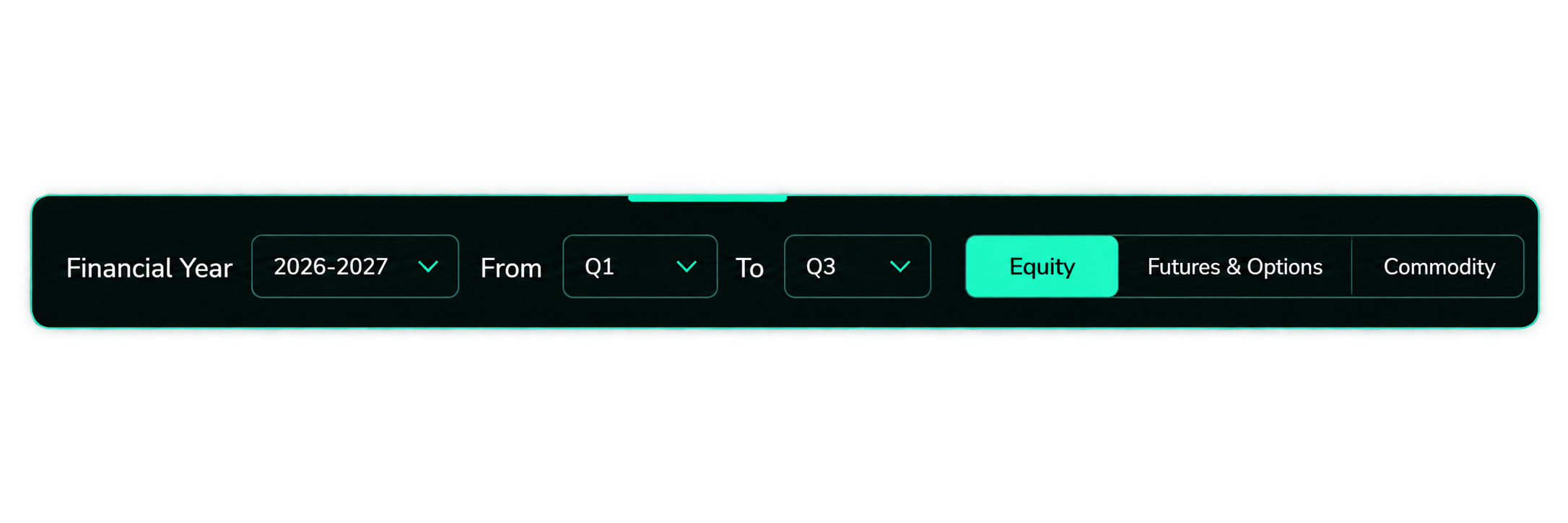
Select the Reporting Period
- Select the Financial Year.
- Select the From & To Quarter.
- Select the required segment:
- Equity
- Futures & Options
- Commodity
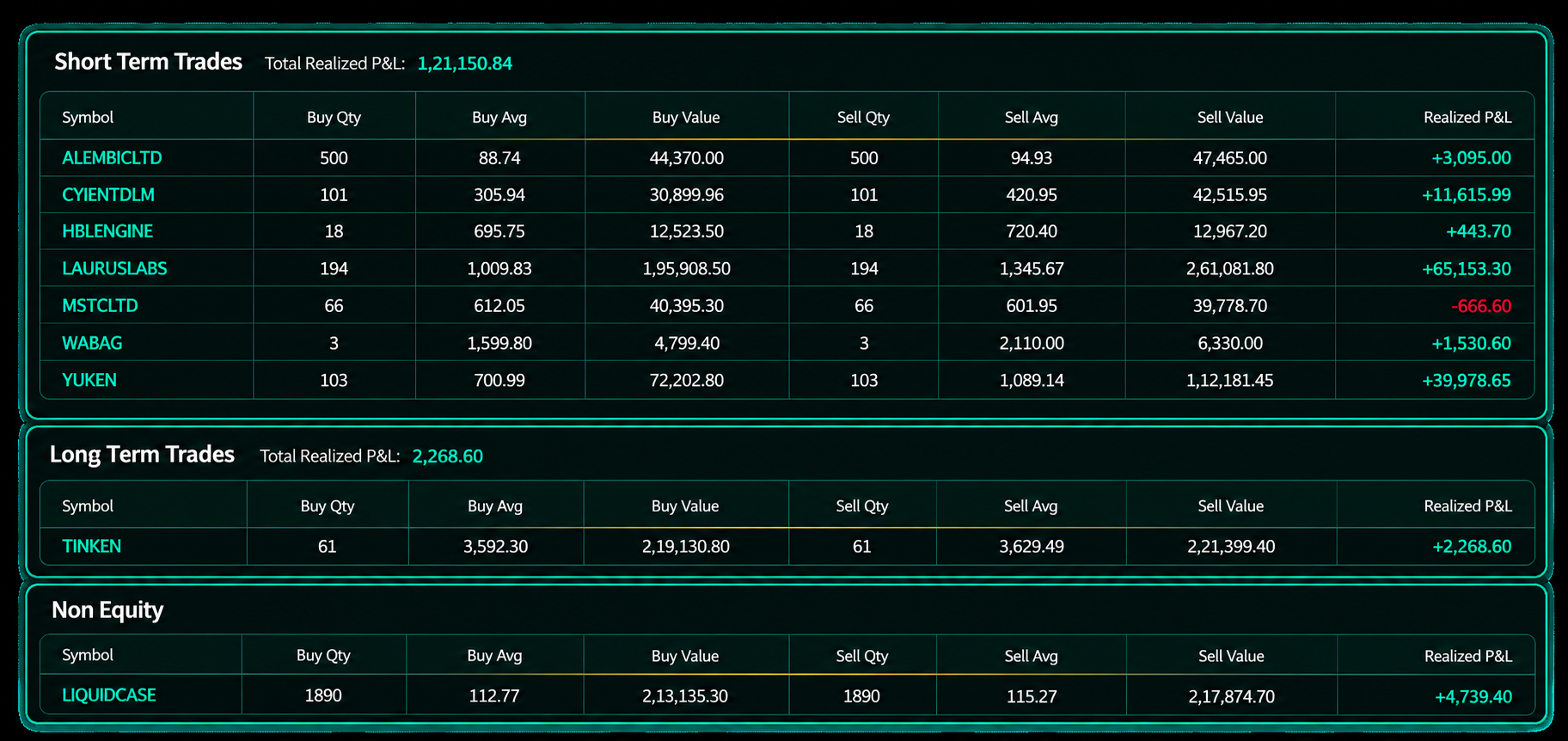
P&L Categories
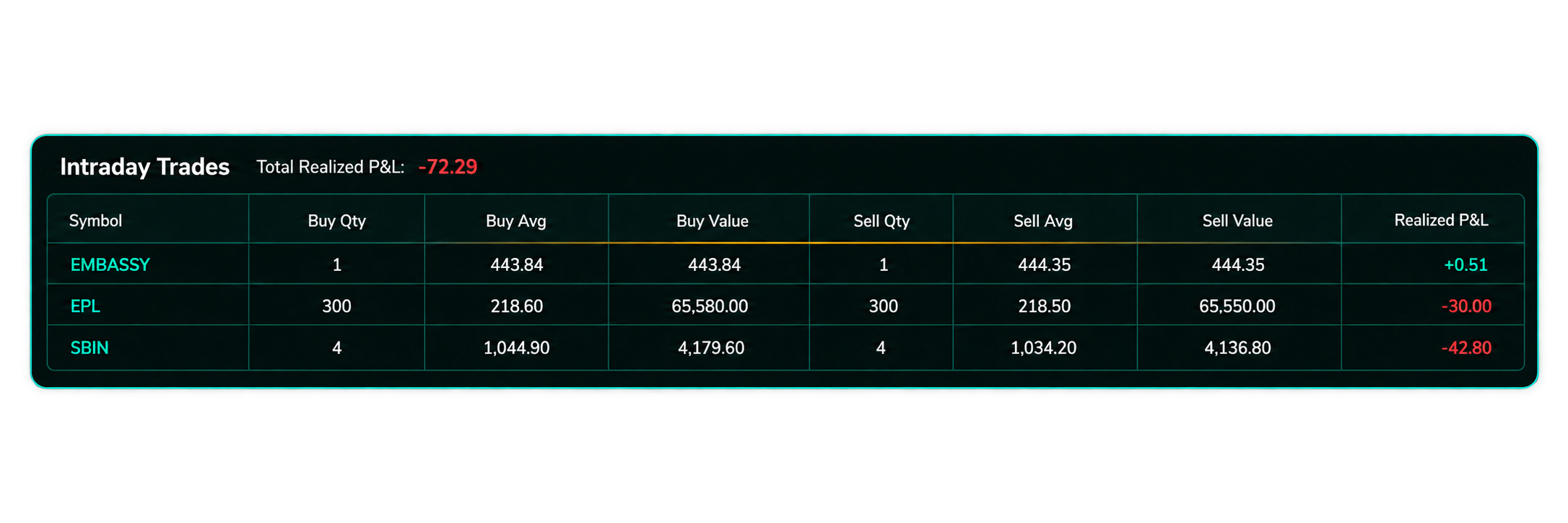
Intraday Trades
Displays intraday trades along with the net P&L for each trade.
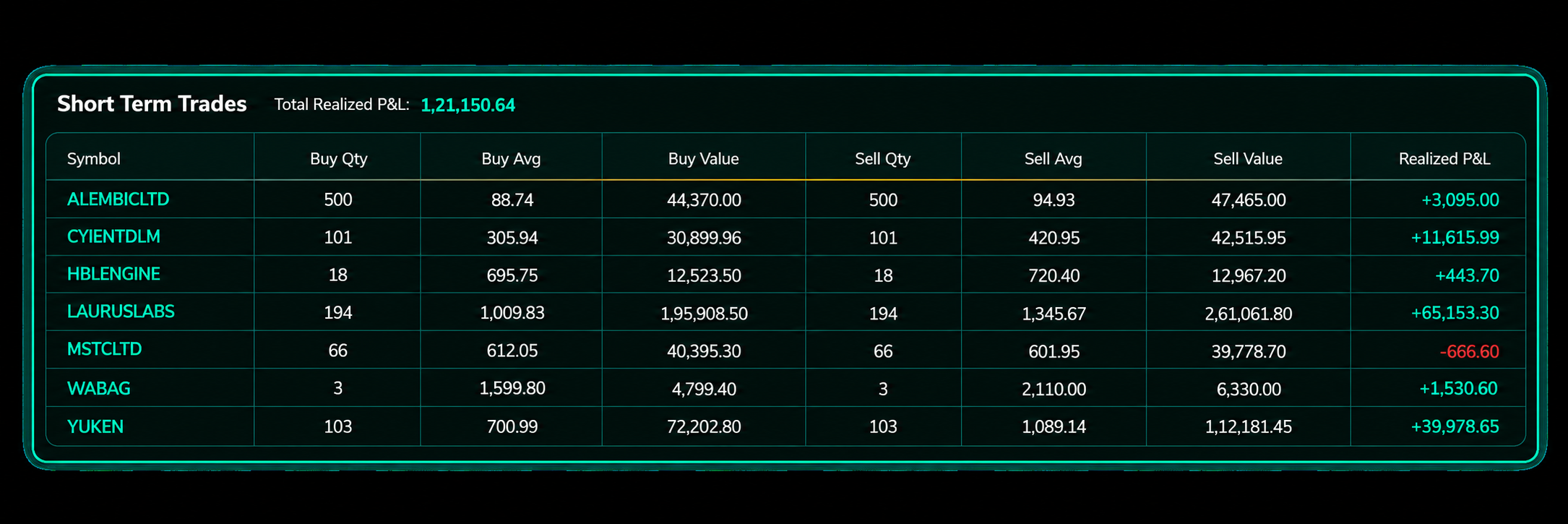
Short Term Trades
Displays the net P&L on equity held for less than one year.
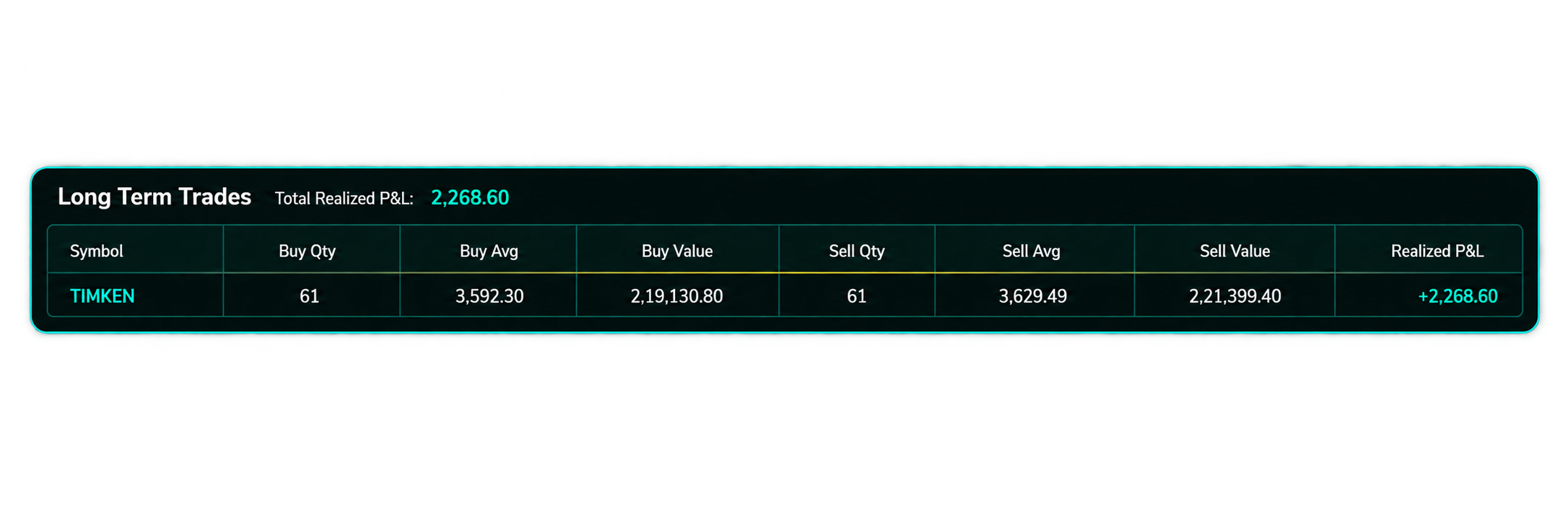
Long Term Trades
Displays the net P&L on equity held for more than one year.
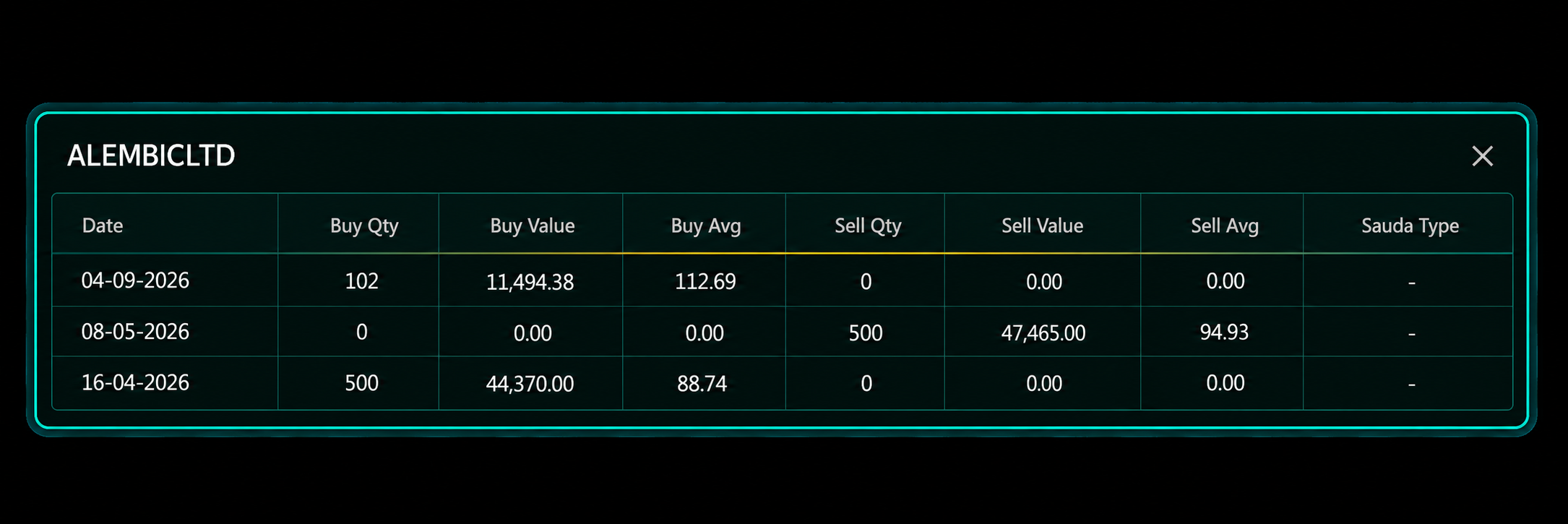
View Trade Details
- Click any symbol name shown in green in the trade tables.
- A detail pop-up opens for that security.
- The pop-up displays individual trades for the selected period.
- The details include:
- Date
- Buy Qty
- Buy Value
- Buy Avg
- Sell Qty
- Sell Value
- Sell Avg
iii. Contract Note
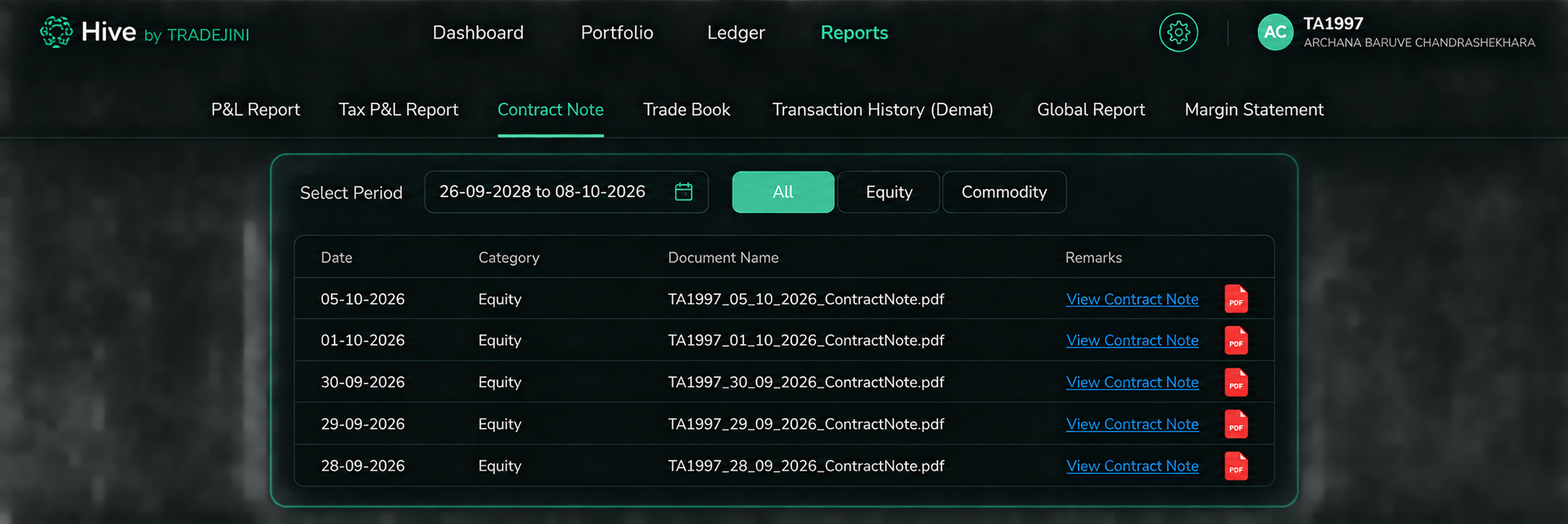
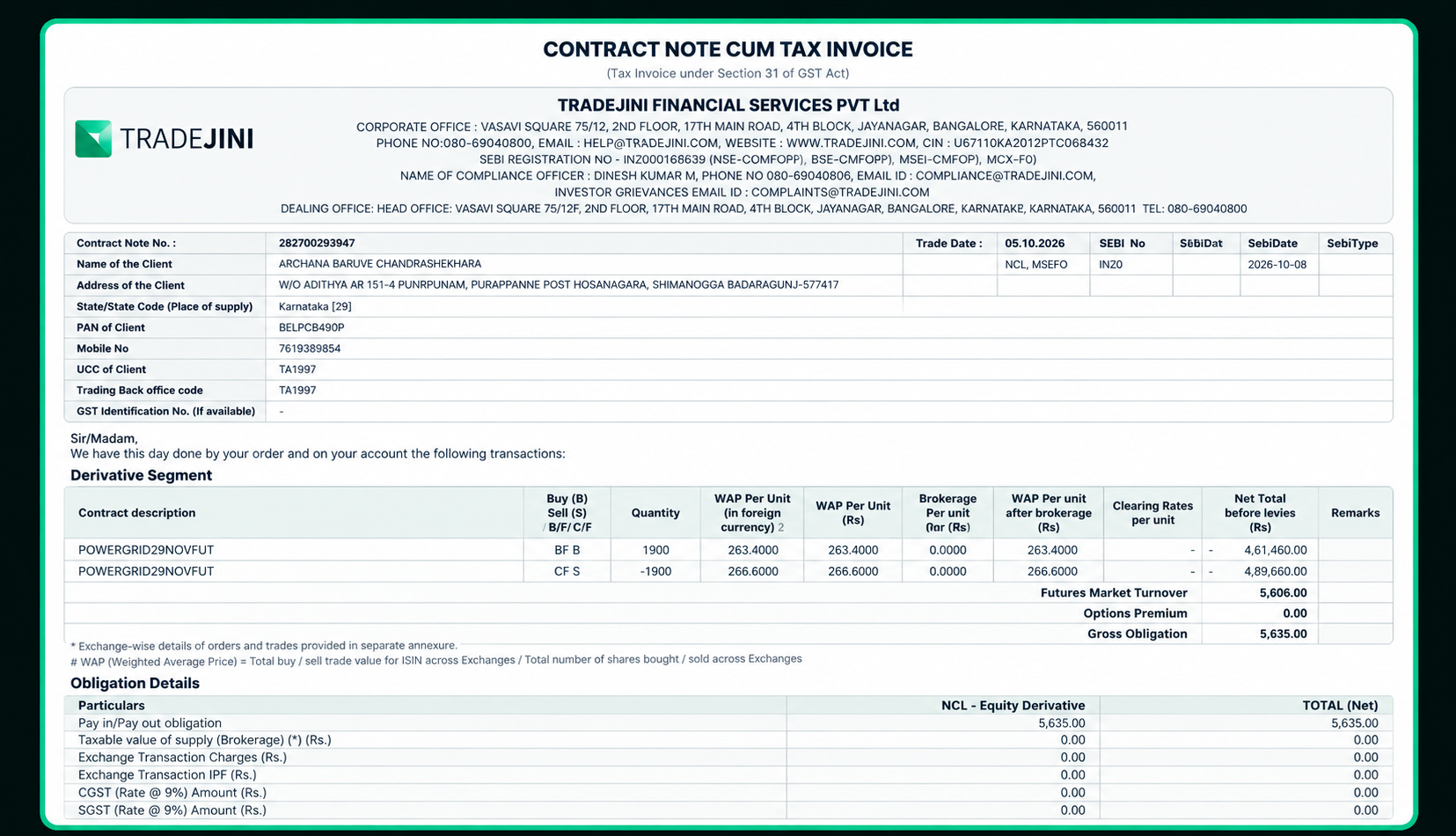
A contract note is available only for days on which you have executed trades. No row is displayed for days with no trades.
View Contract Note
- Select the required trading day.
- Click View Contract Note.
- The contract note for that day will open.
- Download the document for your records.
iv. Trade Book
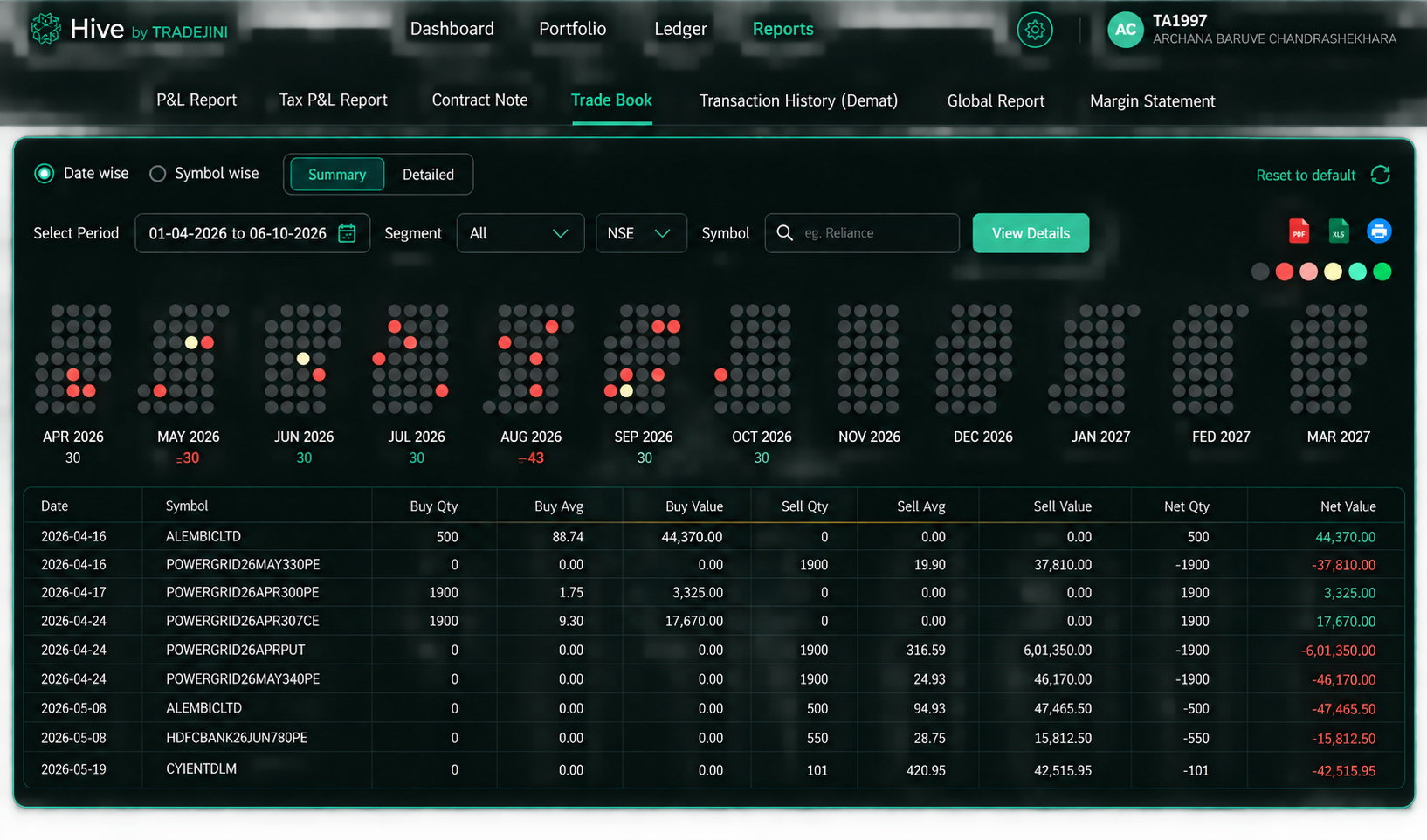
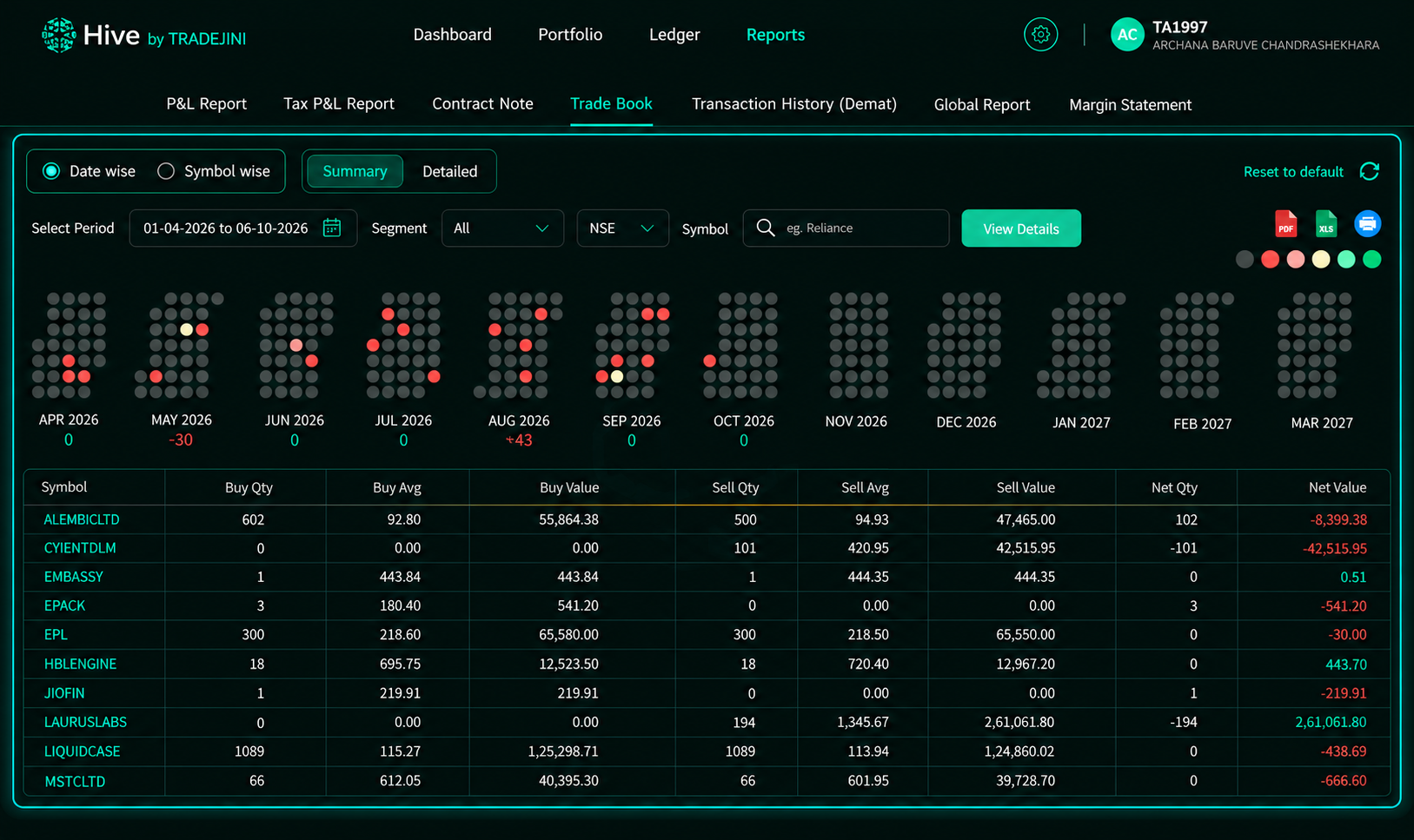
Go to Reports → Trade Book to view a complete list of executed orders for the selected period.
The Trade Book also provides a monthly calendar showing the net traded value for each month.
Date Wise / Symbol Wise
Use this option to change how the trades are grouped:
- Date Wise: Groups trades by transaction date.
- Symbol Wise: Groups trades by security.
Segment
Select the required segment from the dropdown:
- All
- Equity
- MF
- F&O
Exchange Filter
Select the required exchange:
- NSE
- BSE
Symbol Search
- Enter the security name in the search field.
- For example, enter Reliance.
- Click View Details to view the trades for that security.
Symbol Wise Tradebook
The Symbol Wise Tradebook displays your trades grouped by security.
Use the available filters and calendar to review the trading activity for the selected period.
Show Calendar
Enable Show Calendar to view your trading activity in a calendar format.
The calendar displays the trading activity across the selected period.
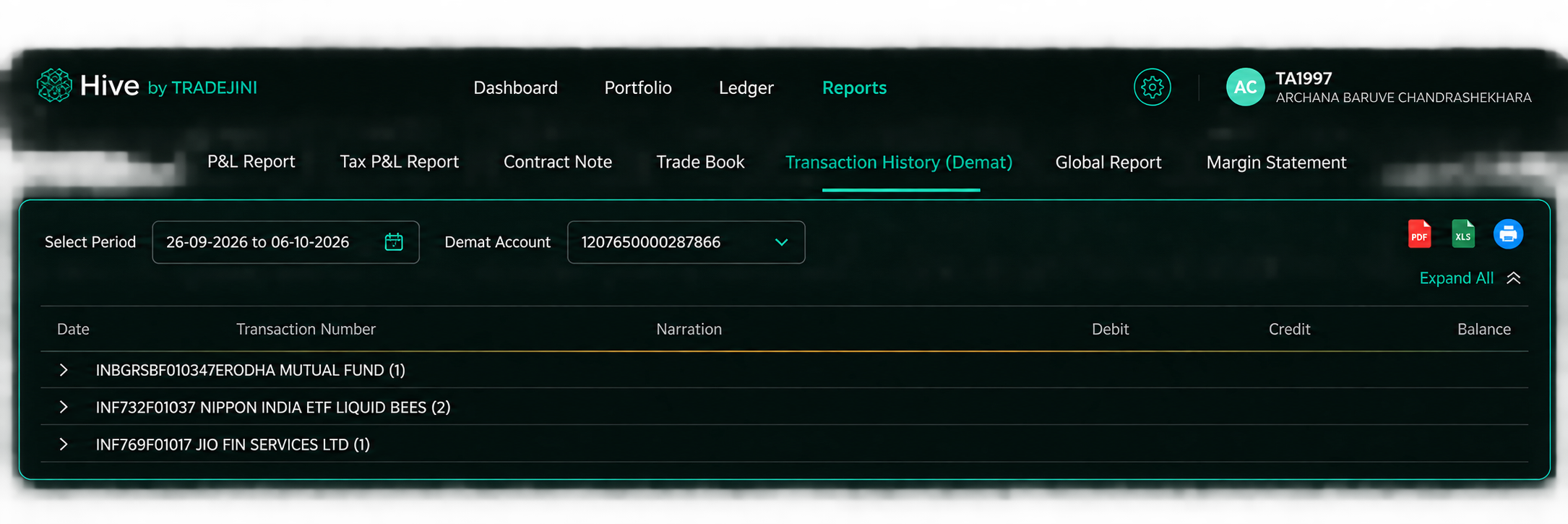
v. Transaction History (Demat)
The Transaction History section displays your transaction details for the selected period.
Use this section to review the transactions recorded in your account.
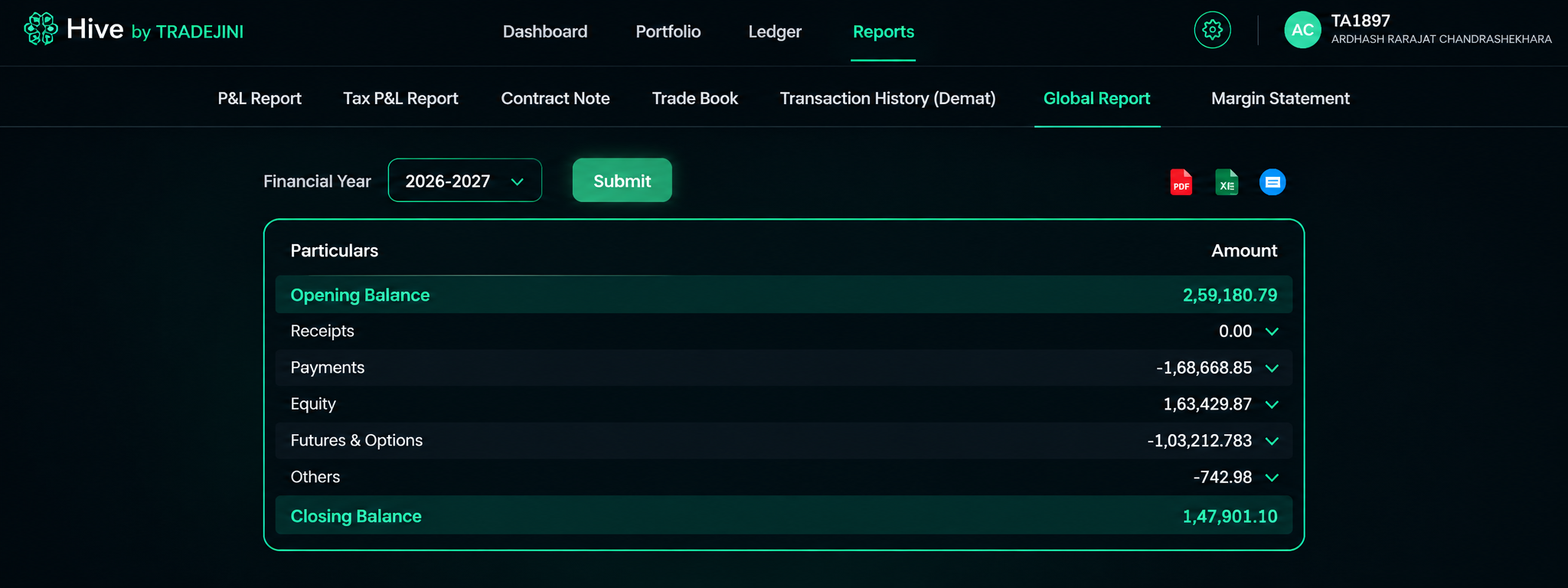
vi. Global Report
The Global Report provides a consolidated view of the available report information.
Select the required reporting period to view the corresponding report details.
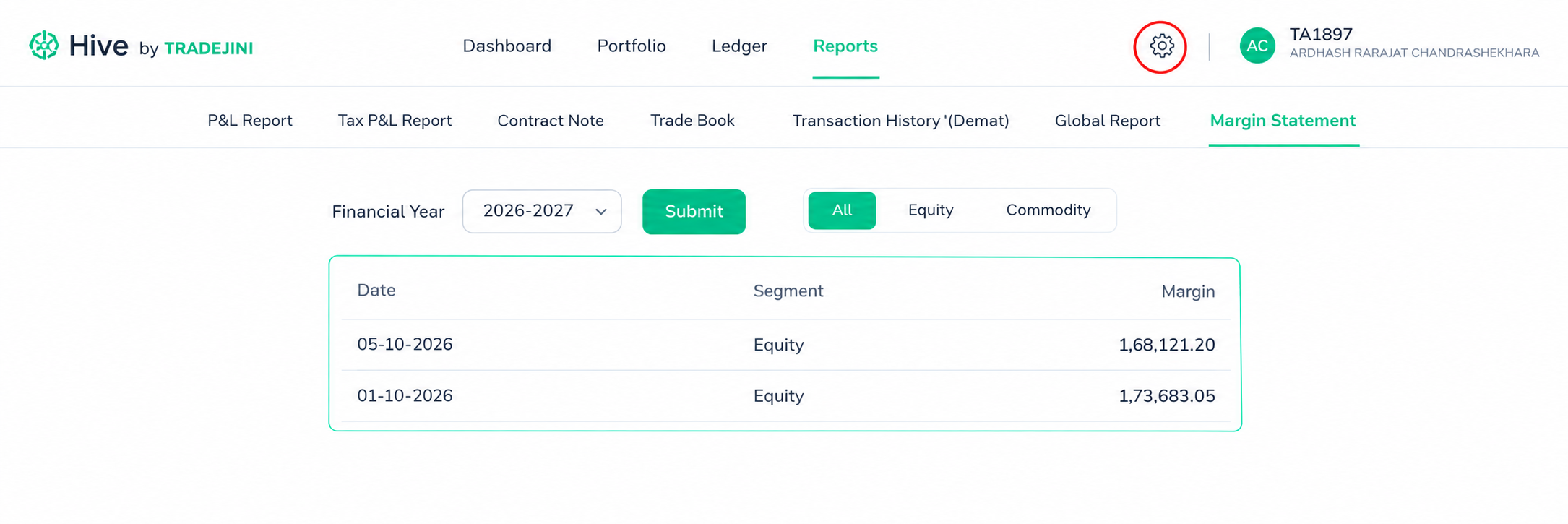
Margin Statement
The Margin Statement displays your margin-related information for the selected period.
Use this section to view the available margin statement details.
Light and Dark Mode
Hive supports both Light and Dark display modes.
Change Display Mode
- Click the display mode option at the top-right.
- Select Light or Dark mode.