The Search Bar
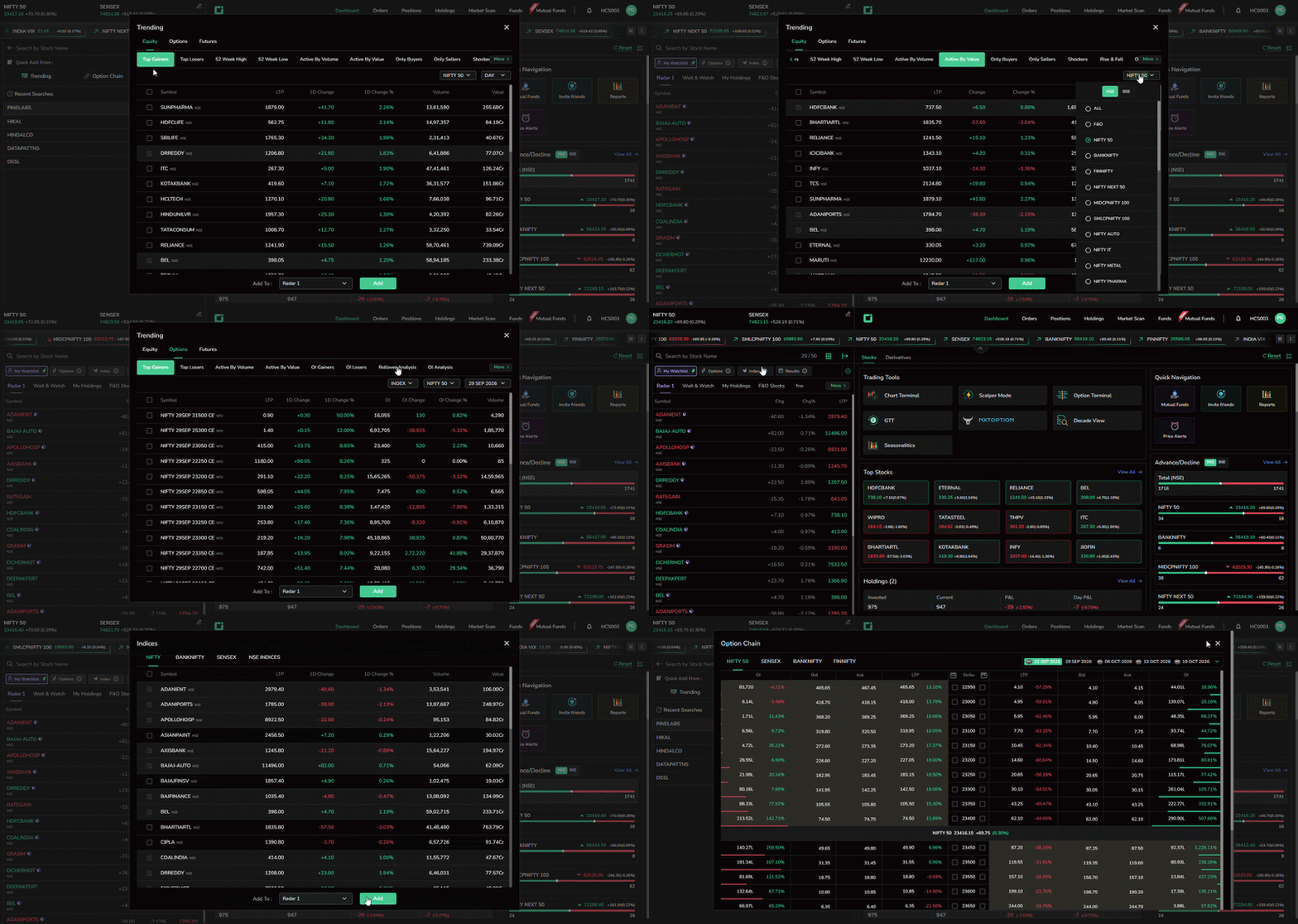
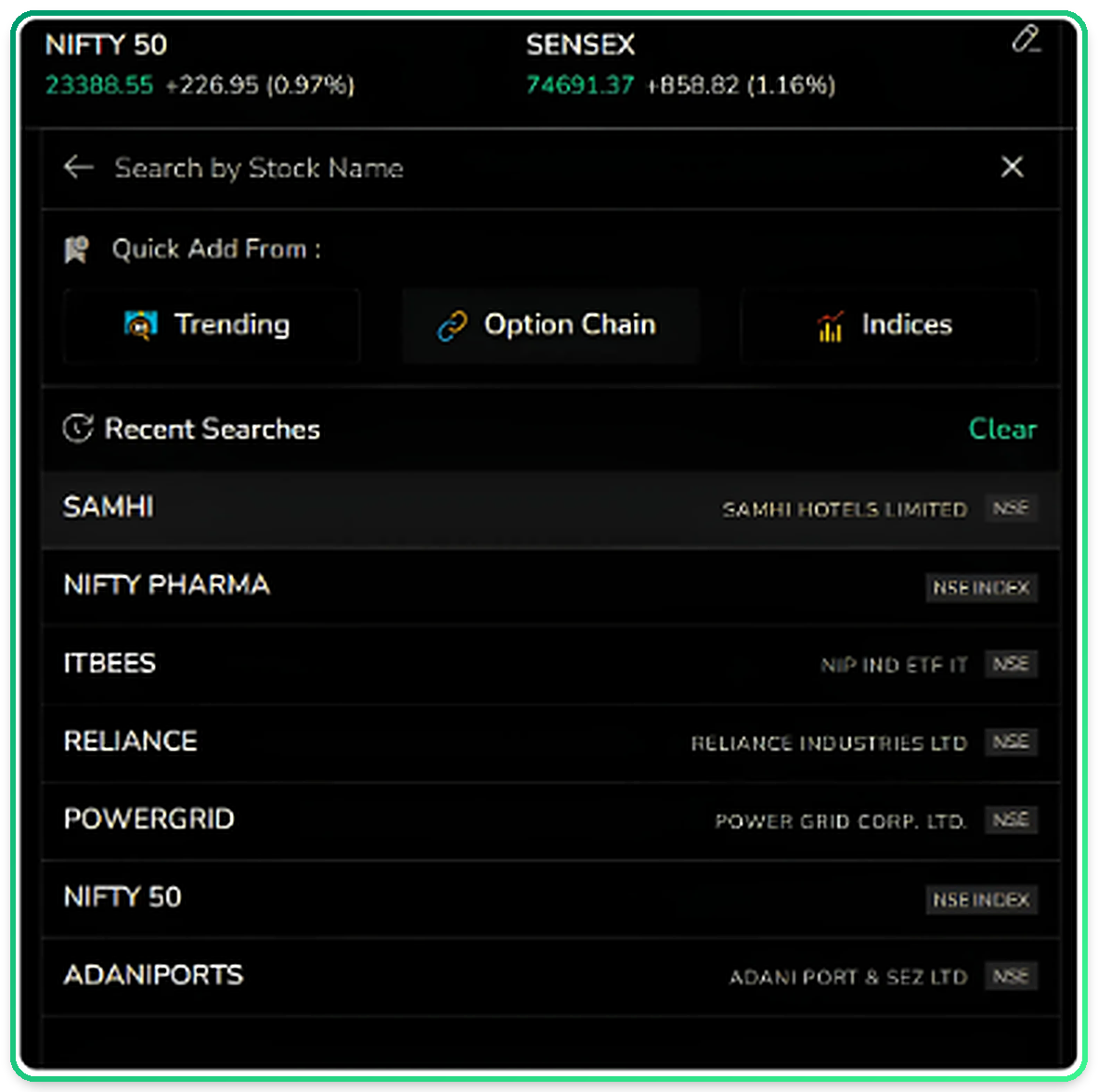
Search and Quick Add
Click the Search bar to quickly find and add symbols to your Watchlist.
The search panel provides three quick-add options along with your recent searches:
- Trending – Quickly access trending symbols.
- Option Chain – Find and add option contracts.
- Indices – Browse and add index constituents.
This makes it easy to find and add symbols without manually searching through the entire list.
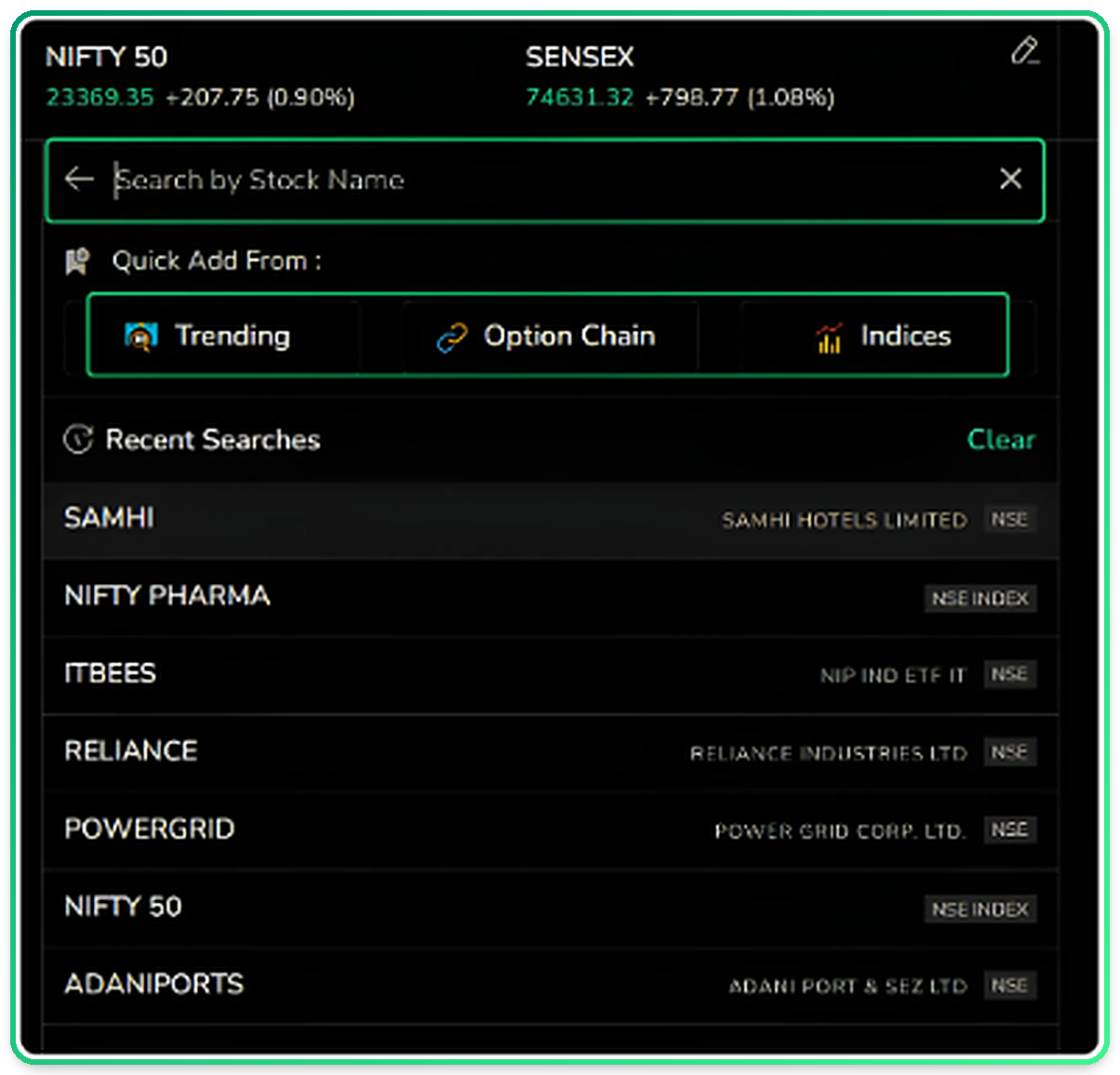
The search bar with quick-add routes and recent searches visible on opening.
Enter a few characters in the Search bar to instantly view matching symbols.
Search results are grouped into three tabs:
- Stocks – Find the corresponding stocks.
- F&O – Find futures and options contracts.
- Index – Find the relevant index.
This allows you to find stocks, derivatives, or indices from a single search without performing separate searches.
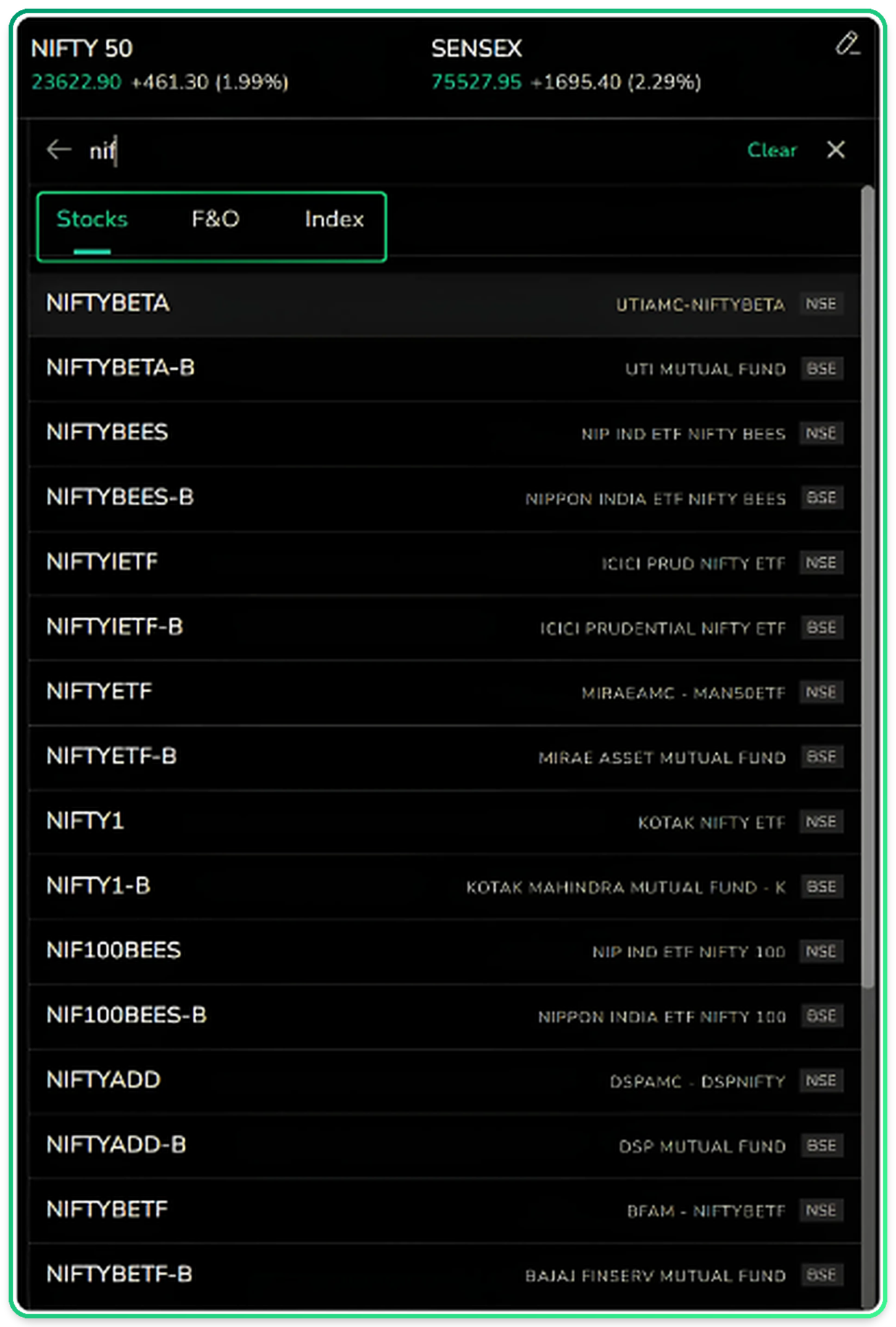
Search results grouped by instrument type for faster navigation.
Trending
Trending is a market scanner that helps you quickly identify actively moving symbols across different market segments.
It is organised into four categories:
- Equity
- Options
- Futures
- Commodity
Each category provides different sorted views to help you identify relevant market movements.
Once you select a symbol, use the Add To option at the bottom to add it directly to a custom watchlist (User Defined Watchlists). This allows you to quickly add symbols you identify from the Trending section to your tracked list.
Within each category, you can choose from multiple sorted views, such as Top Gainers, Top Losers, 52 Week High, 52 Week Low, Active By Volume, Active By Value, Only Buyers, Only Sellers, Shockers, and Rise & Fall.
Select any view to filter the list based on the market activity you want to track.
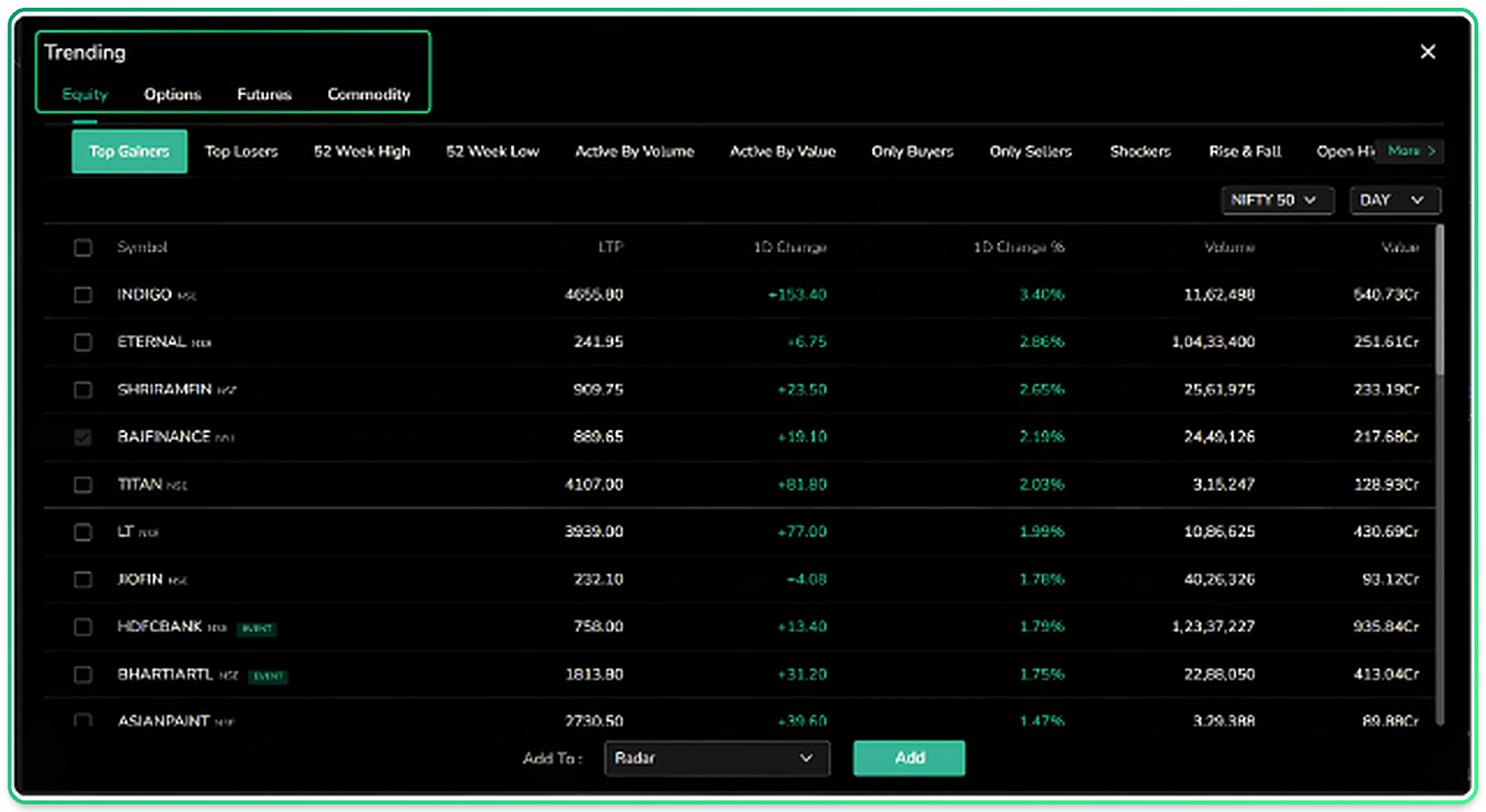
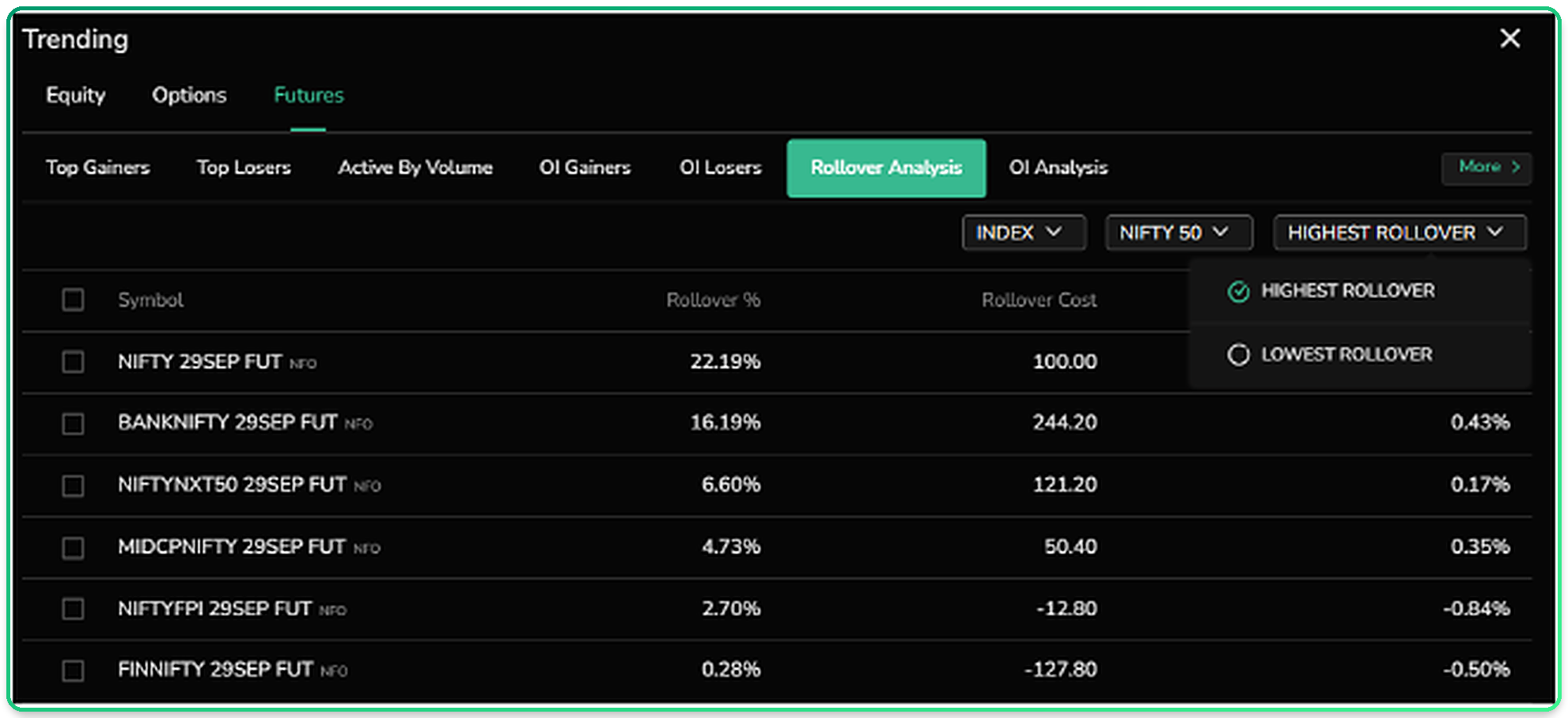
The Add To control at the bottom of any Trending list.
Option Chain
Selecting Option Chain from the Search bar opens the option chain for four indices:
- Nifty 50
- Sensex
- Bank Nifty
- Fin Nifty
Select an expiry date from the options available at the top. The option chain displays Call and Put contracts strike by strike, along with Open Interest, Bid Price, Ask Price, and LTP.
You can select any strike and add it directly to a custom watchlist.
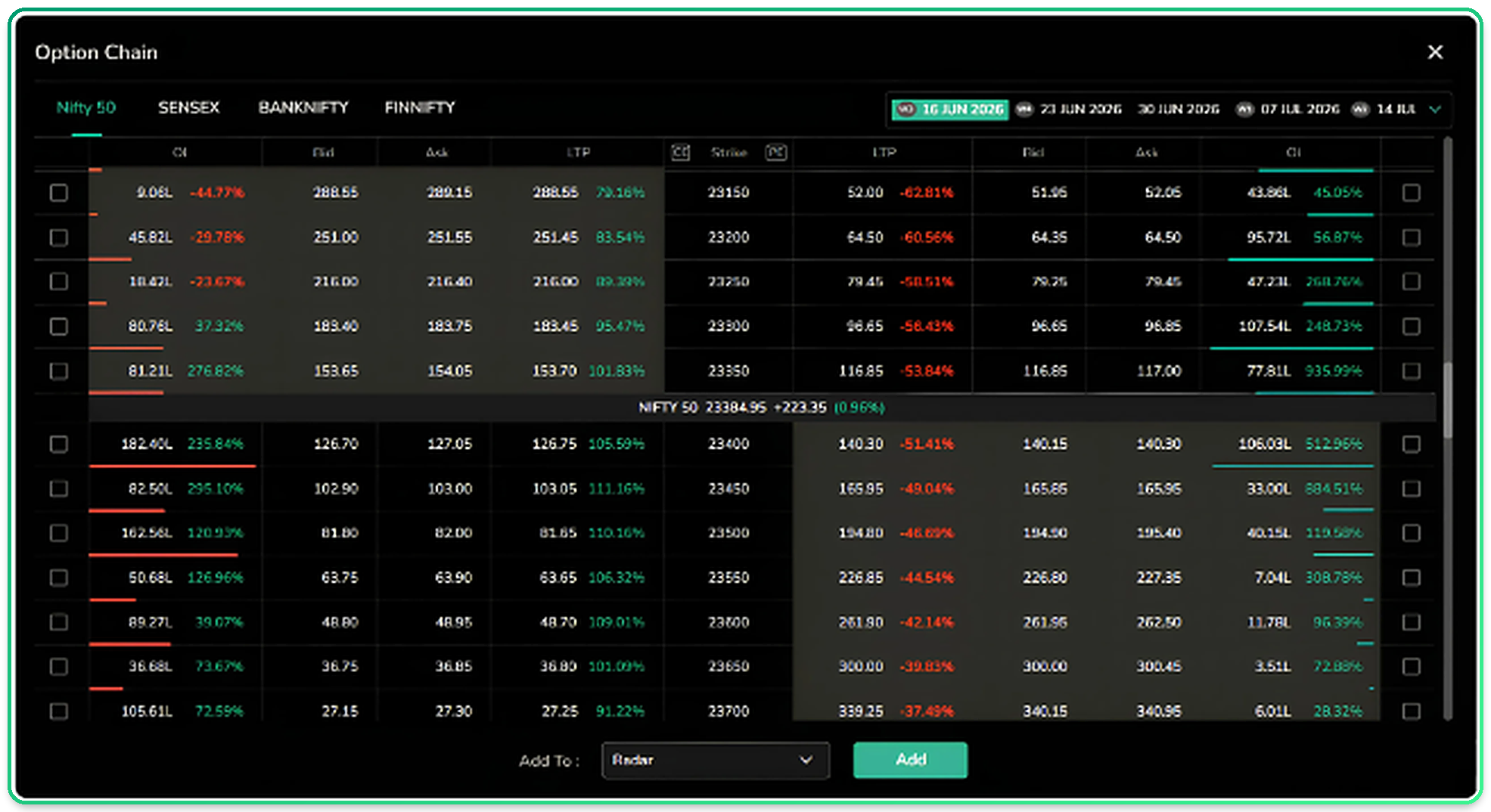
The Option Chain view accessed from the search bar, with per-strike data and an add-to-watchlist option.
Indices
Selecting Indices from the Search bar displays the constituents of four index groups:
- Nifty
- Bank Nifty
- Sensex
- NSE Indices
Select an index to view its constituent stocks along with their live market data.
You can also select individual stocks and add them directly to your custom watchlist.
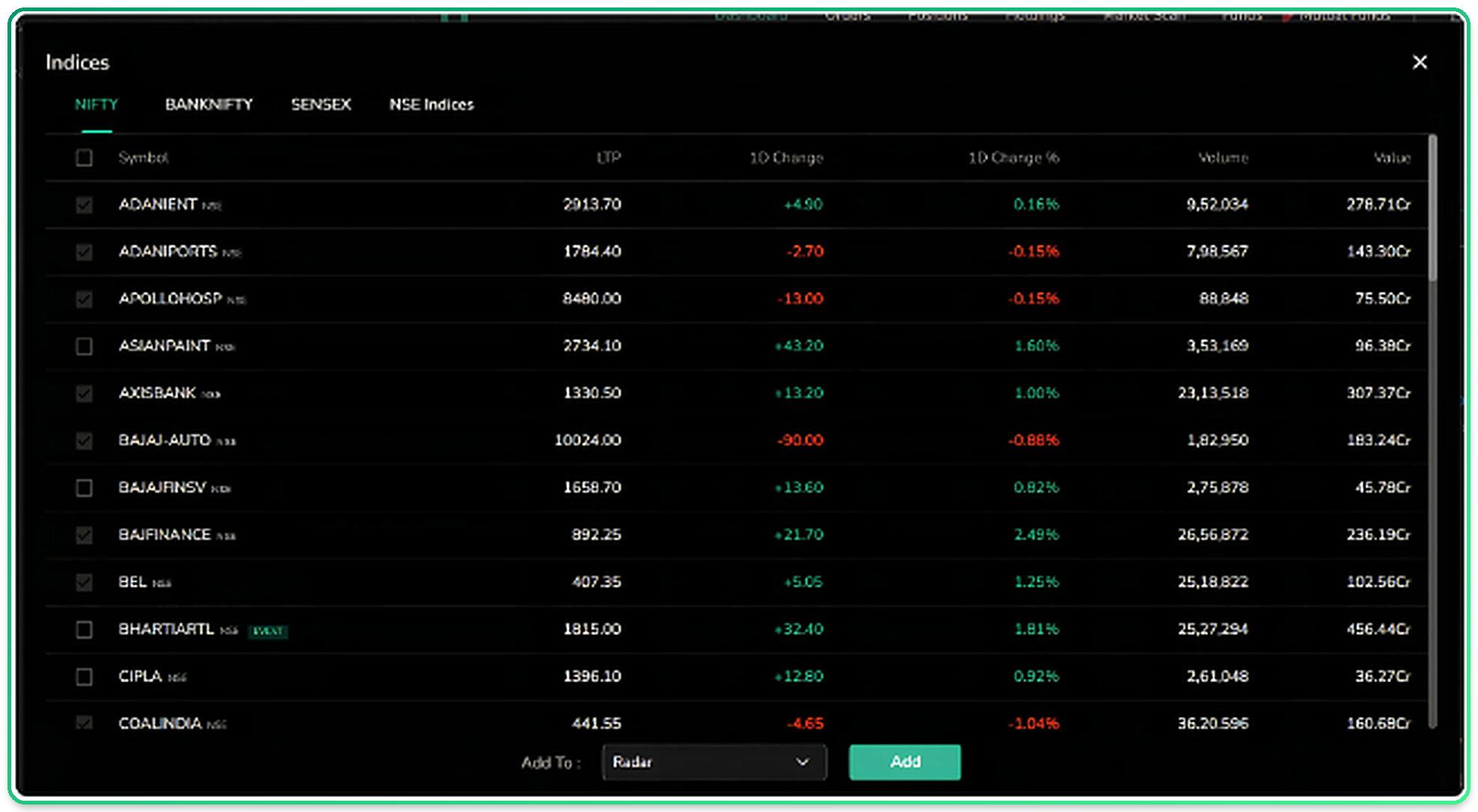
The Indices view with constituent stocks and add-to-watchlist controls.
Add to Watchlist
You can add any symbol found through Trending or Indices directly to a custom watchlist without leaving the current view.
Select the required symbol and use the dropdown at the bottom of the list to choose the destination watchlist, such as Radar or any other custom watchlist you have created.
Click Add to add the selected symbol directly to the chosen watchlist.
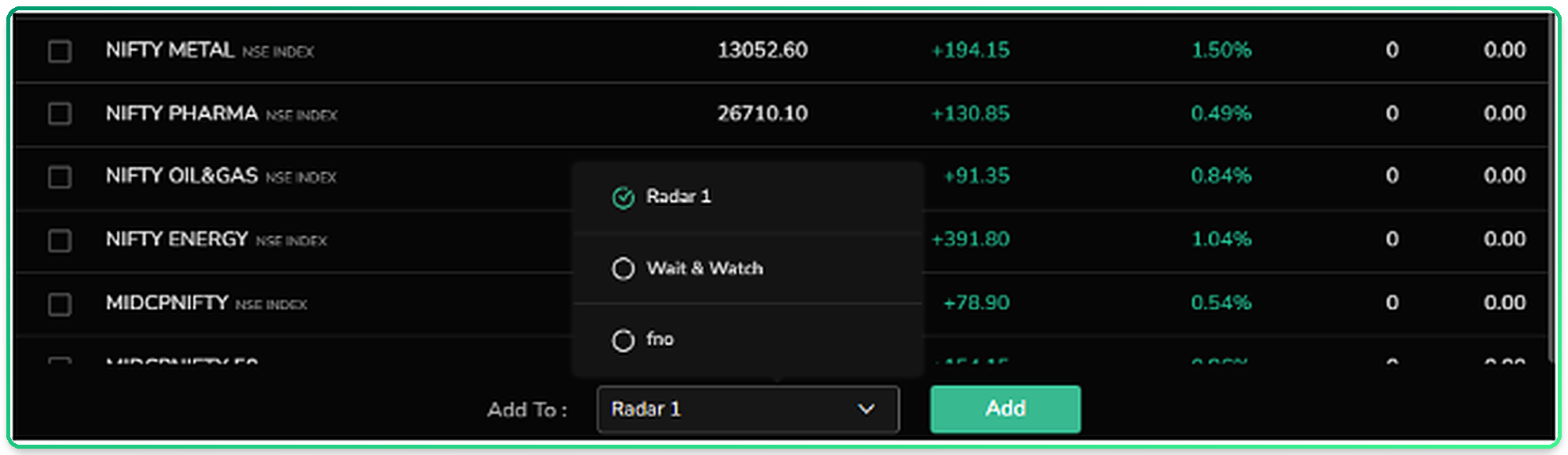
The Add To dropdown at the bottom of the Trending and Indices views, with a destination watchlist selected.