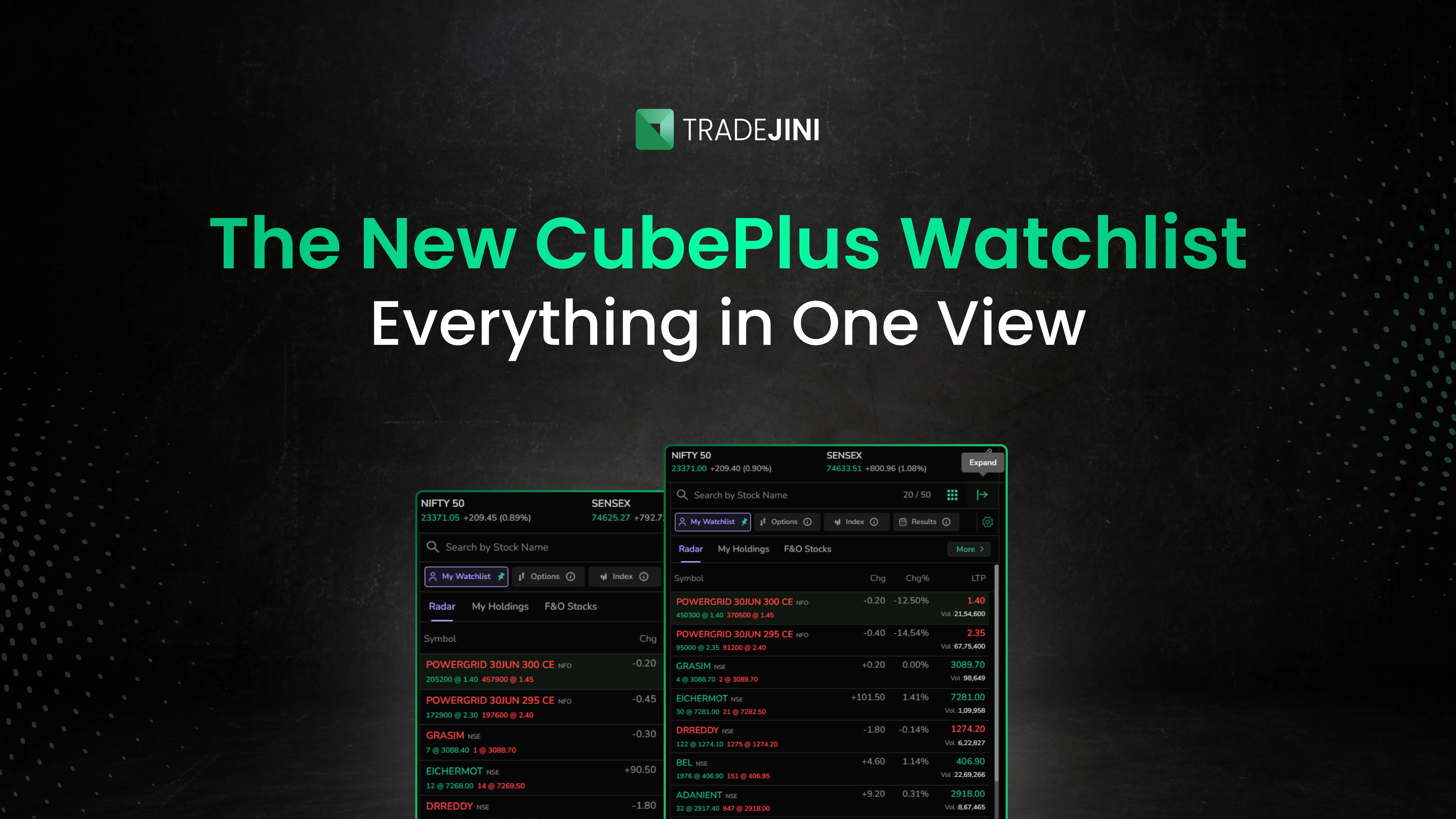
Watchlist
Watchlist on the CubePlus web platform brings your tracked symbols, index options, index constituents, and earnings calendar together in one place.
At the top of the panel, you can view live Nifty 50 and Sensex levels. Click on an index to view its detailed information.
Use the Search bar to quickly find a stock or derivative instrument.
The Watchlist is organised into four tabs:
- My Watchlist – Track your selected symbols.
- Options – View index option contracts.
- Index – View index constituents.
- Results – Track stocks with corporate results or upcoming earnings.
You can use the Settings icon to customise the Watchlist and the Heatmap icon to view market performance visually.
Click the Expand icon in the top-right corner to open the active section in a larger table view for easier monitoring.
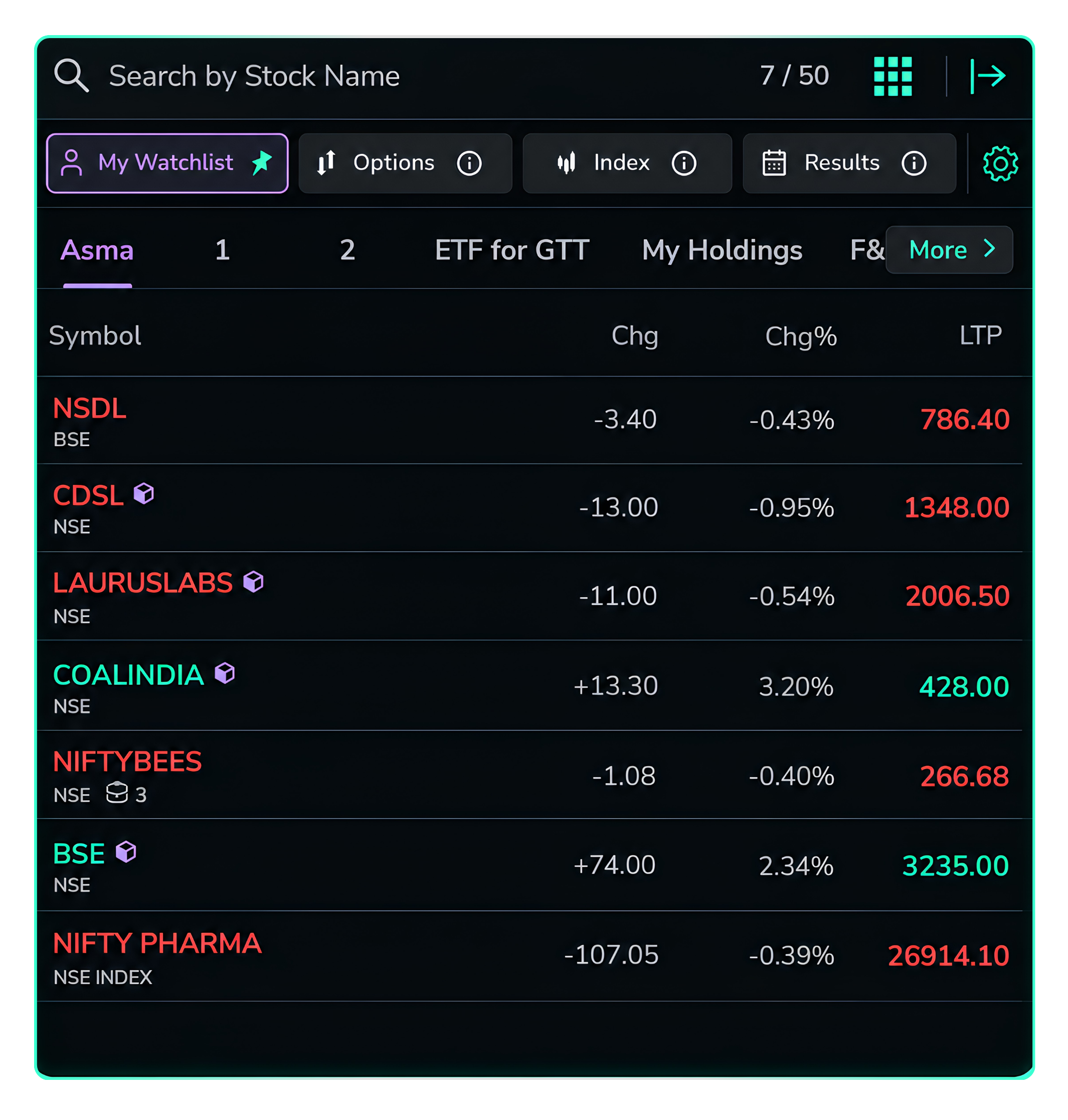
The watchlist panel with the four tabs and controls visible at the top.
My Watchlist
Create a custom watchlist by adding the stocks and derivative contracts you want to track. You can give your watchlist a name for easy identification.
For each symbol, you can view the Change, Change %, and LTP (Last Traded Price) at a glance.
In the Expanded View, you can also view Bid Size, Ask Size, Day High, Day Low, and Traded Volume along with the price details.
The column headings can be used to sort the watchlist. Click Change, Change %, or LTP to sort the list from low to high. Click the same heading again to reverse the order.
This makes it easy to quickly identify the biggest price movers or most actively traded symbols.
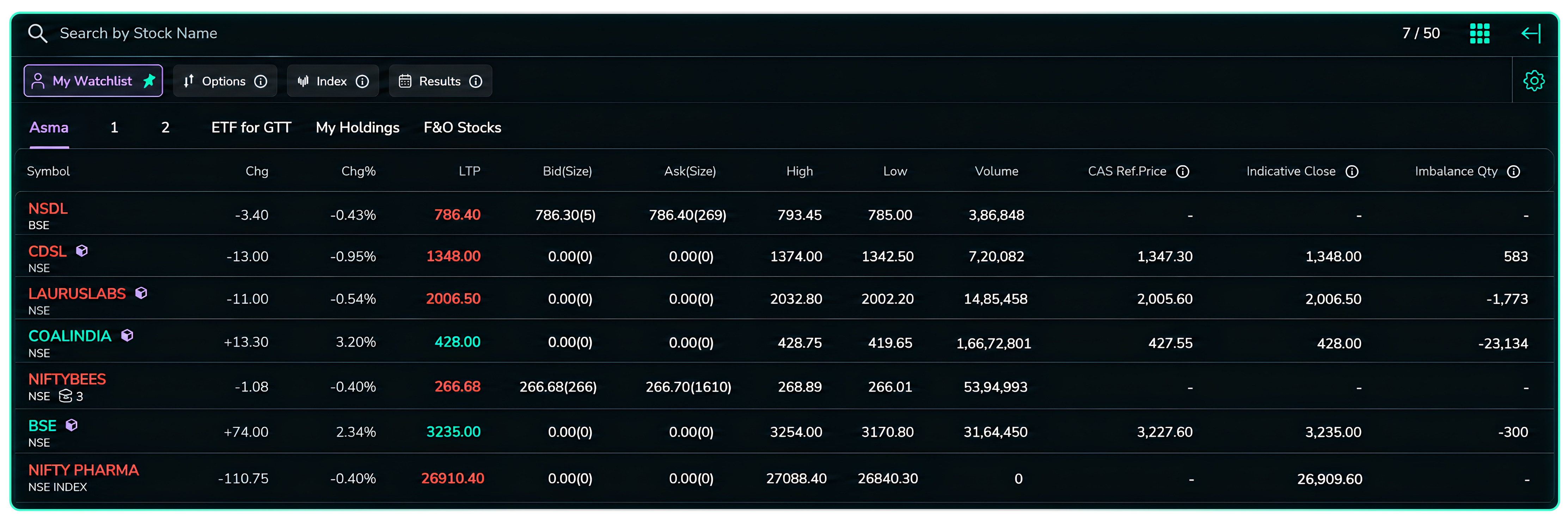
The sub-tab with sort controls on the column headings.
My Holdings (Default Watchlist)
My Holdings is the default watchlist and displays the stocks you currently hold in your portfolio.
It uses the same column layout as your custom watchlist, allowing you to view key price and market information for your holdings at a glance.
You can enable or disable My Holdings using the Settings button.
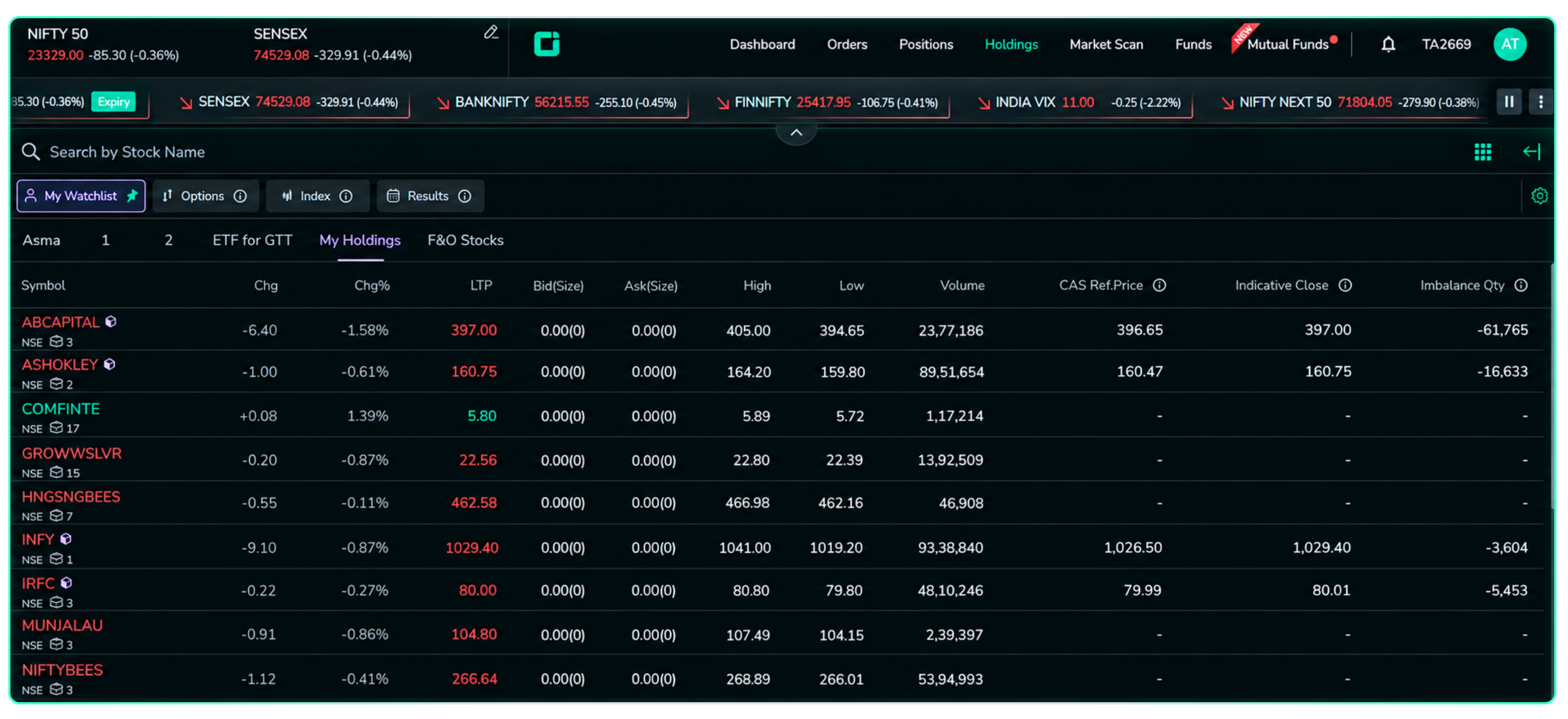
The My Holdings sub-tab.
F&O Stocks
F&O Stocks lists all futures and options eligible stocks in one place, letting you track and explore them alongside your custom list.
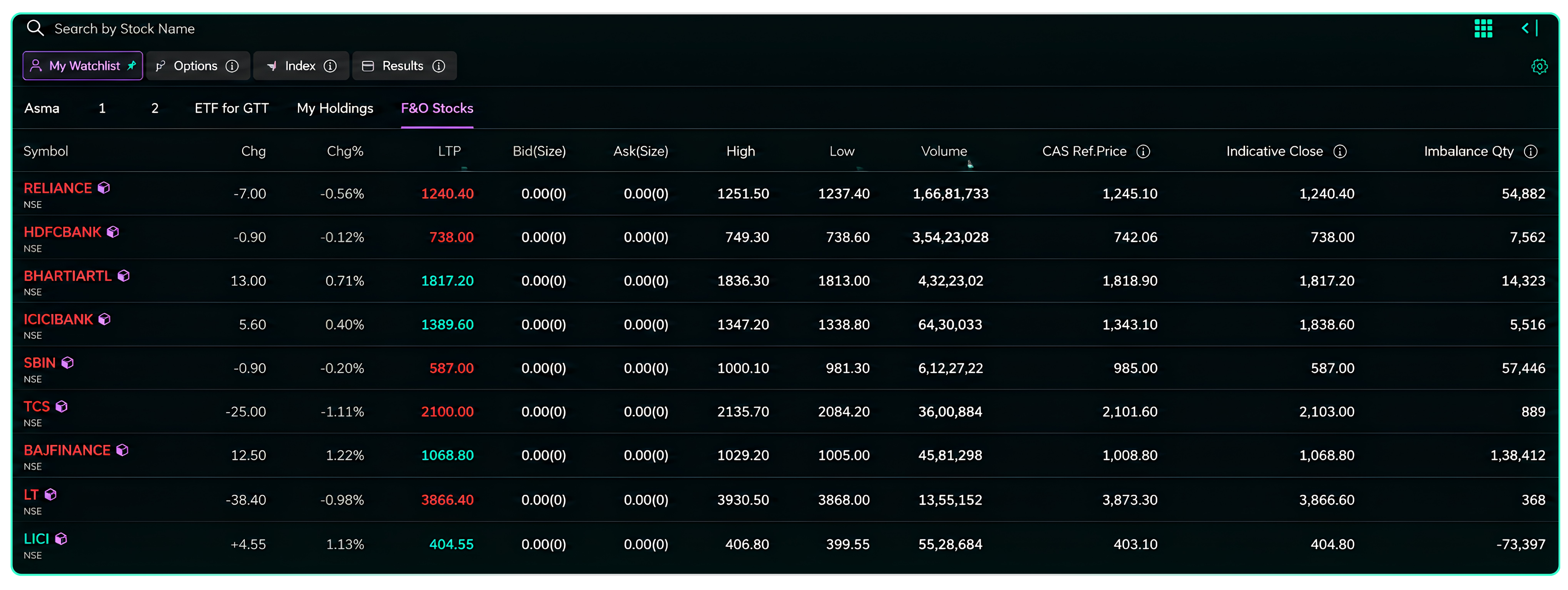
The F&O Stocks sub-tab.
Options
The Options tab provides quick access to index derivative contracts.
It is divided into three sub-tabs:
- Nifty Options
- Bank Nifty Options
- Sensex Options
Select an index to view its available option contracts. For each contract, you can view LTP, Bid Size, Ask Size, Day High, Day Low, and Volume.
This allows you to quickly scan the option contracts for an index without leaving the Watchlist.
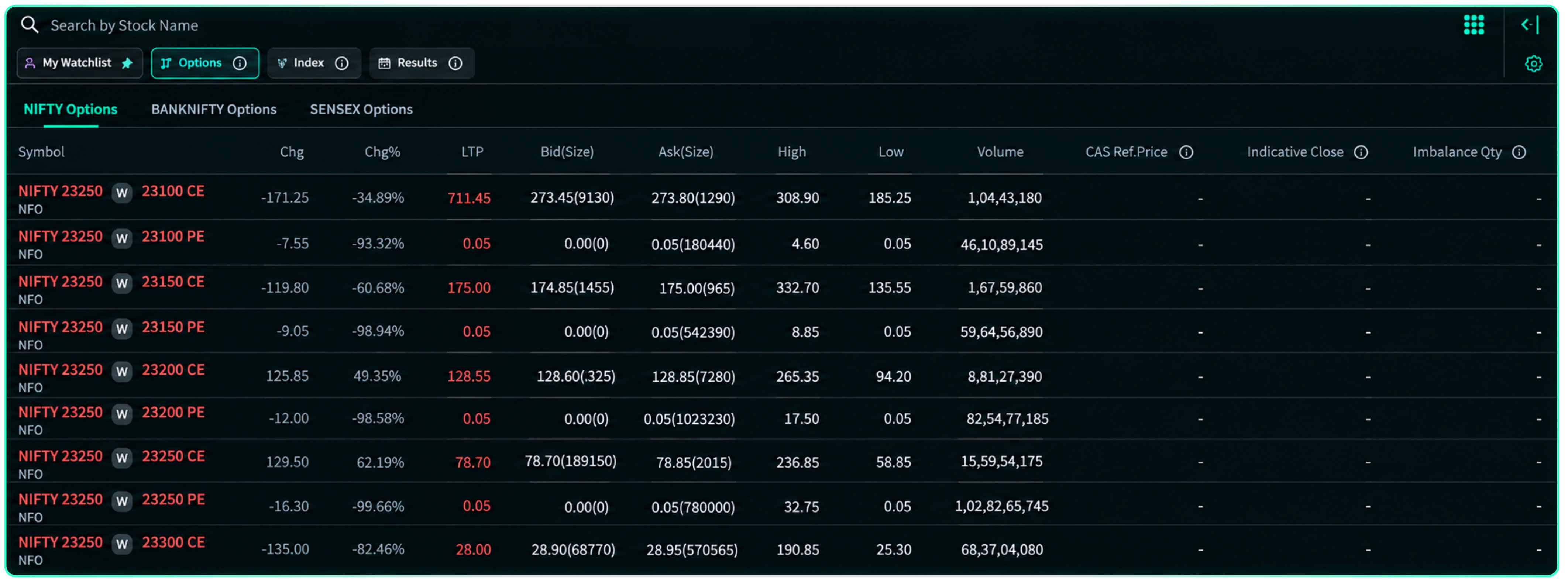
The Options tab with the three index sub-tabs.
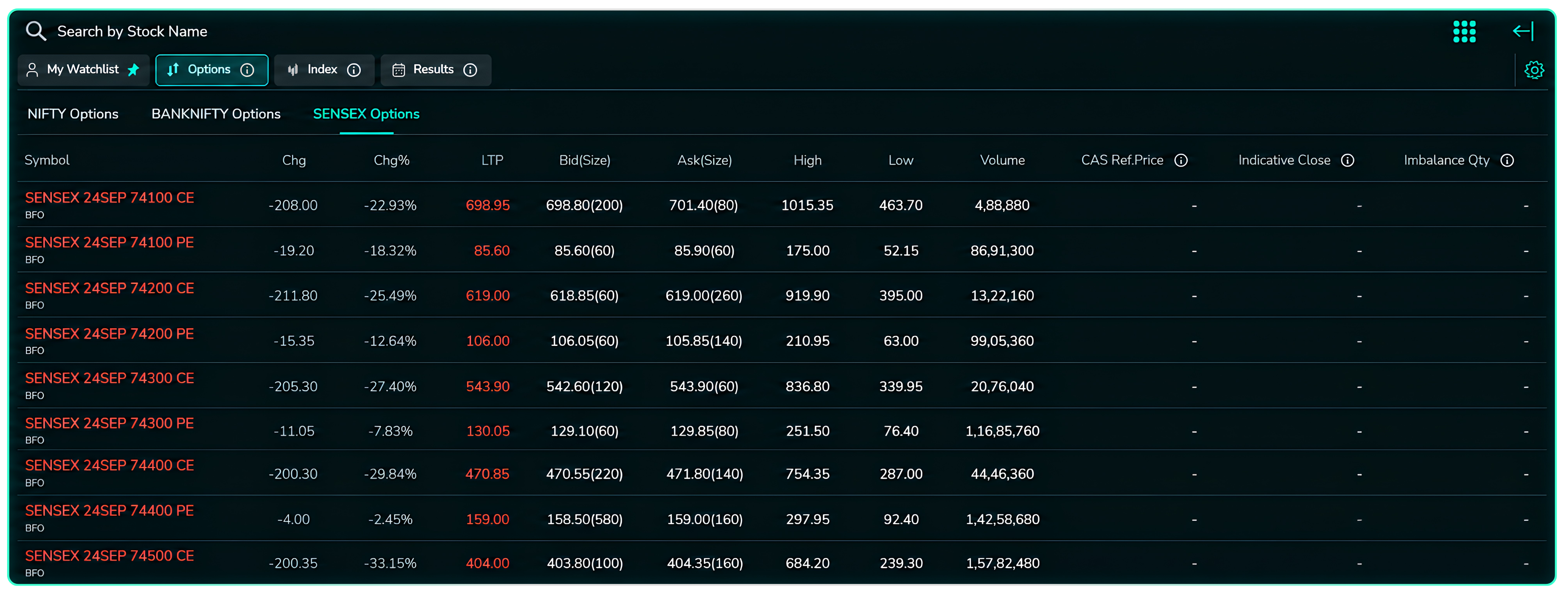
Option contracts for an index with live data across all columns.
Index
The Index tab displays the constituent stocks of major indices.
It is divided into three sub-tabs:
- Nifty
- Bank Nifty
- Sensex
Select an index to view its constituent stocks along with live prices and the standard watchlist columns.
This allows you to quickly monitor the individual stocks that make up an index and understand their contribution to its overall movement.
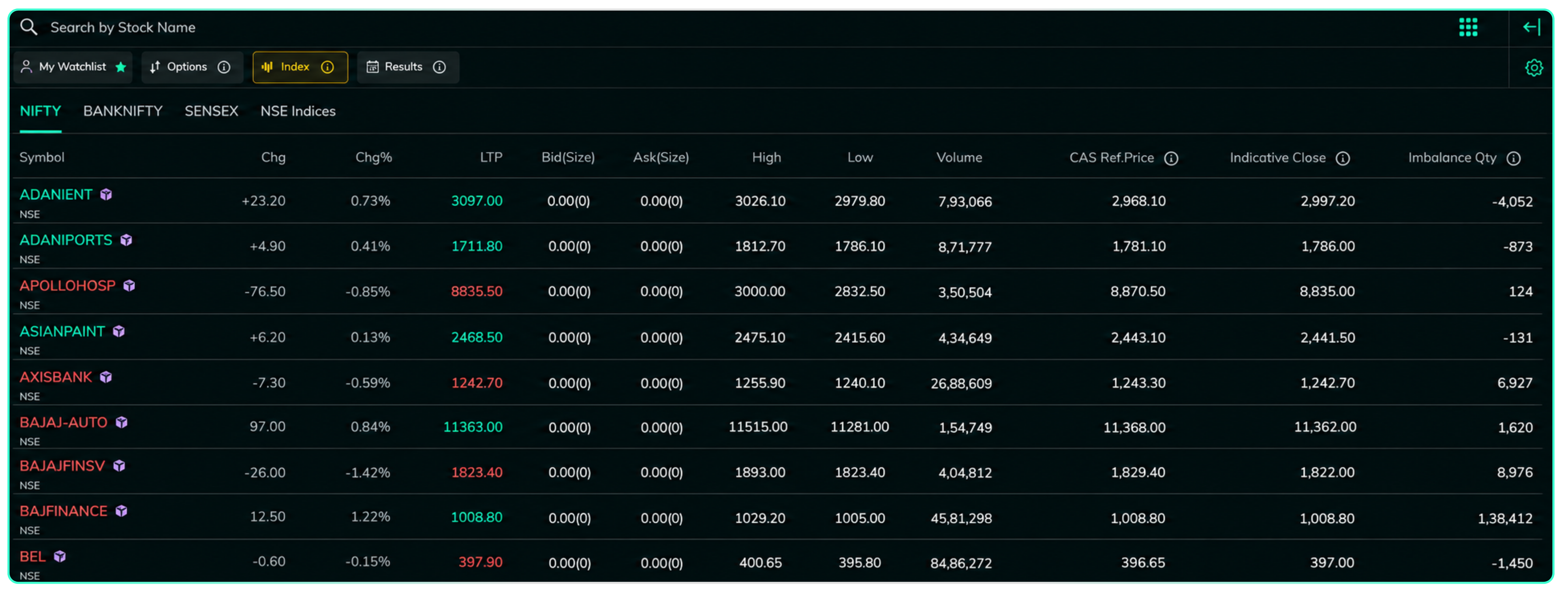
The Index tab with the three index sub-tabs.
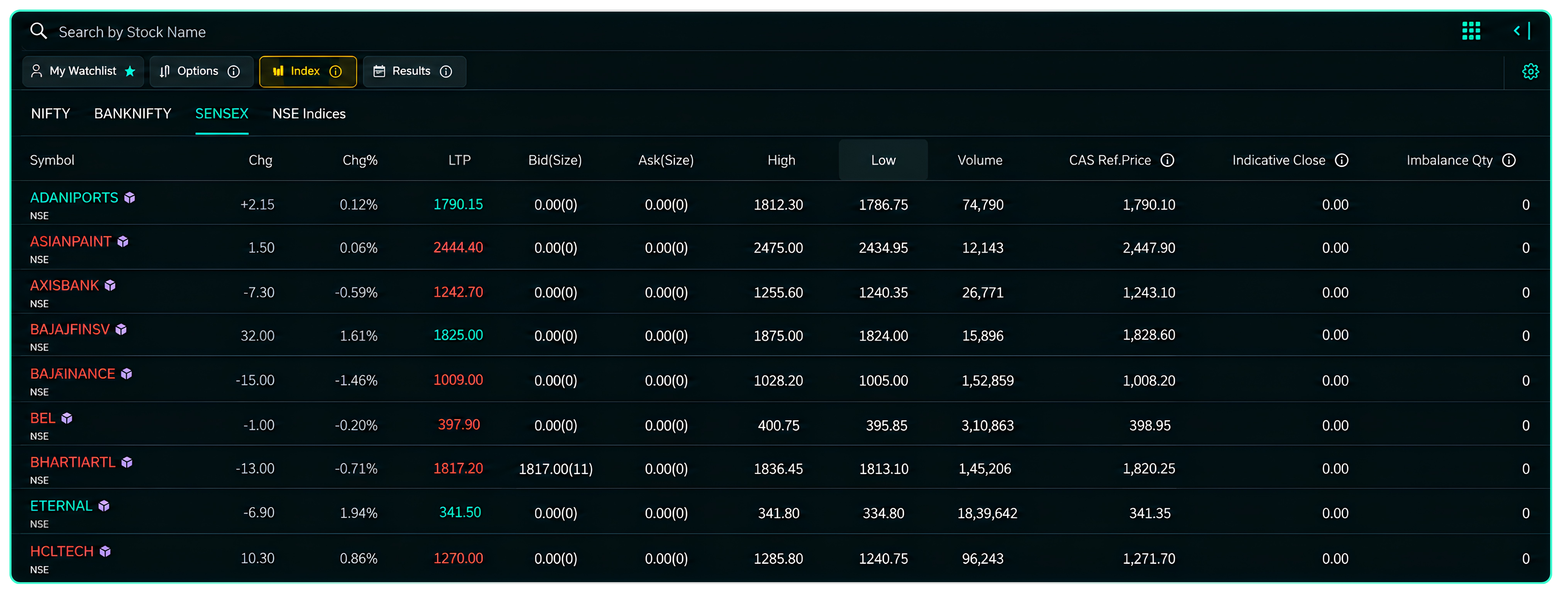
Constituent stocks for a selected index with live data.
Results
The Results tab provides quick access to the earnings calendar and companies reporting their results.
It is divided into three sub-tabs:
- Results Today – Companies scheduled to announce results today.
- Results Tomorrow – Companies scheduled to announce results tomorrow.
- Results Yesterday – Companies that announced results yesterday.
Each sub-tab displays the relevant companies along with their live price data, allowing you to monitor stocks around their results without opening a separate earnings calendar.

The Results tab with earnings calendar sub-tabs.
Setting a Default Group
Each of the four tabs has a Pin icon. Click the Pin icon on any tab to set it as the default tab.
The selected tab will open automatically whenever you open the Watchlist, while the other tabs remain accessible with a single click.

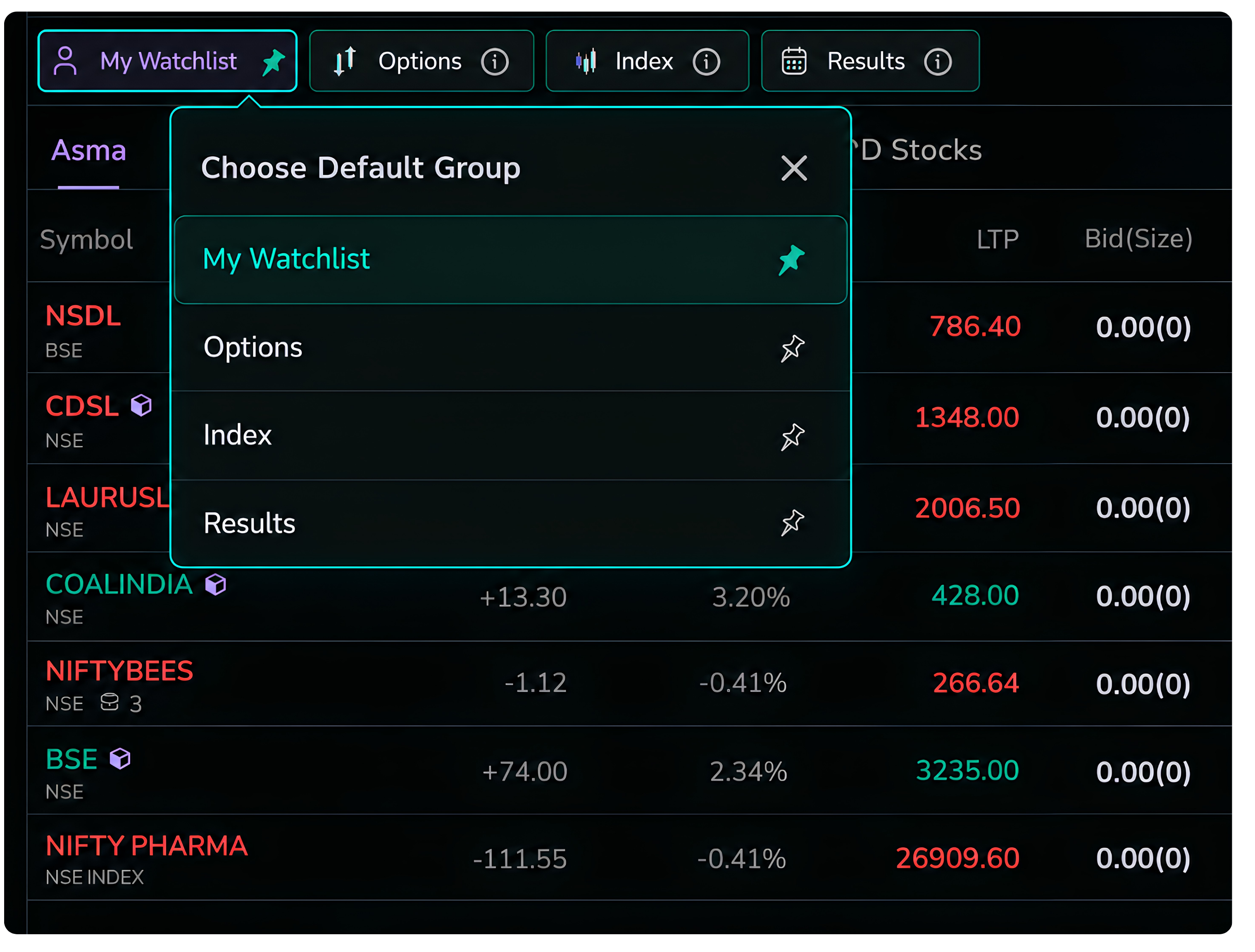
Clicking the pin on a tab sets it as the default group.
Customisation and Settings
Watchlist Settings
Click the Settings icon at the top-right corner to open the Watchlist settings panel.
The panel provides separate settings for each of the four sections:
- My Watchlist Settings
- Options Watchlist Settings
- Index Watchlist Settings
- Results Watchlist Settings
Select the relevant section to customise its Watchlist settings.
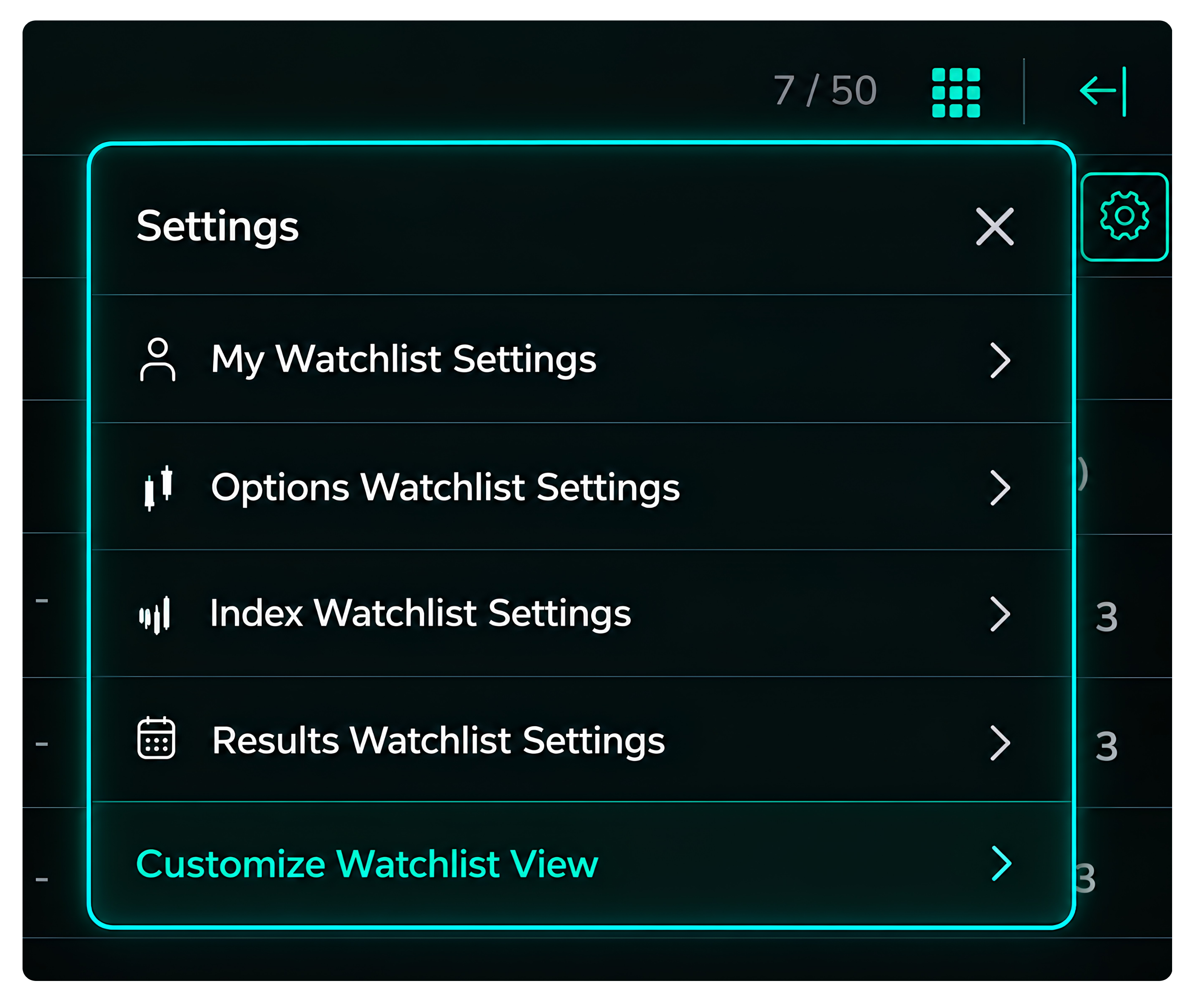
The settings panel with per-section controls.
My Watchlist Settings
You can enable or disable each sub-watchlist within My Watchlist, including User-Defined Watchlists, My Holdings, and F&O Stocks.
You can also change the order in which the sub-watchlists appear. Click and hold a watchlist, then drag it up or down to rearrange the order.
The sub-watchlist at the top will appear first when the My Watchlist section is opened.
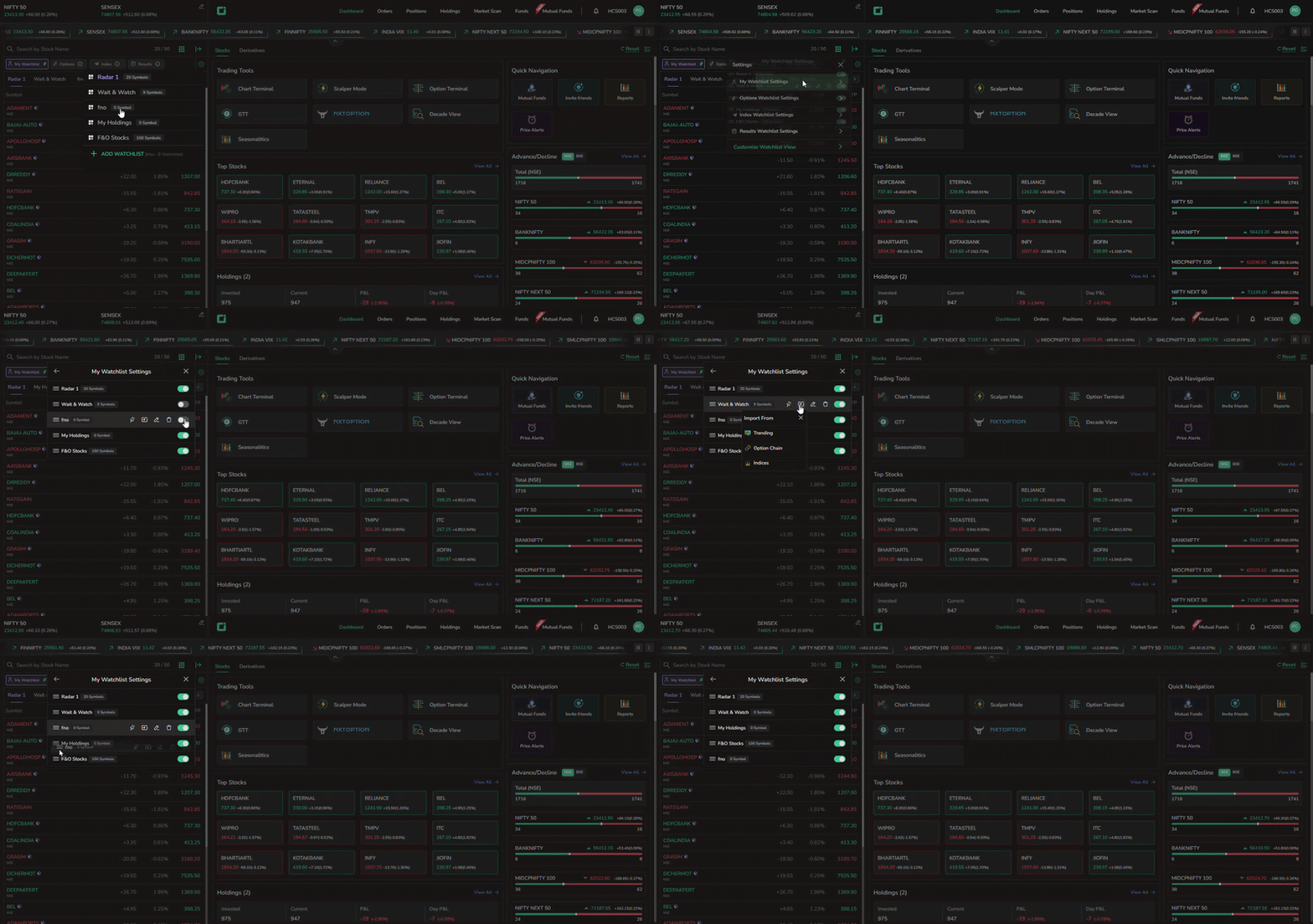
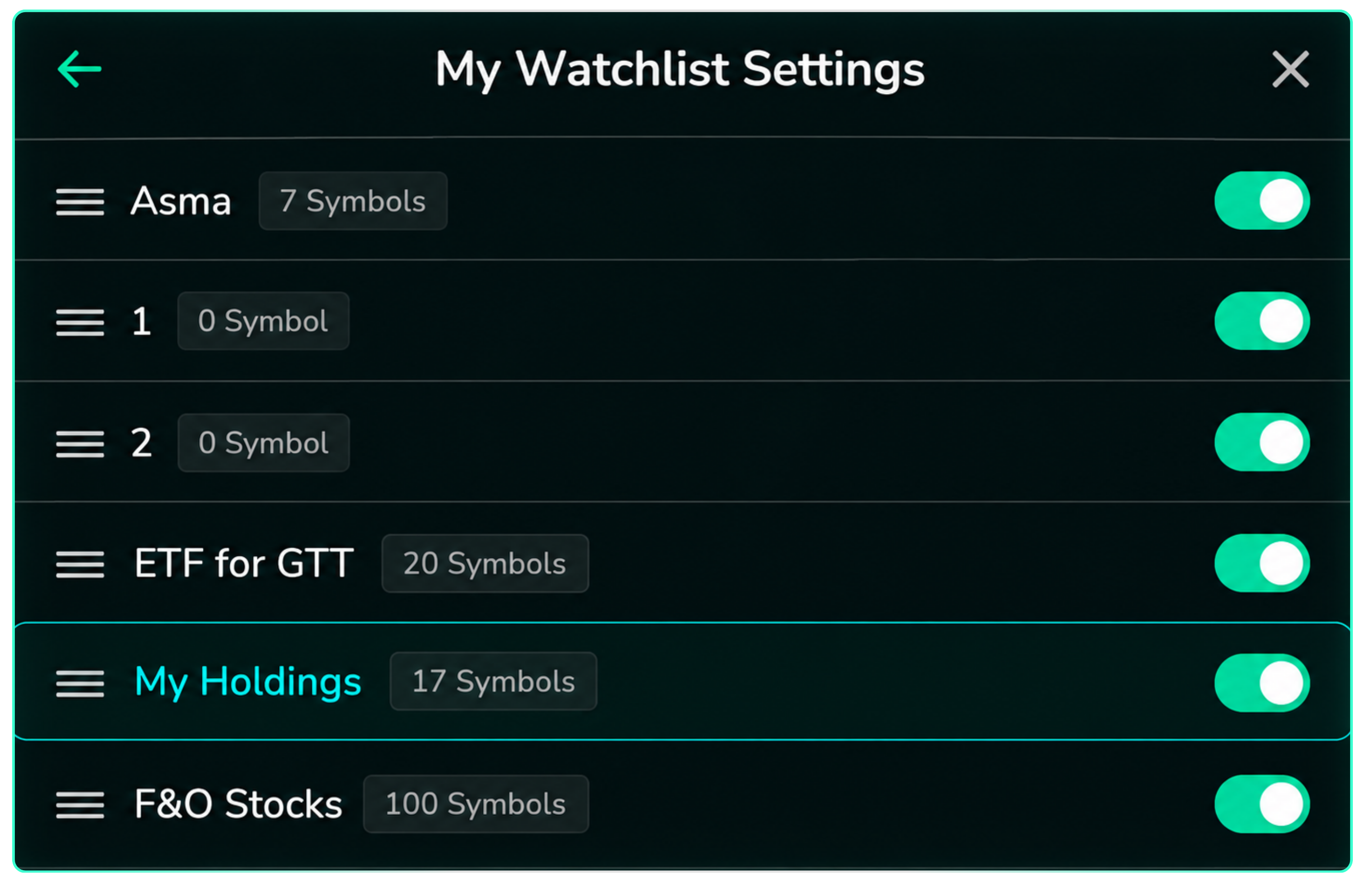
Toggles and drag-to-reorder controls inside My Watchlist Settings.
Watchlist Controls
Hover over any watchlist in the Settings panel to access four controls:
- Pin – Set the watchlist as the default watchlist.
- Edit – Modify the watchlist name or settings.
- Delete – Remove the watchlist.
- Import – Add symbols from Trending, Option Chain, or Indices directly to your watchlist.
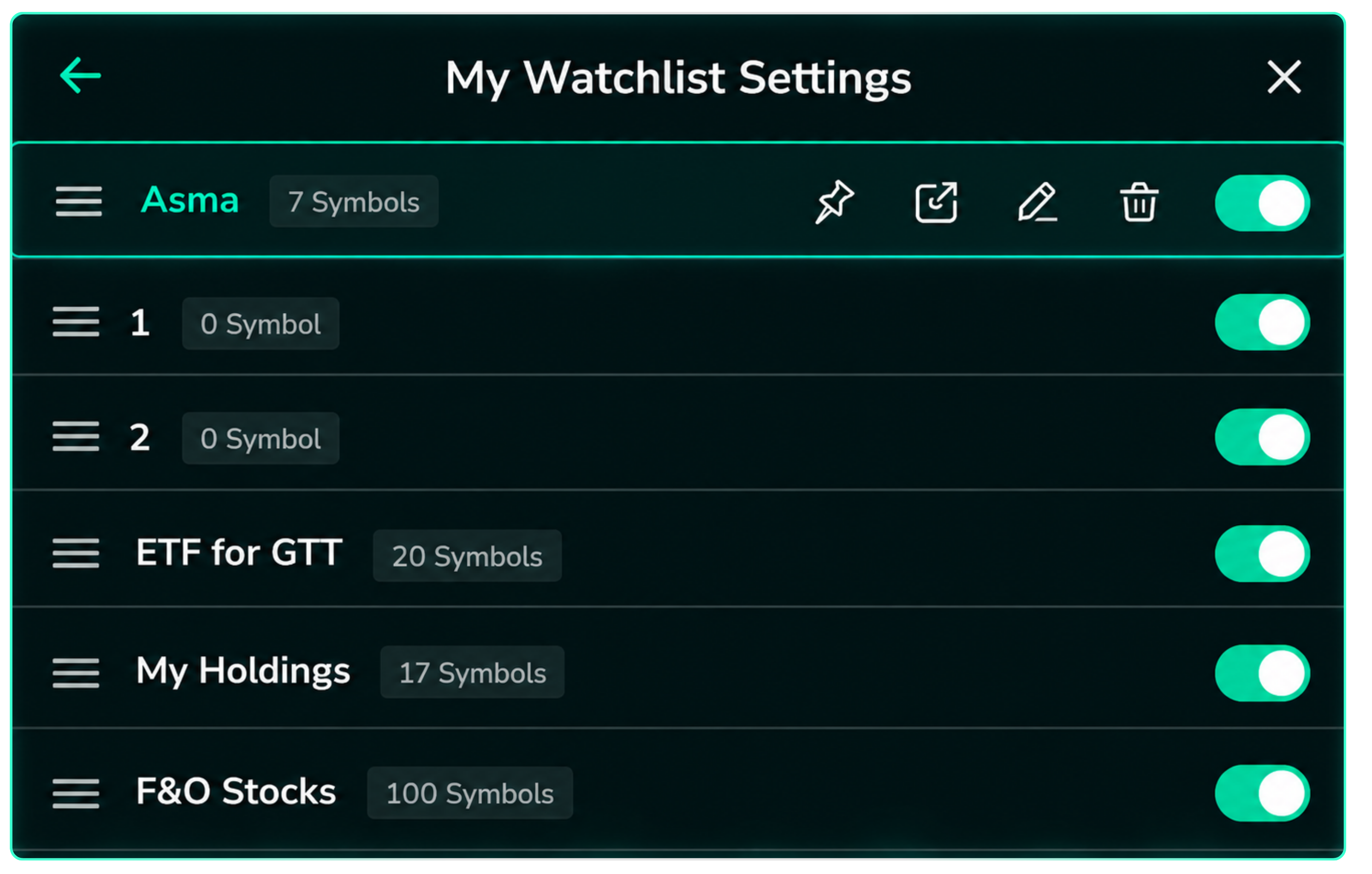
The four controls revealed on hover inside the settings panel.
The Import option lets you quickly add multiple symbols without having to add them individually.
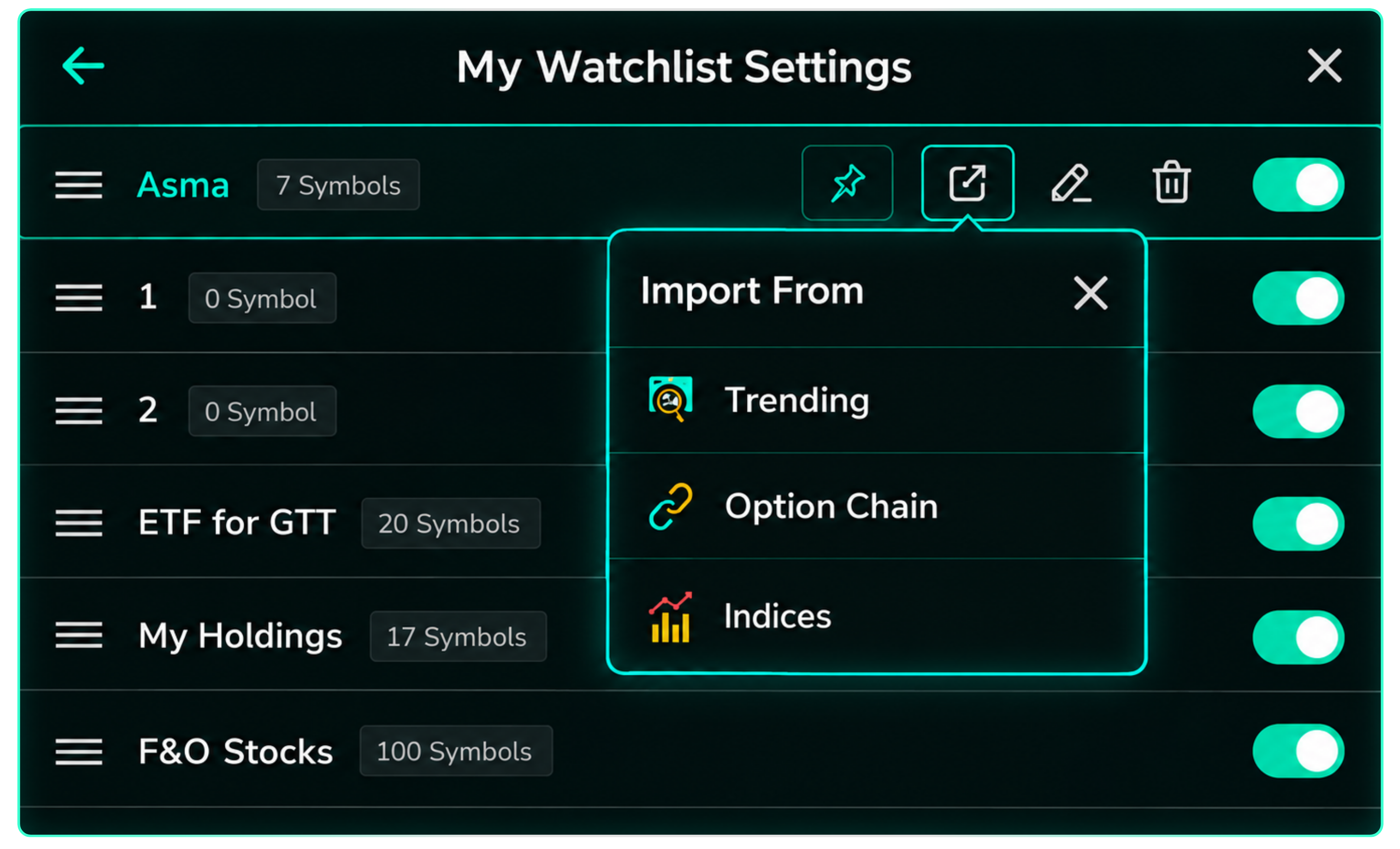
The import dialog, with Trending, Option Chain, and Indices as sources.
Customize Watchlist View
The Customize Watchlist View setting lets you control how your watchlist is displayed and behaves.
You can customise the following display options:
- Choose whether newly added symbols appear at the top or bottom of the watchlist.
- Choose whether Bid and Ask prices and quantities are displayed below the symbol.
- Choose whether the holding quantity is displayed in the same row as the symbol, allowing more symbols to fit on the screen, or below the symbol, providing a more spacious and visually comfortable layout.
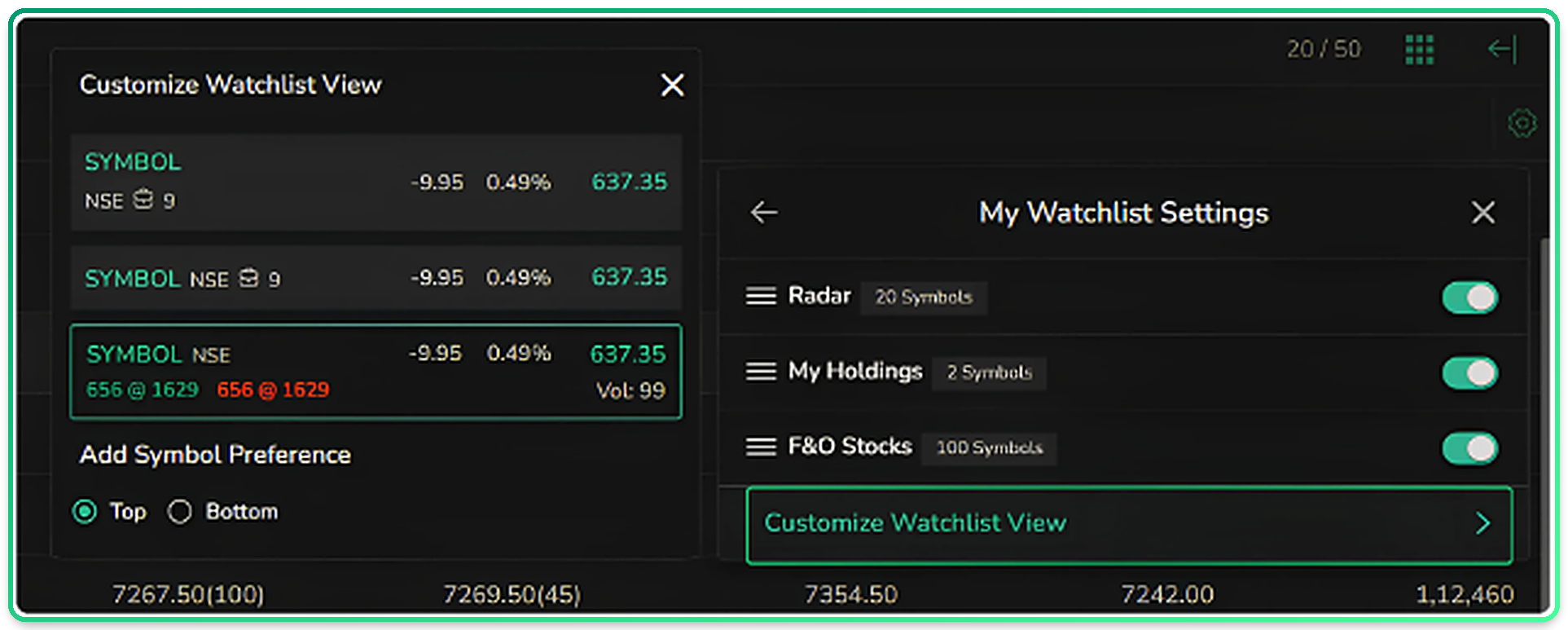
Customize Watchlist View controls the display behaviour of the list.
Heatmap View
Click the Heatmap icon at the top-right corner of the Watchlist to switch to a colour-coded grid view.
The heatmap uses different shades to represent the percentage change in each symbol, with ranges from above +5% to below -5%.
This gives you a quick visual overview of the performance of your tracked symbols, allowing you to identify major gainers and losers at a glance.
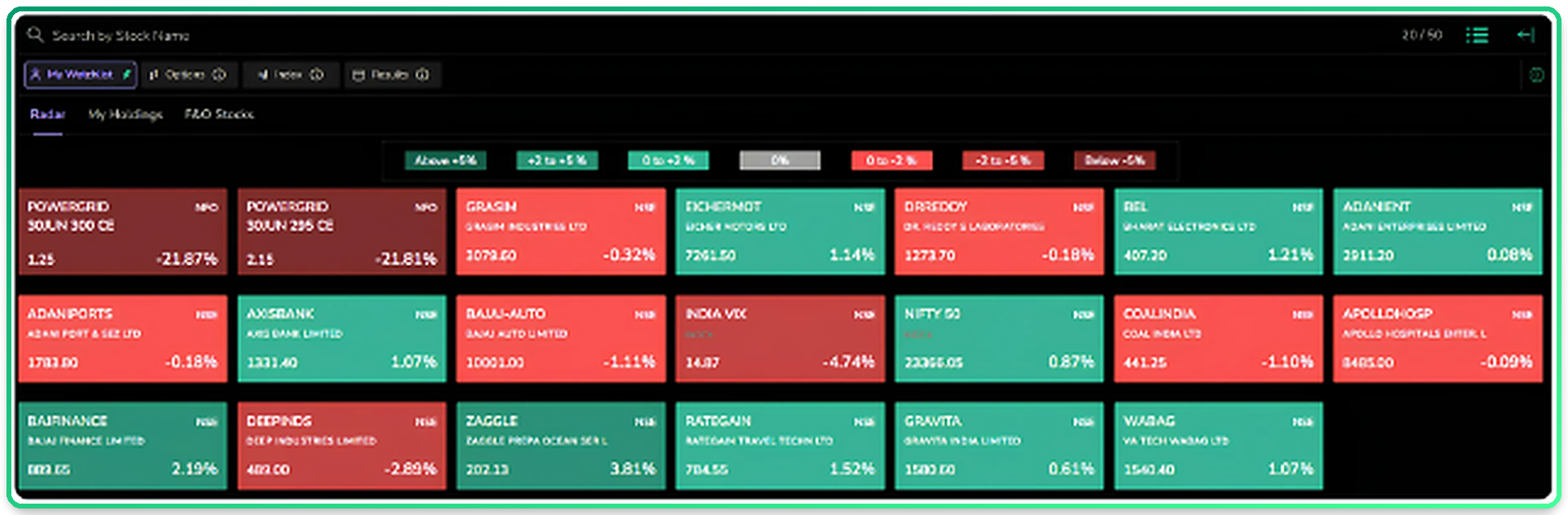
The heatmap view, with colour intensity corresponding to the day's move.