Multichart on CubePlus Mobile
Multichart lets you add up to 10 scrips on the CubePlus mobile chart screen and switch between their charts instantly. This guide explains how to view, add and switch between charts.
At a Glance
| Item | Details |
|---|---|
| Where | Chart screen on the CubePlus mobile app |
| Maximum scrips | 10 |
| What you can add | Stocks, F&O contracts, ETFs and indices |
| Number button | Shows how many scrips are added and lists them |
| Add button | Opens the search page to add more scrips |
Step 1: Open the Chart Screen
Open any chart on the CubePlus mobile app. At the top of the chart there are two buttons:
- Number button: shows how many scrips are currently added to Multichart.
- Add button: opens the page where you can add more scrips.
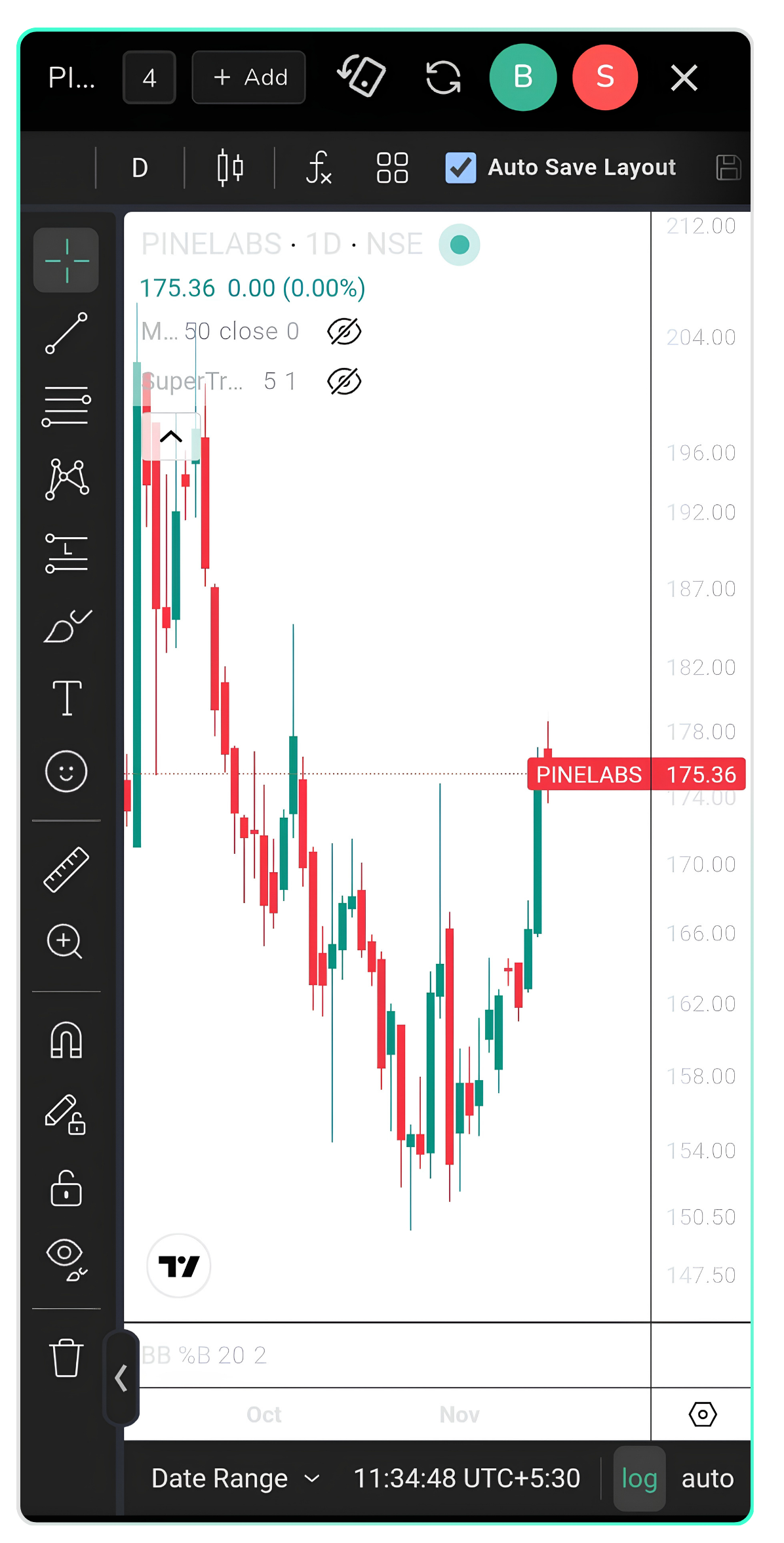
Chart screen with the number button and the Add button at the top.
Step 2: View Your Added Scrips
Tap the number button. The scrips you have added are displayed as tags at the top of the chart. In this example, the number 4 means four scrips have been added.
Tap any scrip name to open its chart.
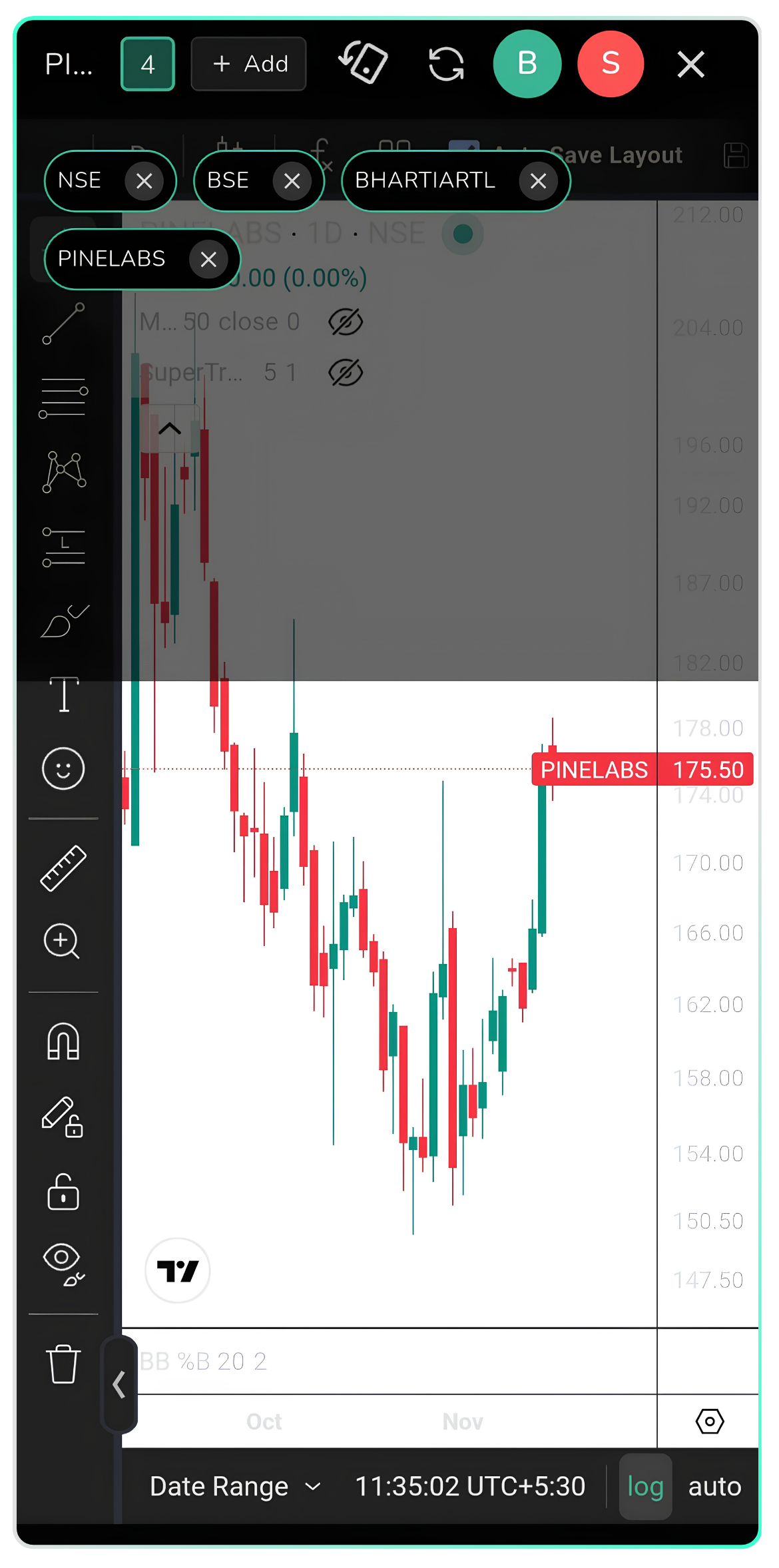
Tap the number button to see the added scrips.
Step 3: Tap Add to Add More Scrips
On the chart screen, tap Add. The search page opens. It also lists popular indices such as NIFTY 50, SENSEX and BANKNIFTY.

Search page that opens when you tap Add.
Step 4: Search for a Scrip and Select It
Type the scrip name in the search bar (for example, HDFC). Use the Stocks, F&O and ETF tabs to narrow the results, then select the scrip you want, such as HDFCBANK on NSE.
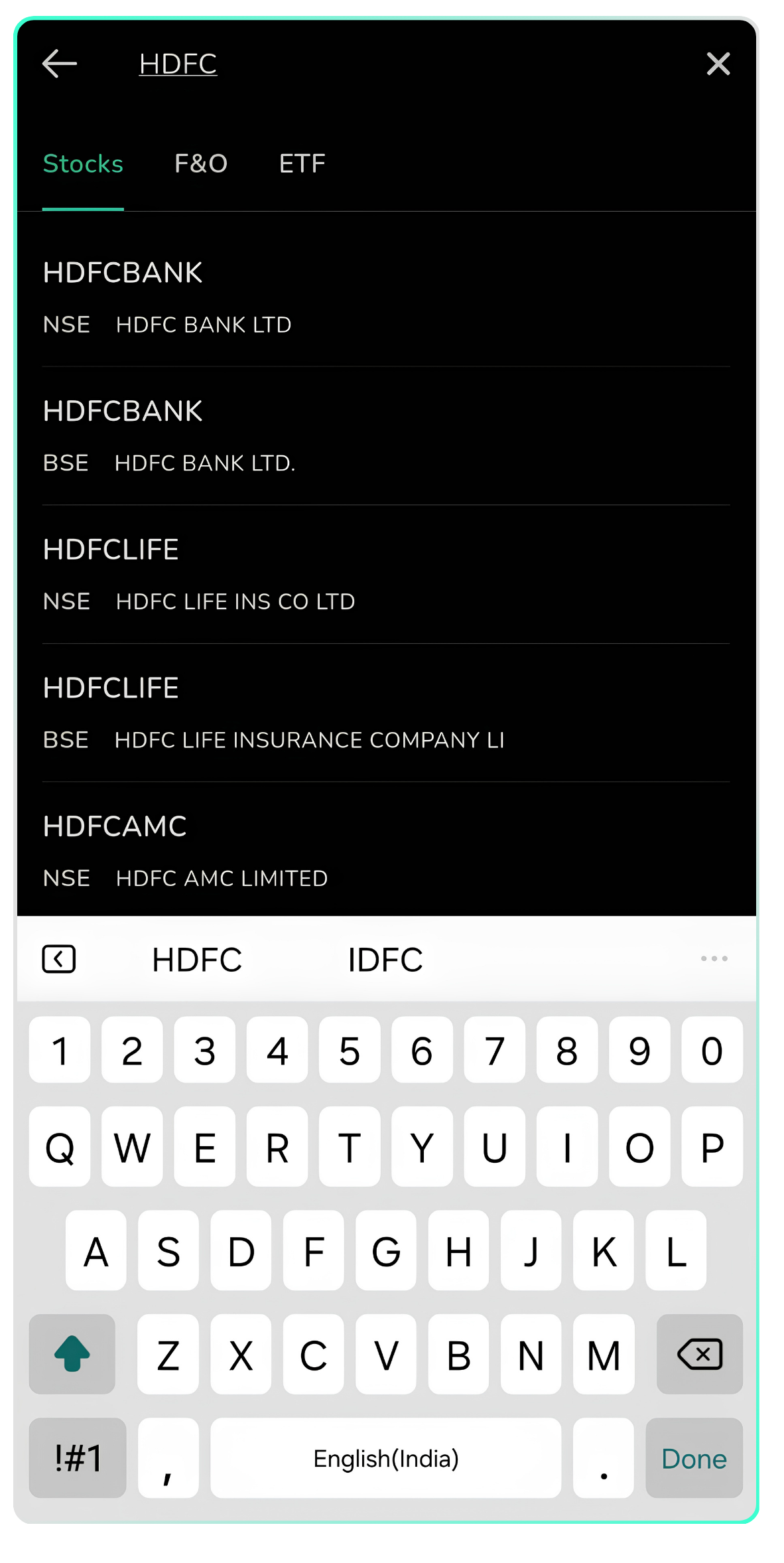
Search results for HDFC, with Stocks, F&O and ETF tabs.
Step 5: Add More Scrips the Same Way
Repeat the search for each scrip you want to add (for example, TCS). You can add up to 10 scrips in total. Check the exchange (NSE or BSE) shown under each result before selecting it.
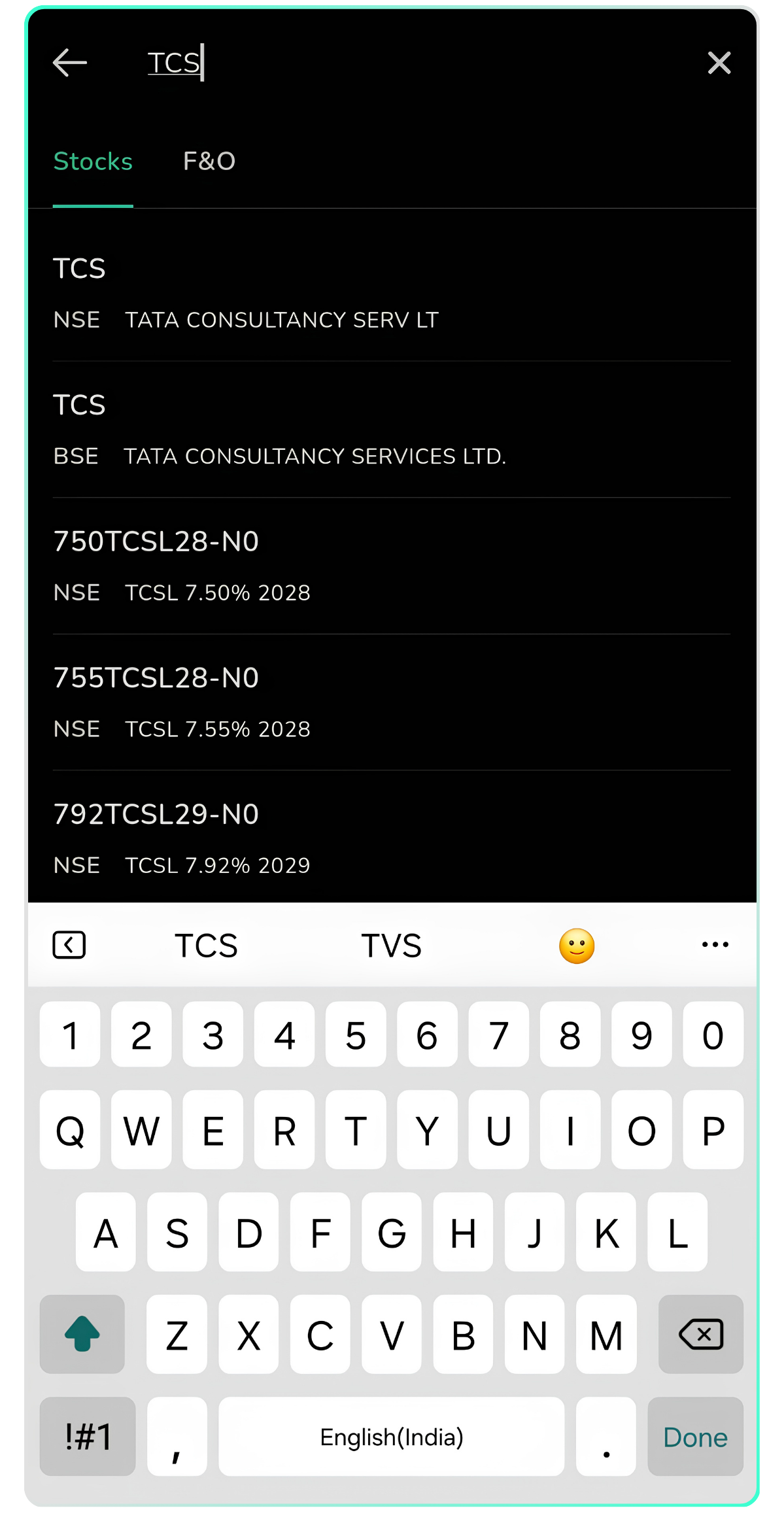
Search for another scrip, such as TCS, and add it.
Step 6: Switch Between Charts
Return to the chart screen. The number button now shows the updated count (6 in this example), and the added scrips are listed at the top. Tap any scrip, such as TCS, to open its chart instantly.
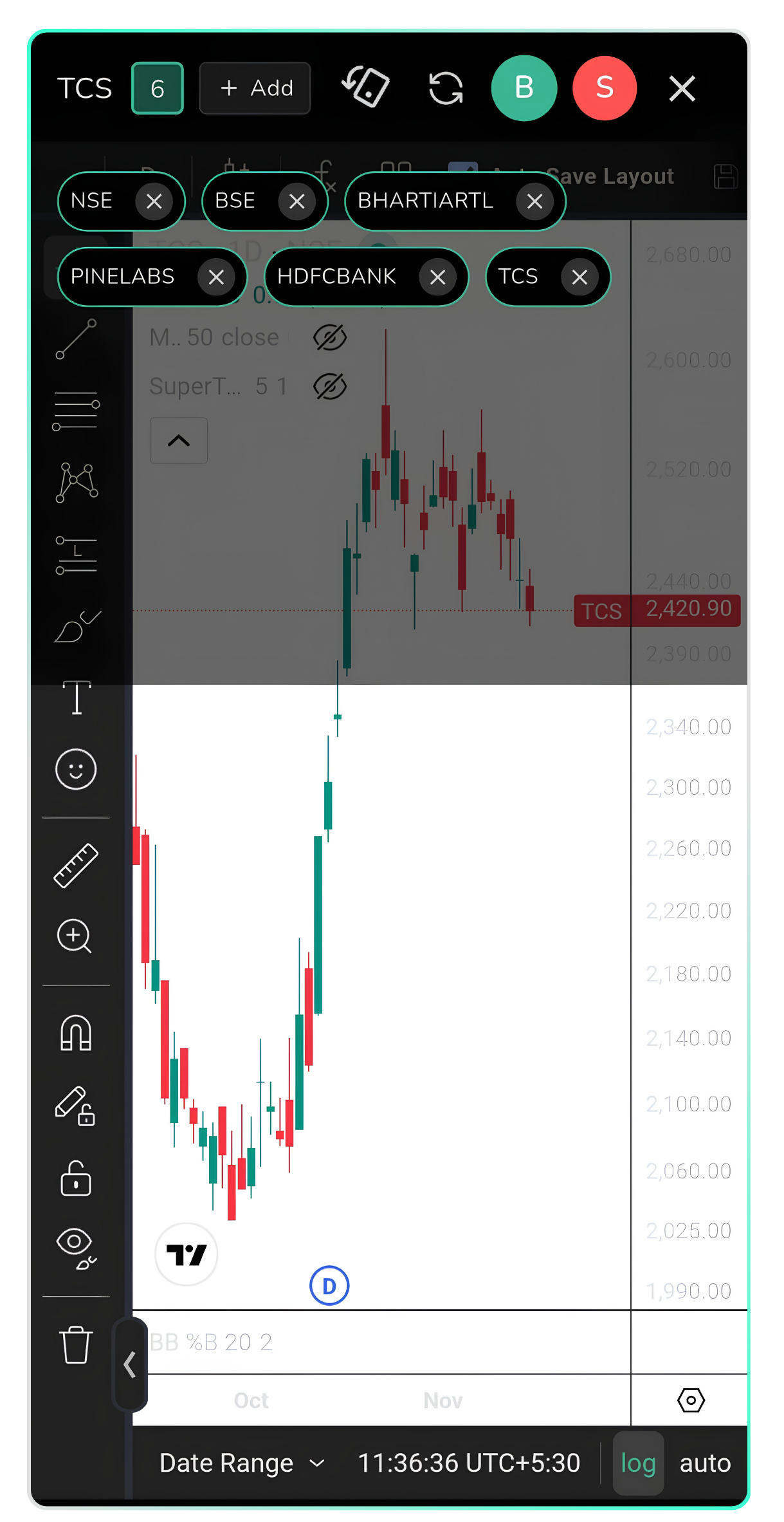
The number button shows 6 scrips, with their names displayed.
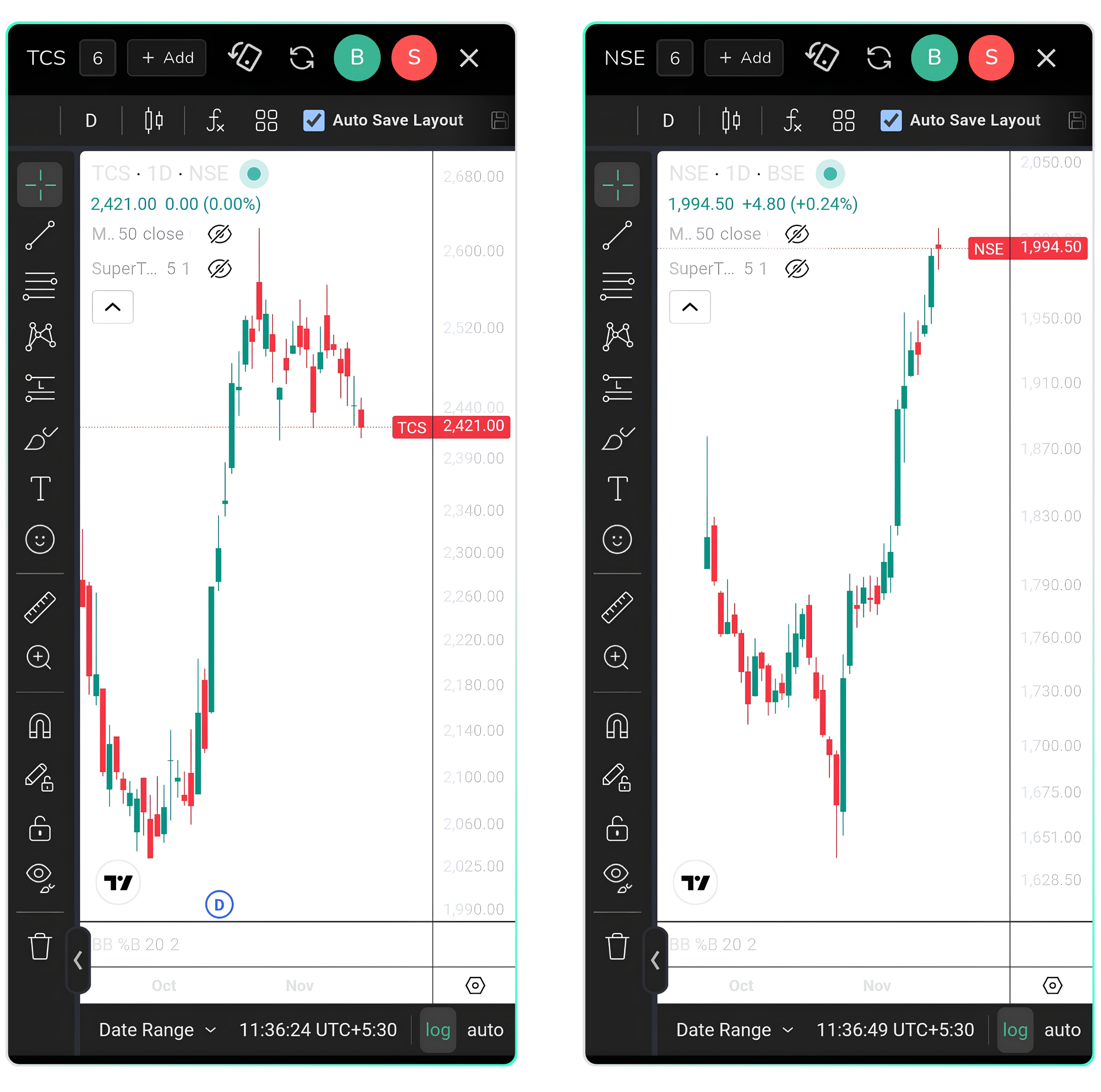
Left: TCS chart. Right: NSE chart, opened with one tap from the Multichart list.
| I want to... | Do this |
|---|---|
| See how many scrips are added | Check the number button at the top of the chart |
| See the list of added scrips | Tap the number button |
| Open a scrip's chart | Tap its name in the list |
| Add a new scrip | Tap Add, search, and select the scrip |
Points to Note
- You can add a maximum of 10 scrips.
- Check the exchange (NSE or BSE) and segment (Stocks, F&O, ETF) before adding a scrip.
- The number on the button always reflects how many scrips are currently added.