Pro mode
Pro mode lets you place buy and sell order requests directly from the watchlist in the CubePlus mobile app. It displays the available bid and ask prices with their quantities and provides a quantity field for each scrip.
On the Mobile App
Access Pro
Open the CubePlus mobile app. From the dashboard, tap Watchlist in the bottom navigation bar.
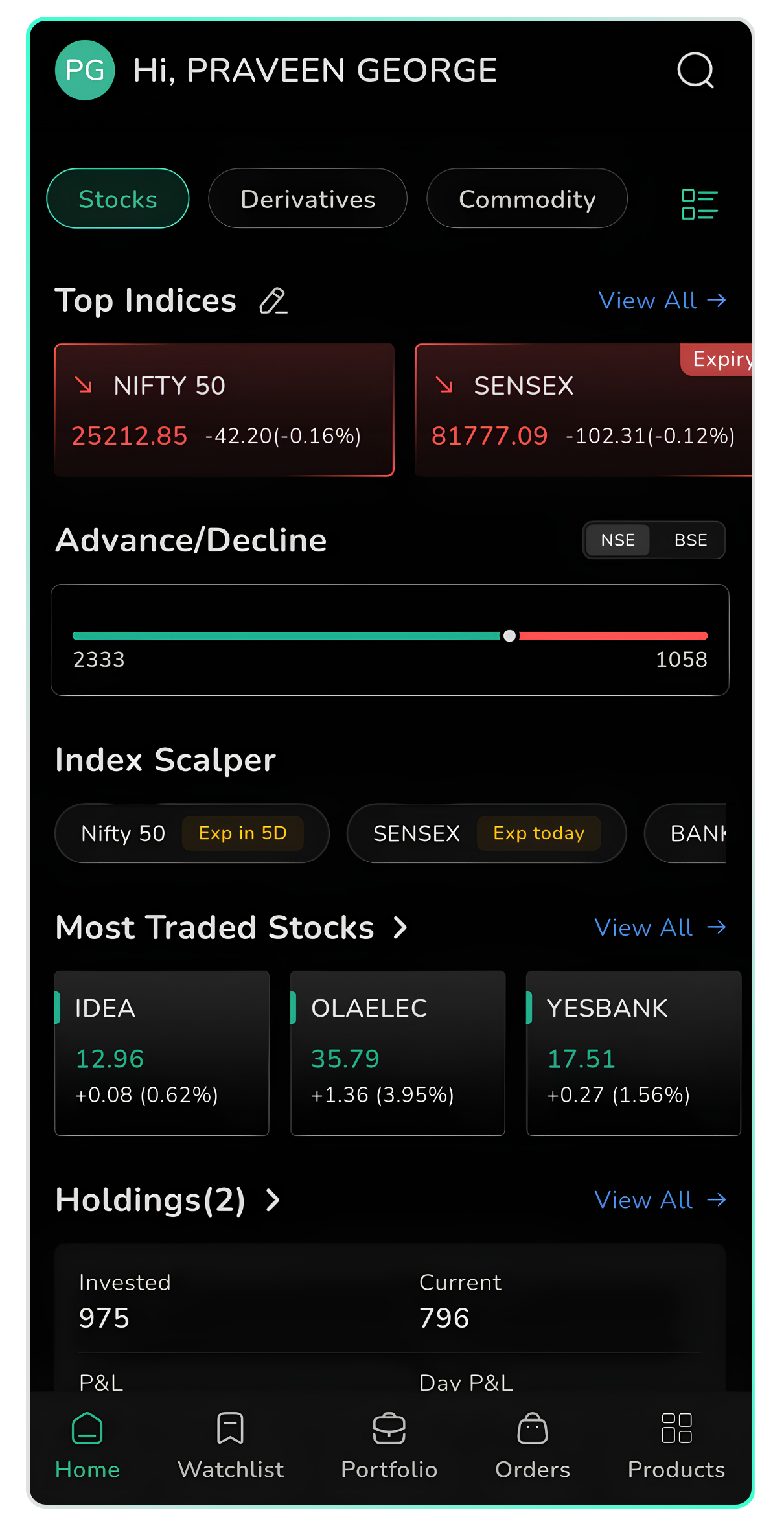
CubePlus dashboard with Watchlist in the bottom navigation bar.
The My Watchlist screen opens. It contains custom watchlists and default views such as F&O Stocks and My Holdings. The Pro mode icon is available at the top-right of the watchlist screen.
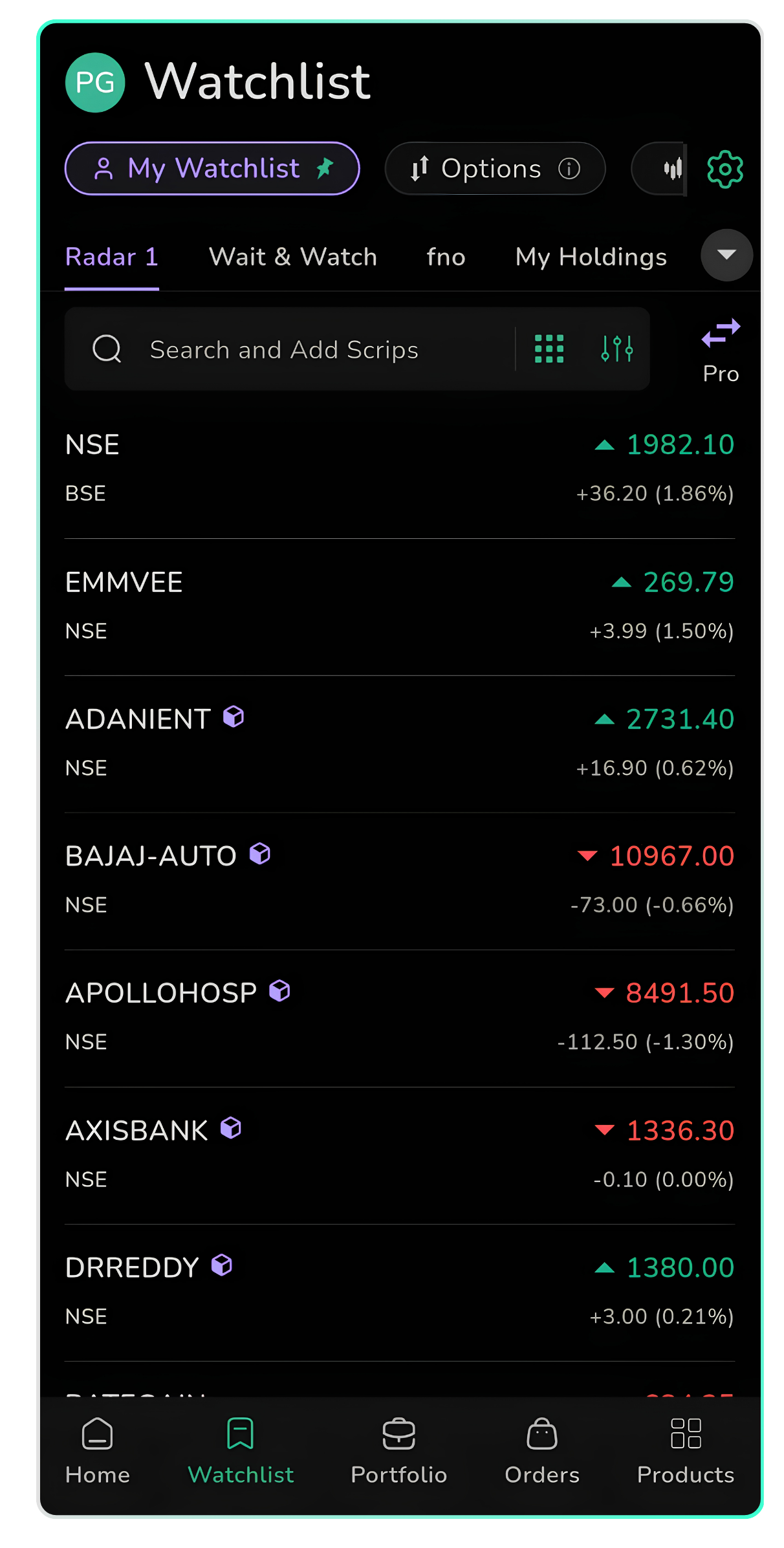
My Watchlist screen showing the Pro mode icon at the top-right.
Access Pro mode in Other Watchlist Sections
Pro mode is also available in the Options, Index and Results sections. Select the required section and tap the Pro mode icon to open its quick order view.
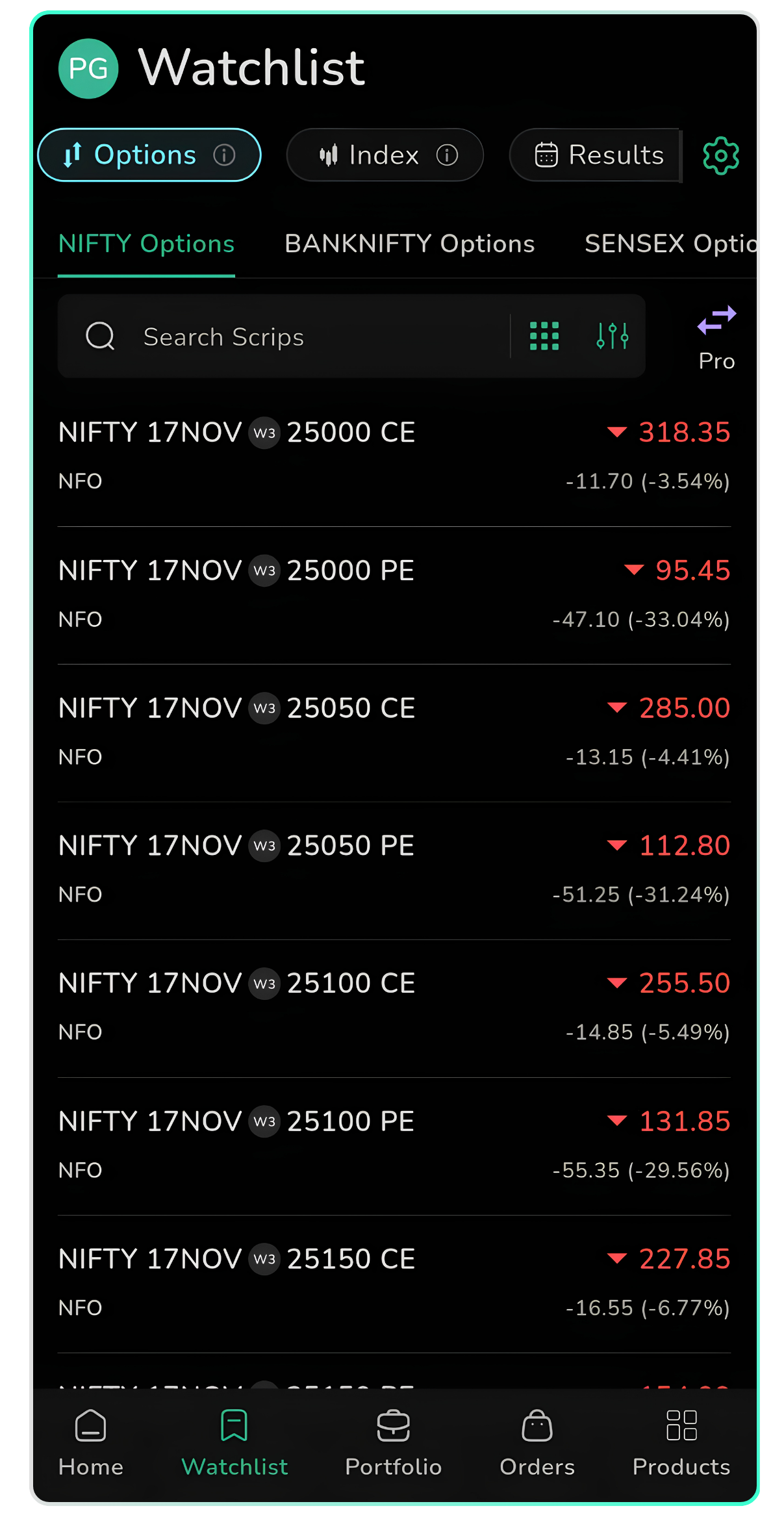
Pro mode icon shown in the Options section. Pro mode is also available for Index and Results.
Use the Pro mode View
Tap the Pro mode icon to switch to the quick order view. The watchlist displays each scrip with separate Buy and Sell buttons. The Buy button shows the lowest Ask Price and Ask Quantity. The Sell button shows the highest Bid Price and Bid Quantity.
Tap the View toggle to switch back to the normal watchlist view.
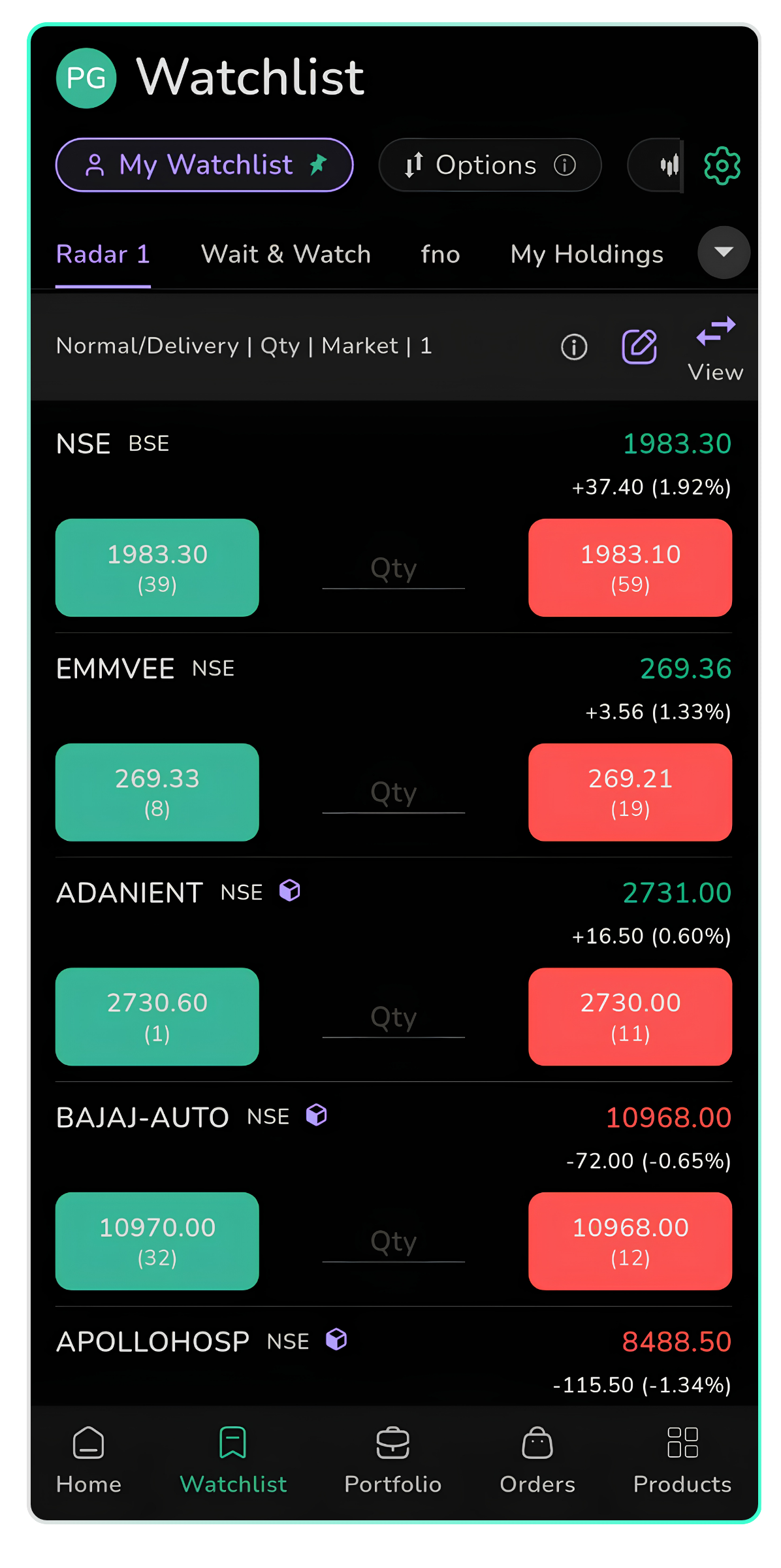
Pro mode view displaying Buy and Sell buttons with the available ask and bid prices and quantities.
Enter the Order Quantity
Enter the required quantity in the field between the Buy and Sell buttons for the scrip you want to trade. After entering the quantity, tap the corresponding Buy or Sell button to submit the order request.
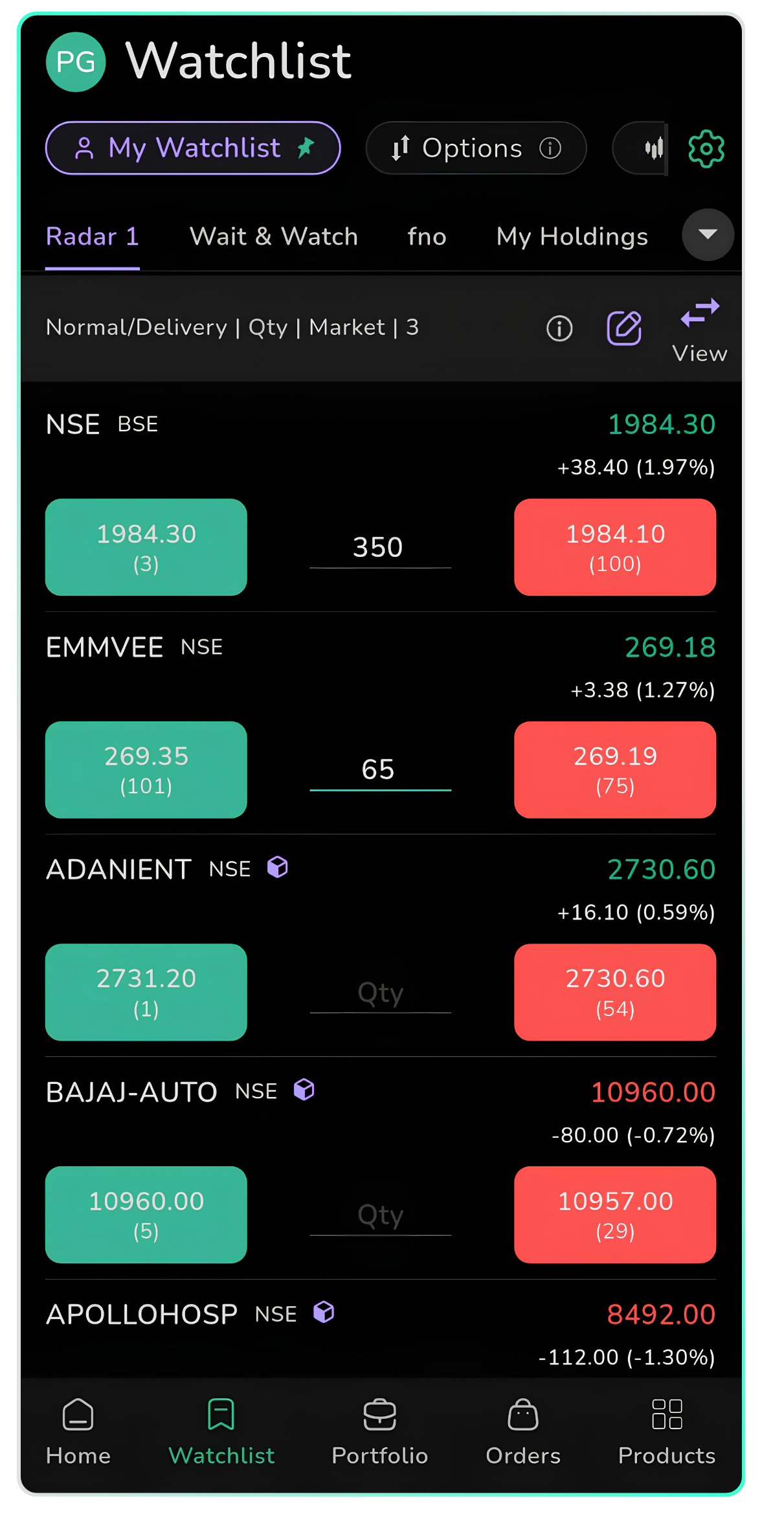
Enter the quantity in the field between the Buy and Sell buttons.
Configure Default Order Settings
Tap the pencil icon in the Pro mode view to open Settings. Configure the default order preferences using the available options:
- Products: Select Normal or Intraday.
- Qty / Lots: Choose whether to enter the quantity as Qty or Lots.
- Order Type: Select Market or Limit.
- Lot multiplier: Use the minus and plus controls to adjust the lot multiplier.
Review the selected preferences before placing an order.
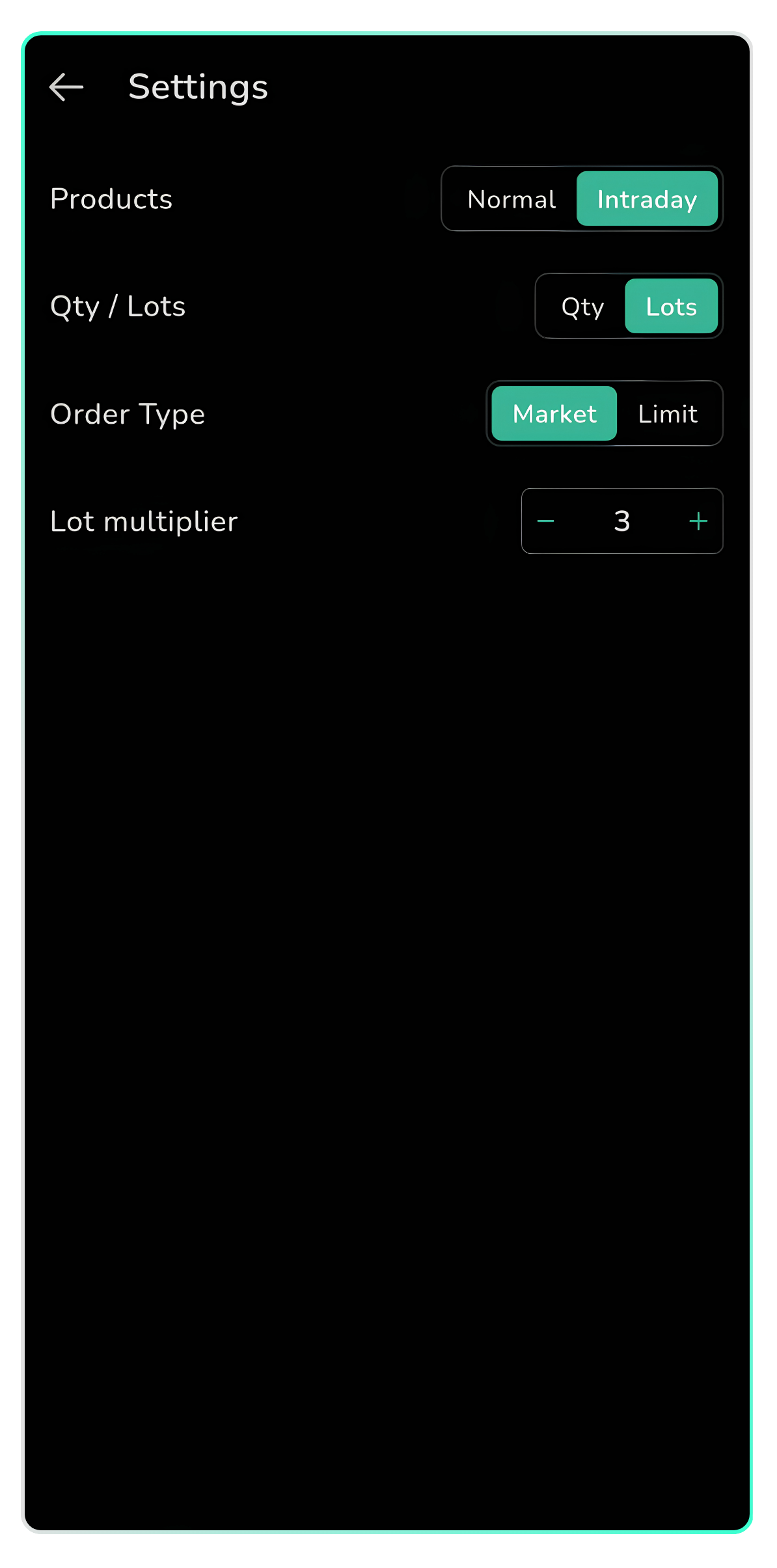
Settings screen with the available default order preferences.
Quick Order Rules
Tap the information icon on the Pro mode screen to view Quick Order Rules. The screen explains the price and quantity displayed on the Buy and Sell buttons:
- Buy: Displays the lowest Ask Price and Ask Quantity.
- Sell: Displays the highest Bid Price and Bid Quantity.
The app states that orders can be placed with one click from this view.
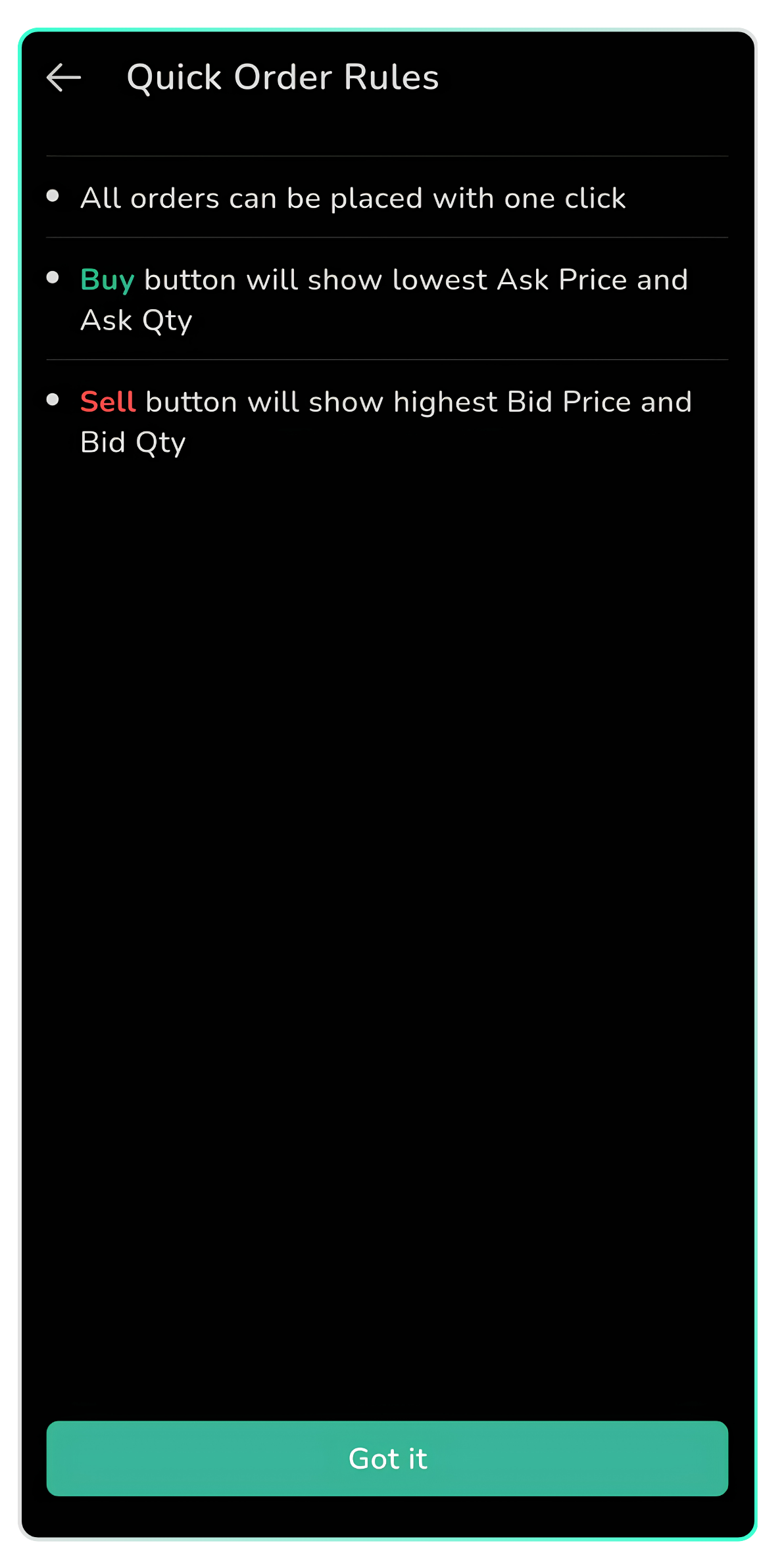
Quick Order Rules for the Buy and Sell buttons.
View Submitted Order Requests
After you tap Buy or Sell, a confirmation message appears at the bottom of the screen stating "Order request submitted". To view your orders, tap Orders in the bottom navigation bar.
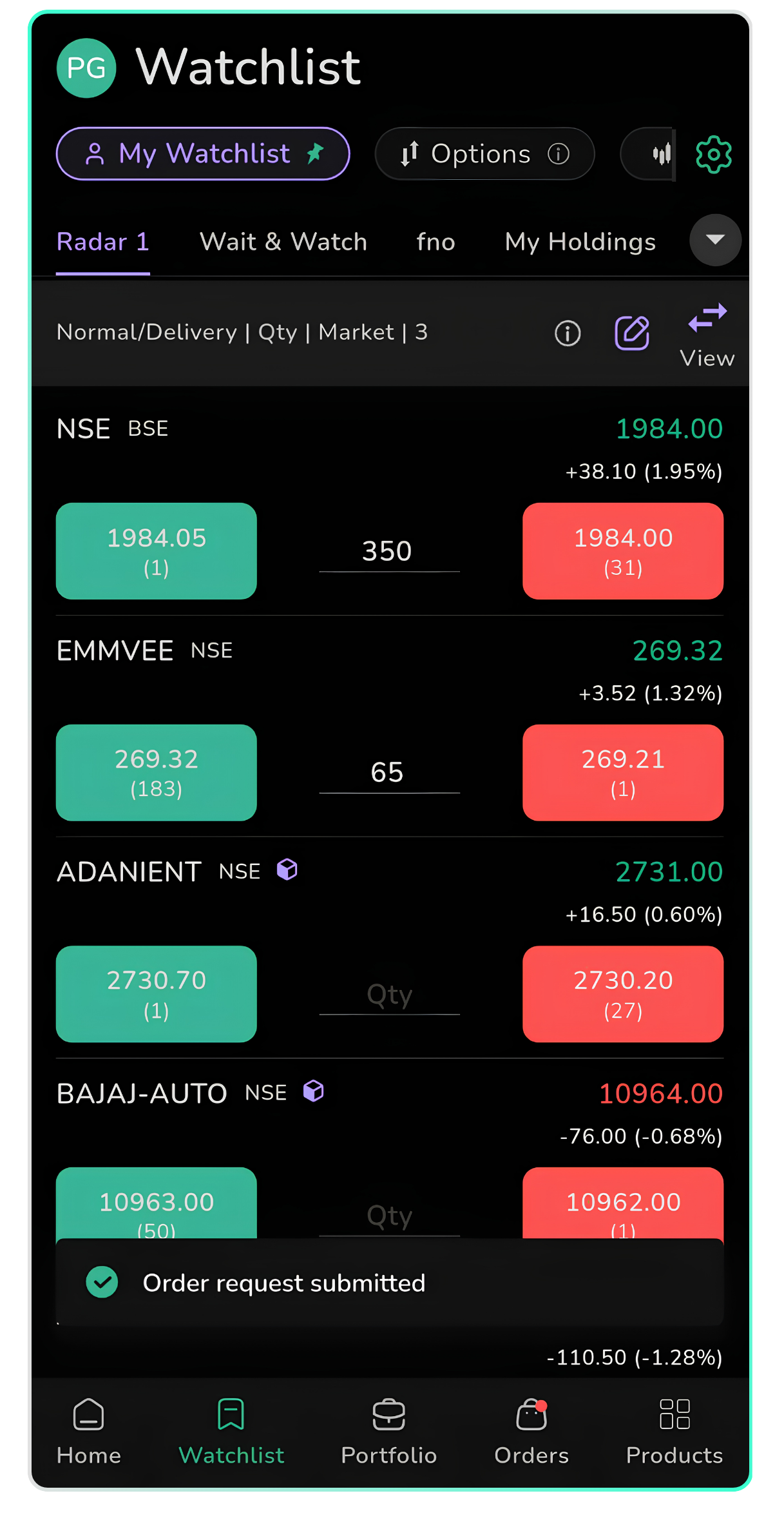
Confirmation message displayed after an order request is submitted.